Optimizer
Optimize cuts and stock lengths to save on material costs.
Introduction
Opening the Optimizer
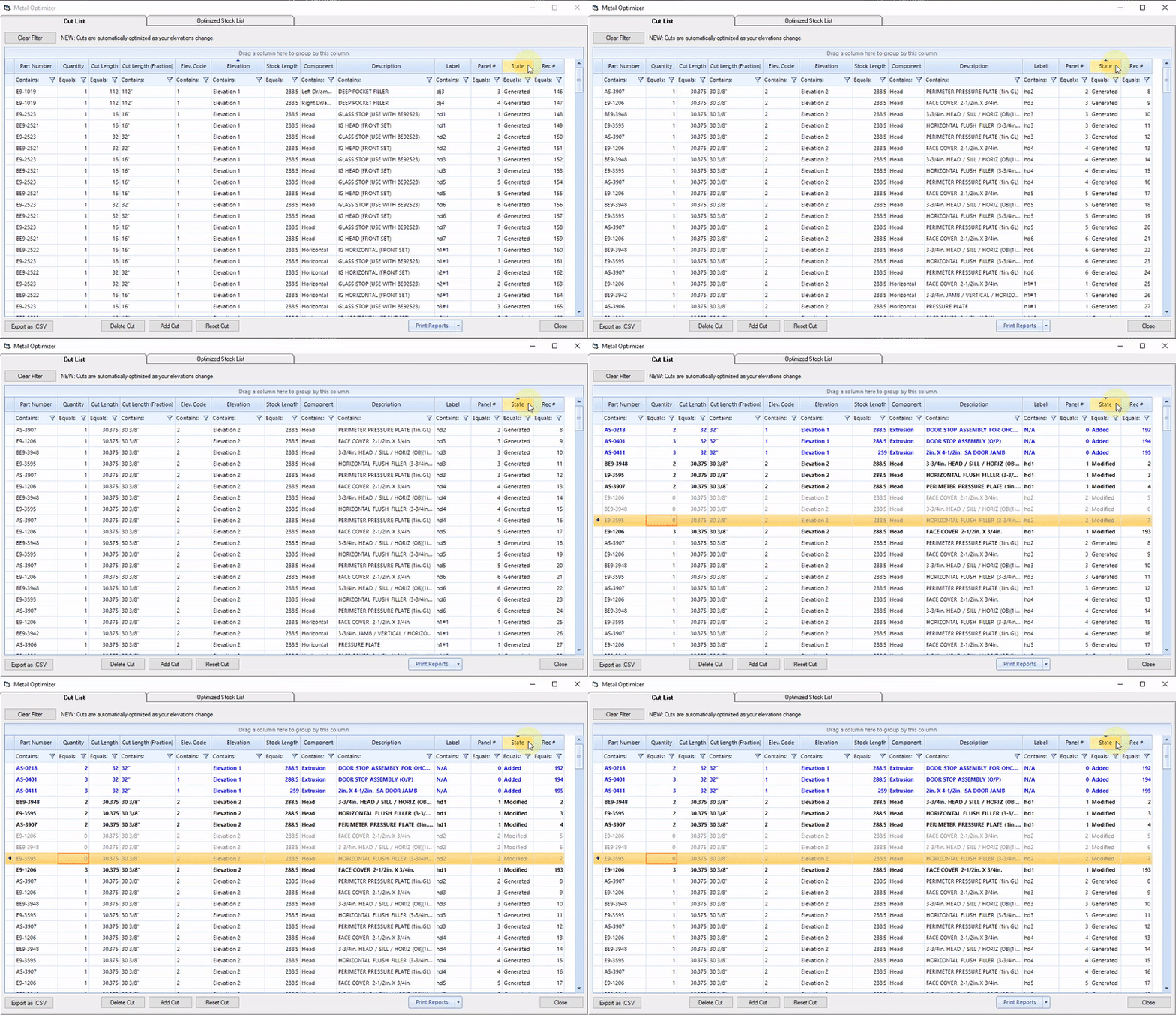
Head over to the left menu and click Optimizer under the Jobs tab.
Cut List Tab
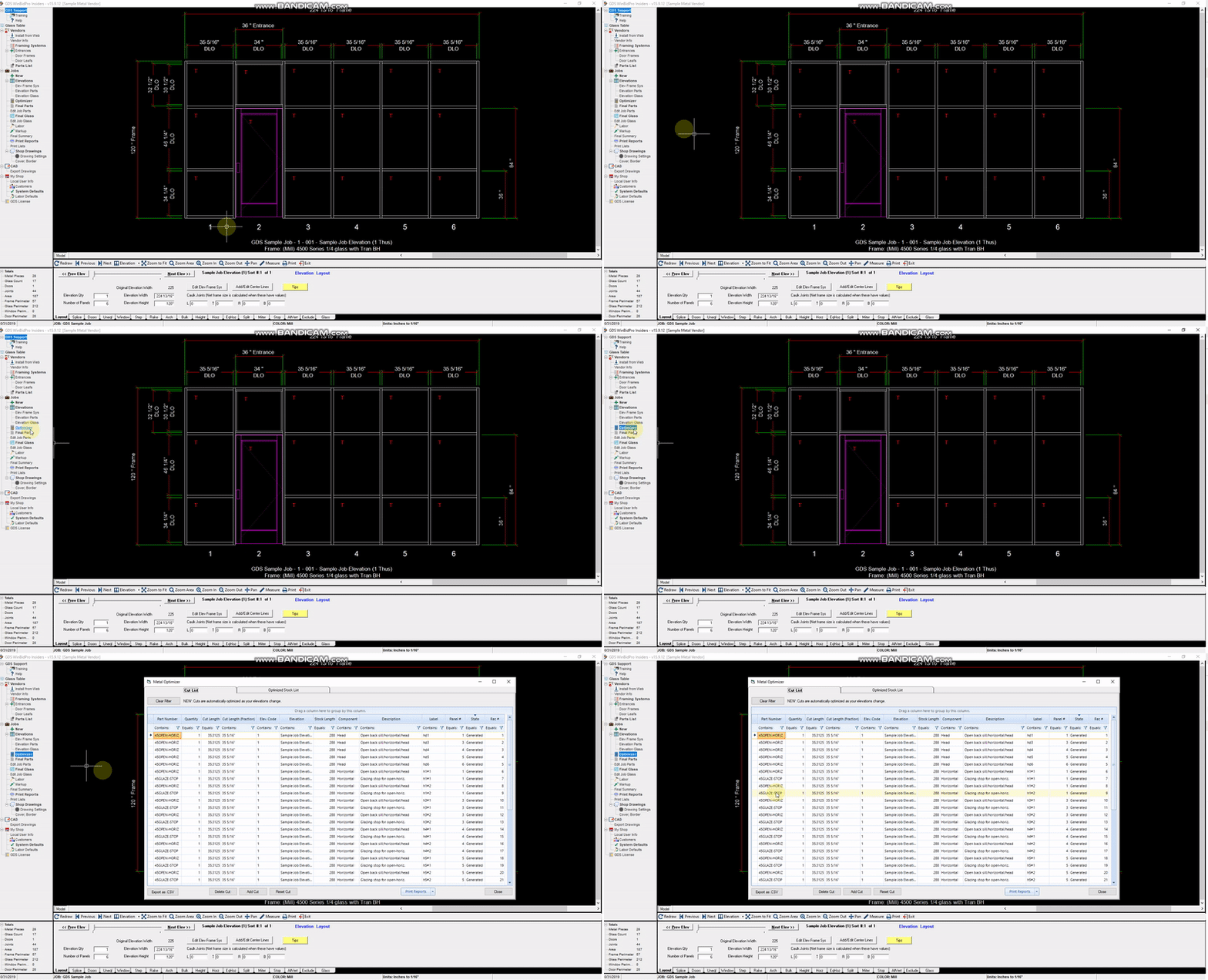
In the Cut List you can see every cut required for your current job. You can add, delete, or modify existing cuts here.
Optimized Stock List Tab
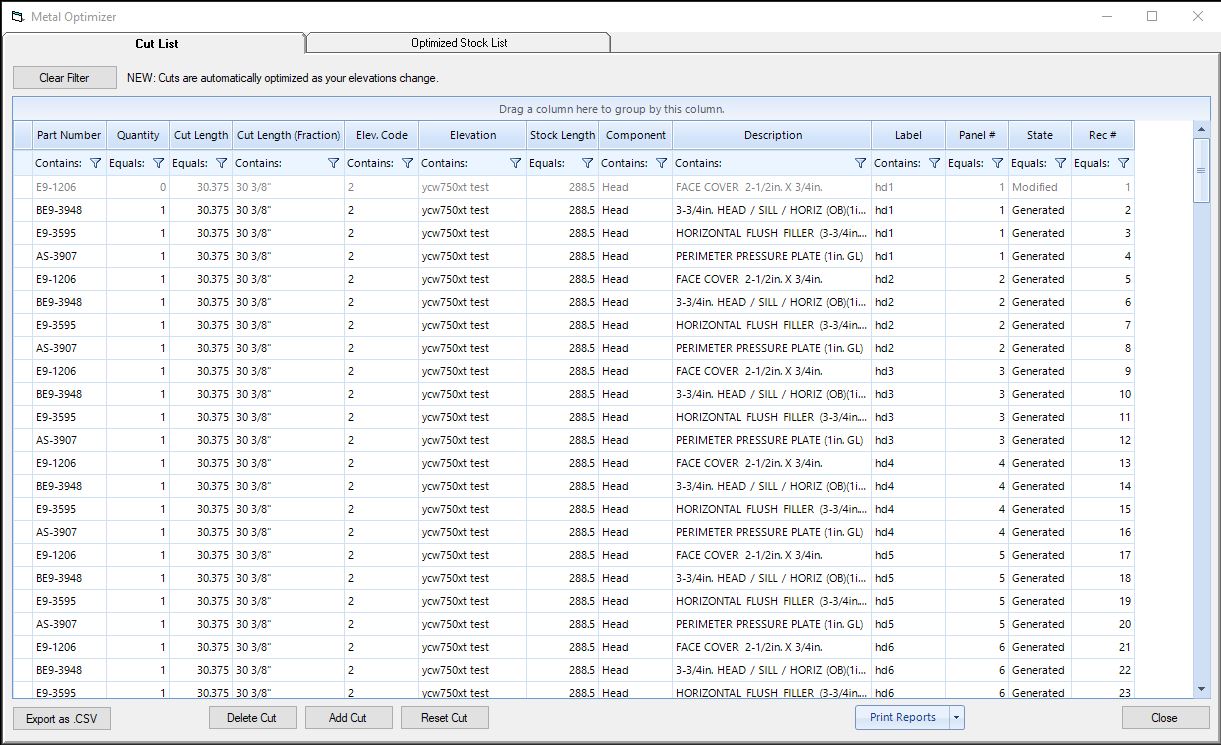
In the Optimized Stock List Tab you can see every stock length that your cuts will be made from.
You can add or delete stock lengths here.
Sorting the Cut and Stock Lists
Sorting by Column
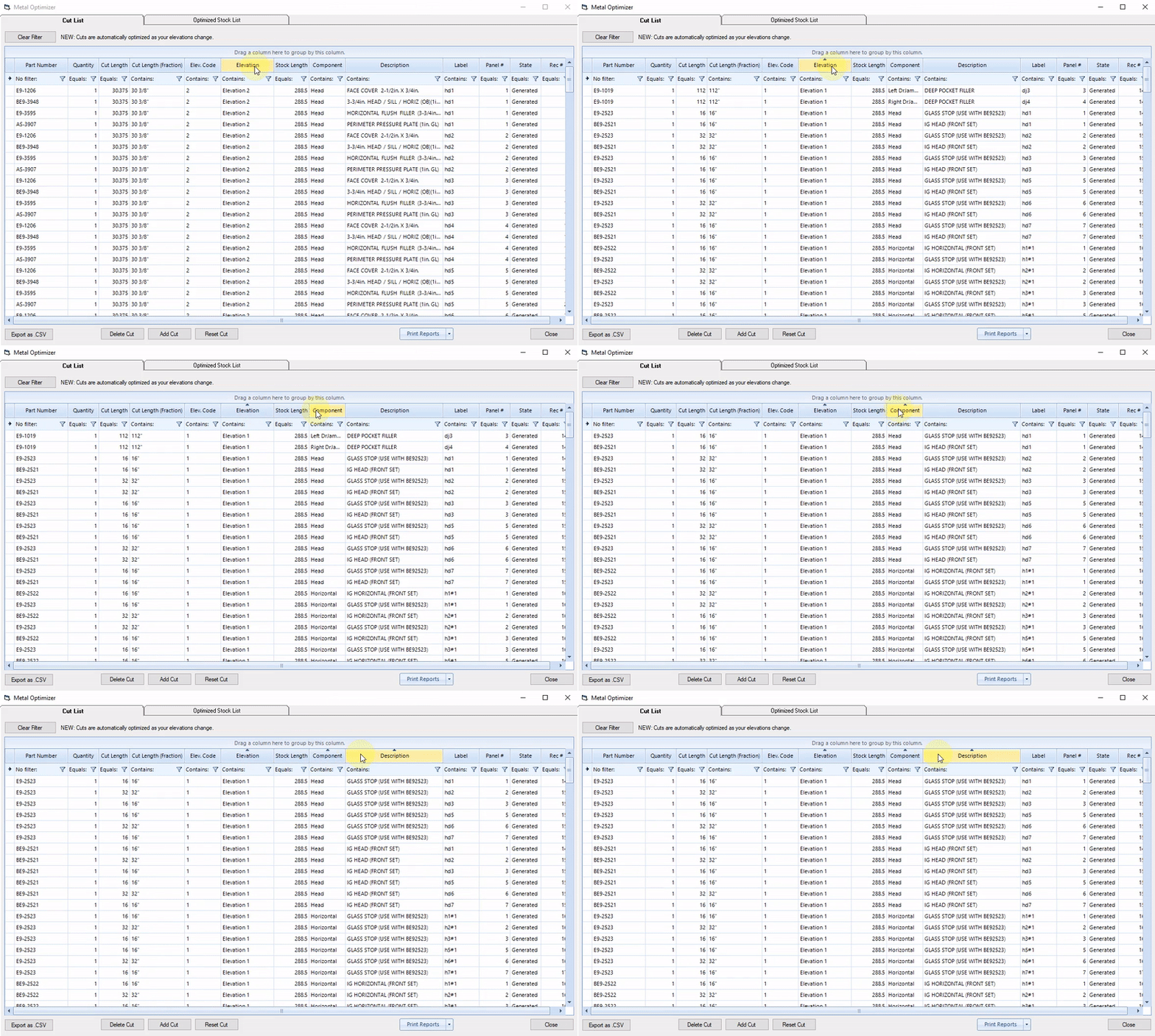
The cut list can be sorted by any column in ascending or descending order.
To do this, click the column you want to sort by. The cut list will be sorted in ascending or descending order indicated by the black arrow above the column name.
You can also sort by multiple columns by Shift+Clicking additional columns
Sorting with Filters
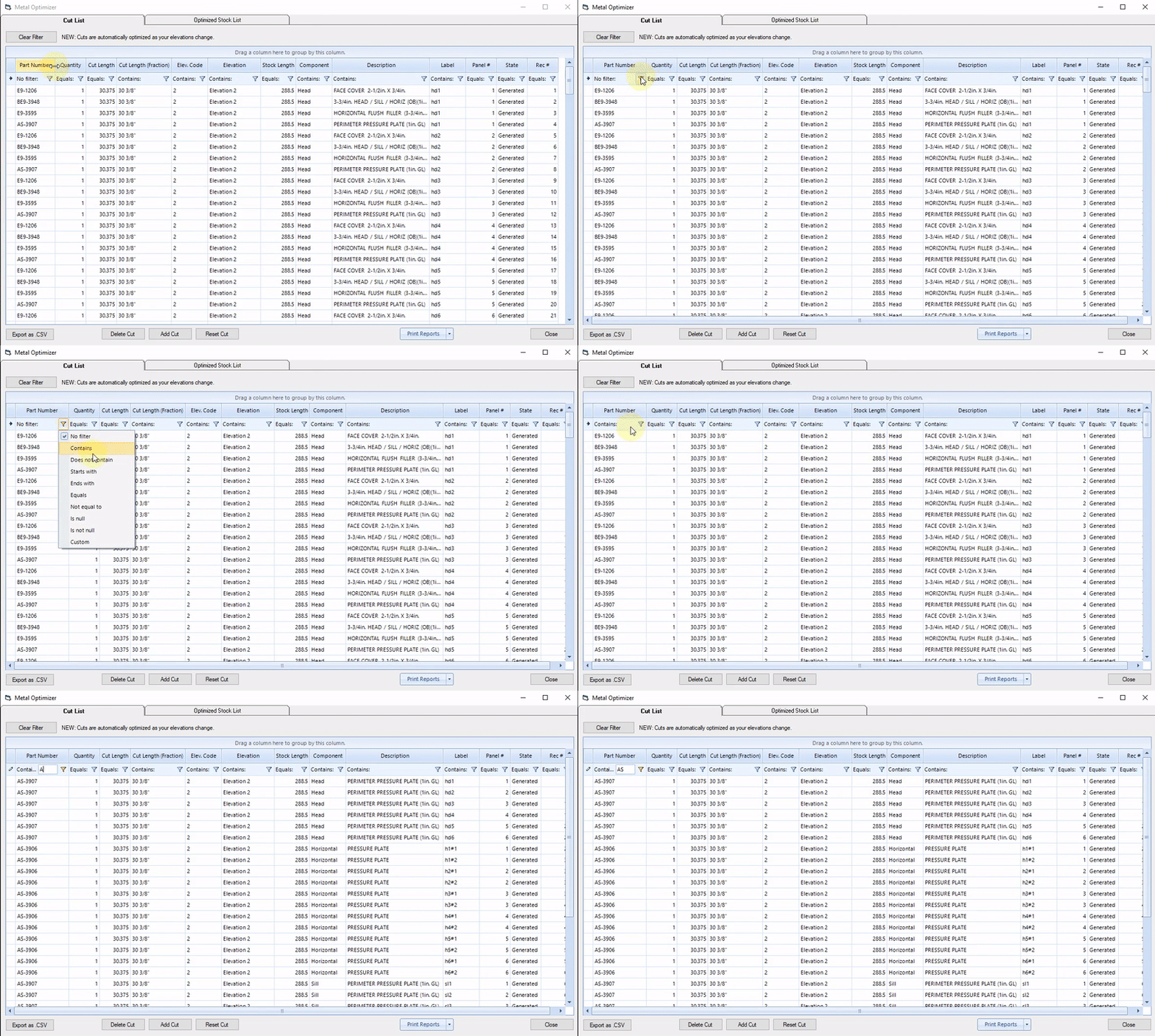
You can also sort the cut list by filtering any column based on a criteria.
For example, you can show all cuts with part numbers containing the letters "AS"
Grouping by Column
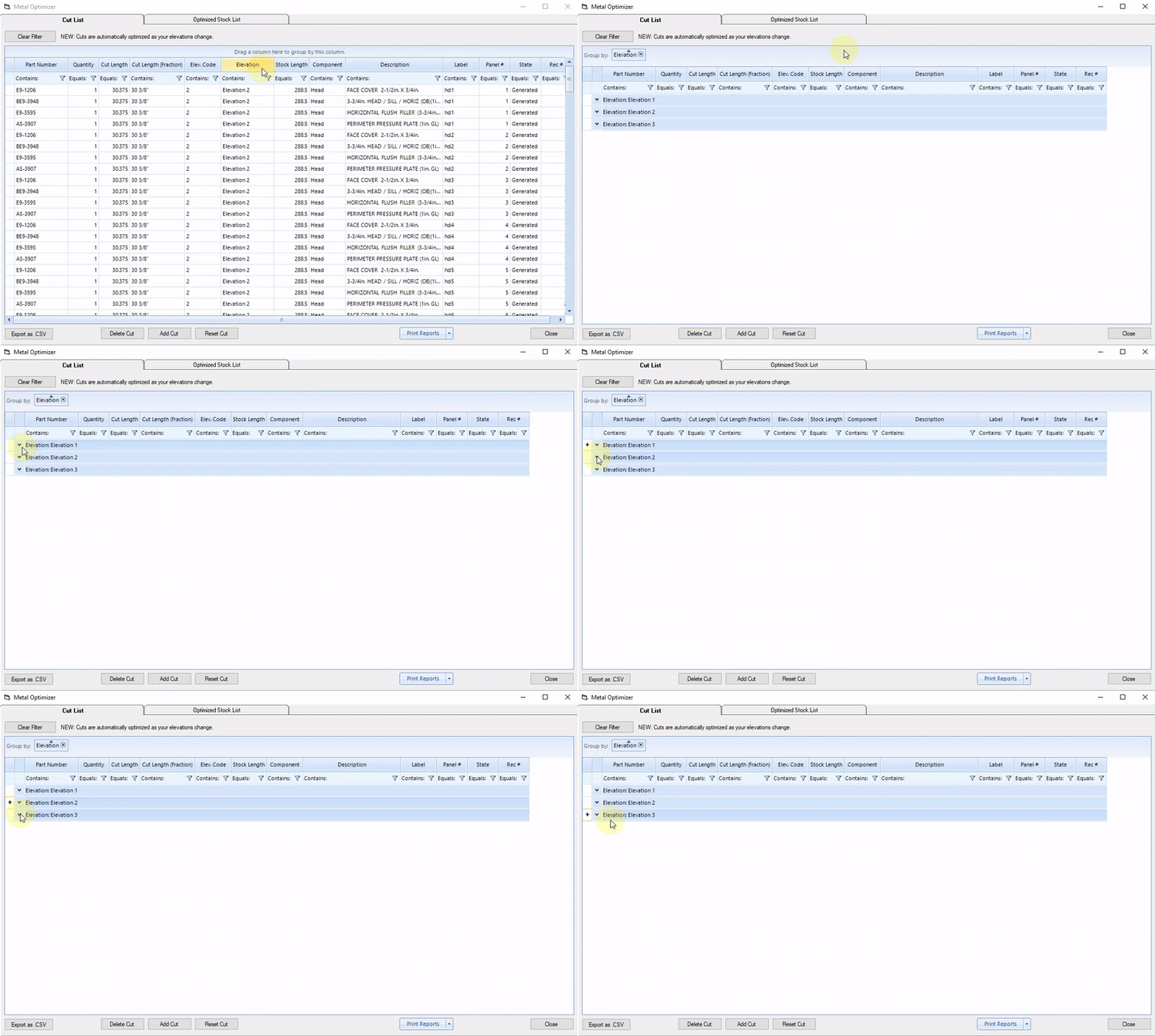
Another new feature of the Optimizer is the ability to group cuts by column for a more simplified view of the cut list.
For example you can group by Elevation by dragging that column to the section above.
Adding and Modifying Cuts
Adding a Cut
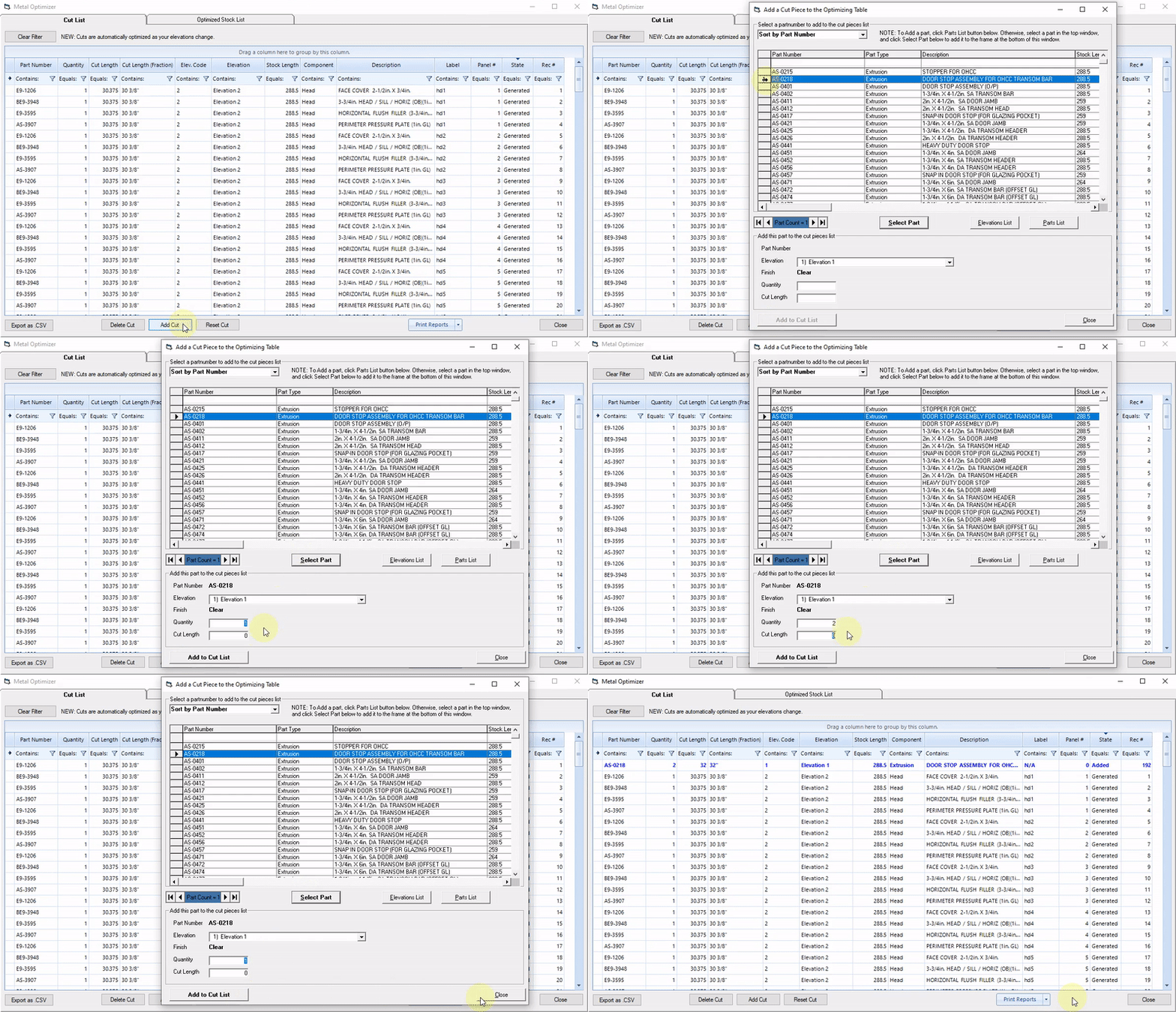
To add a cut to the cut list,
- Click
Add Cutbutton at the bottom of the Optimizer window - In the pop-up window, choose a part then click
Select Part - Specify a quantity and cut length
- Click
Add to Cut List.
Cuts that have been added manually will be blue in the cut list. They will also be classified as Added under the State column.
Modifying a Cut
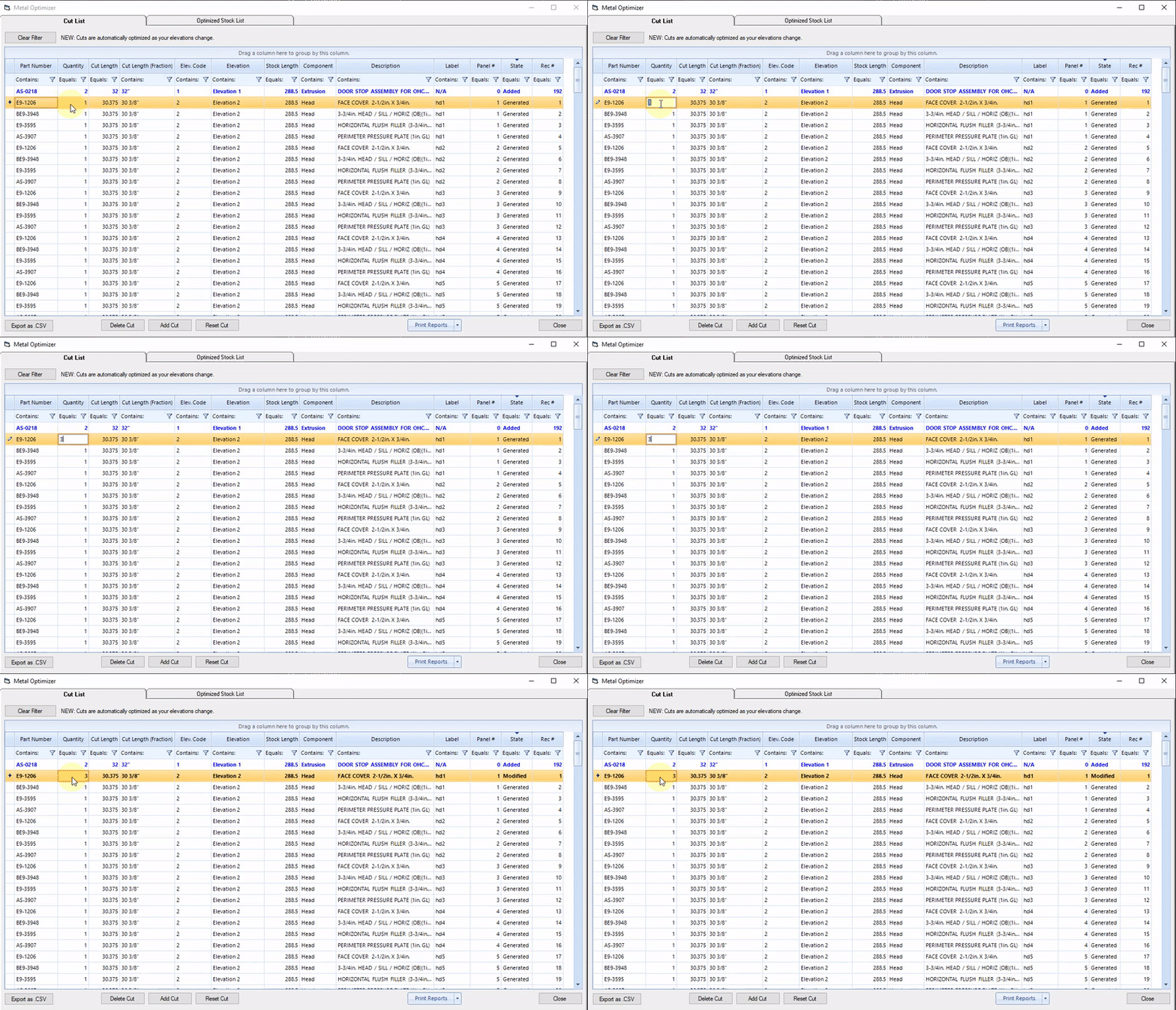
You can modify a cut by either changing its quantity, its cut length, or its elevation code. In this example we change the quantity of a cut.
To do this, click the field you would like to modify, type in a new value then hit the Enter key.
Modified cuts will be bolded in the cut list, and will be classified as Modified under the State column.
Deleting a Cut
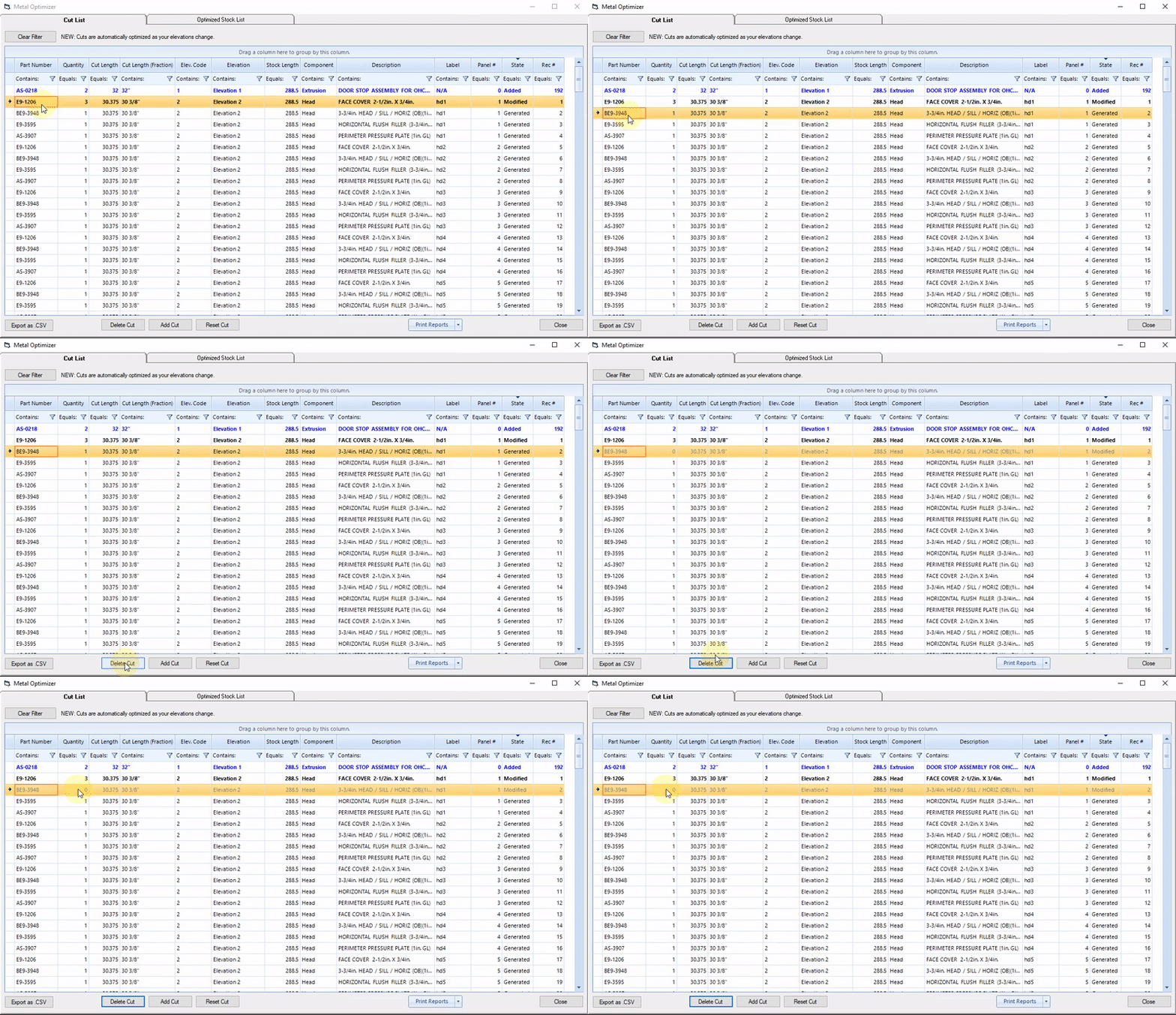
To delete a cut, highlight the cut and click Delete Cut at the bottom of the Optimizer Window.
Deleted cuts will be grayed out in the cut list, and will be classified as Modified under the State column.
Reset a Cut
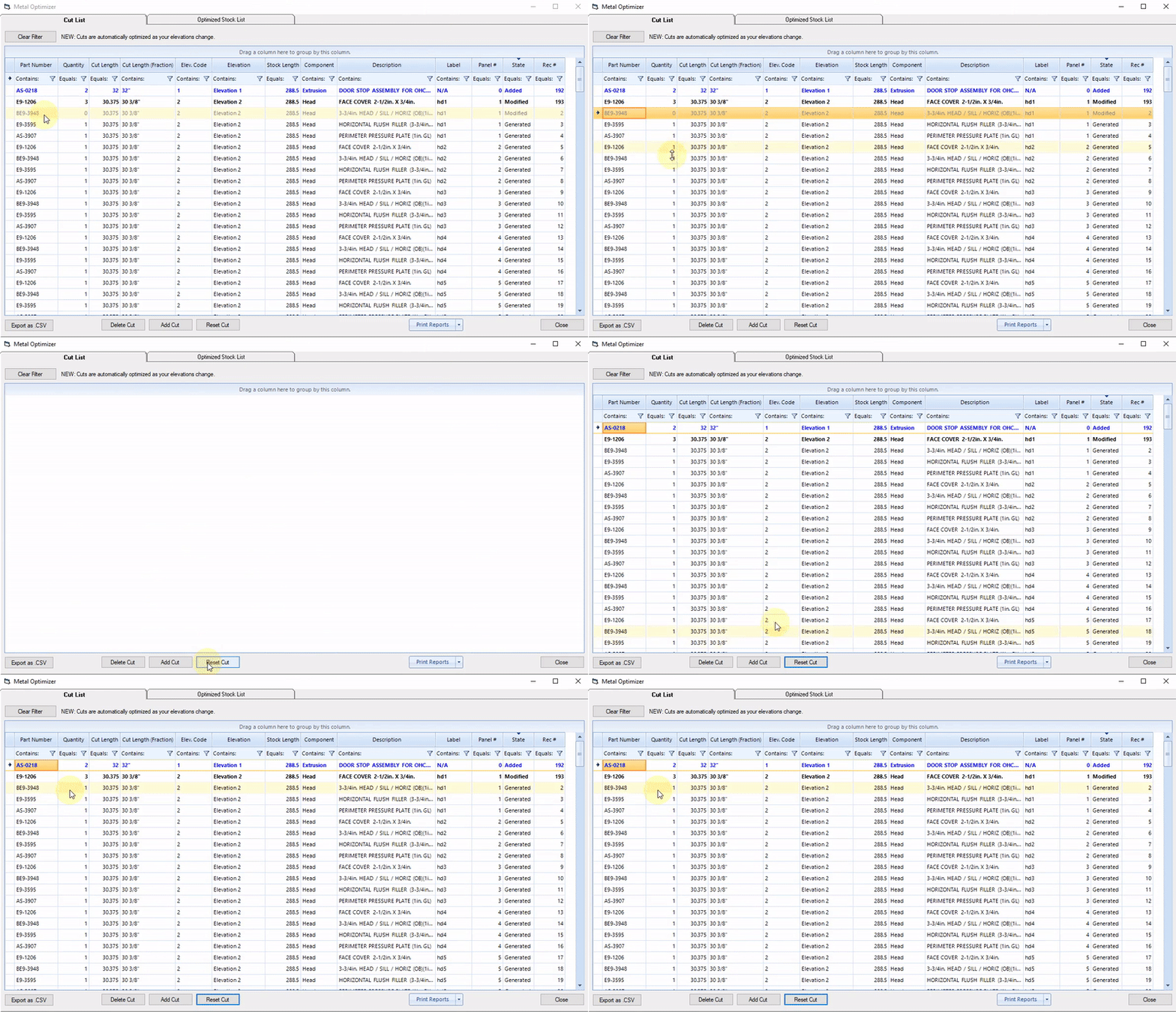
If you want to reset modifications that have been made to a cut, highlight the cut then click Reset Cut at the bottom of the Optimizer window.
Sort Cut List by Modifiied Cuts
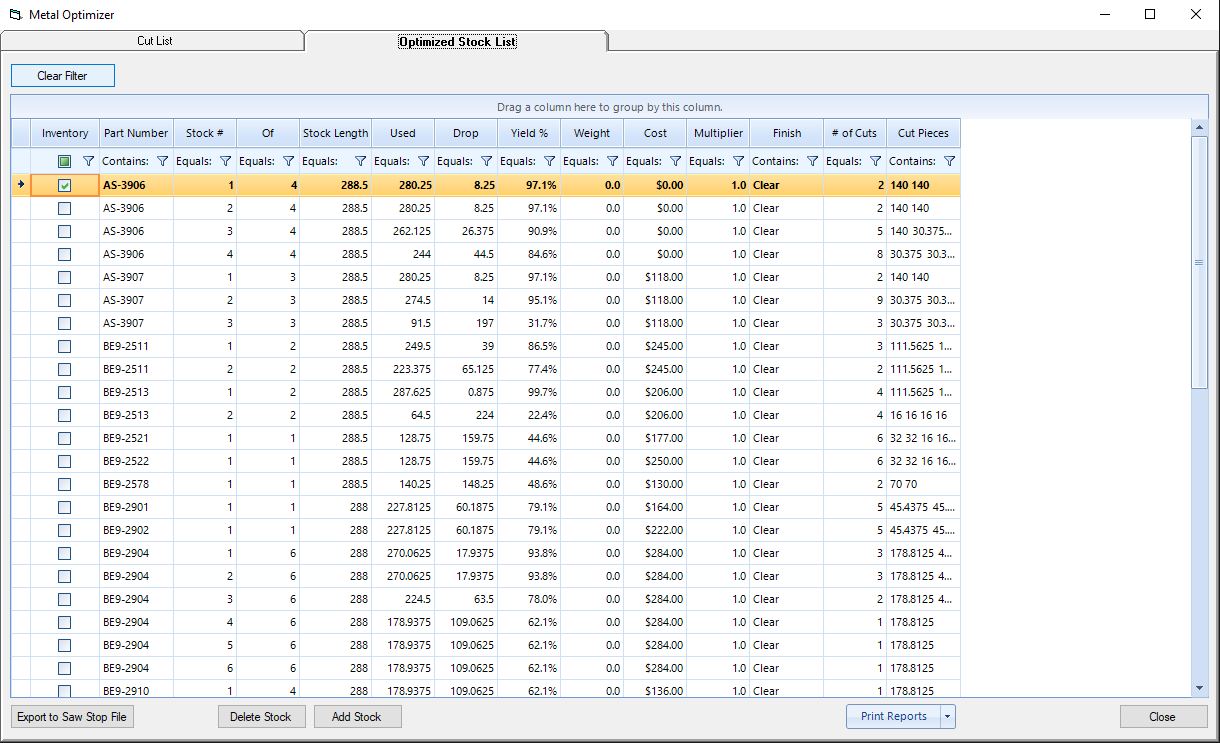
To view all cuts that have been added, deleted, or modified, click the State column.
your modified cuts will appear at the top of the cut list if sorted in descending order, and at the bottom of the cut list if sorted in ascending order.