Door Frame Settings
Learn how to configure flat fillers and pocket fillers for door jambs when adding a bulkhead
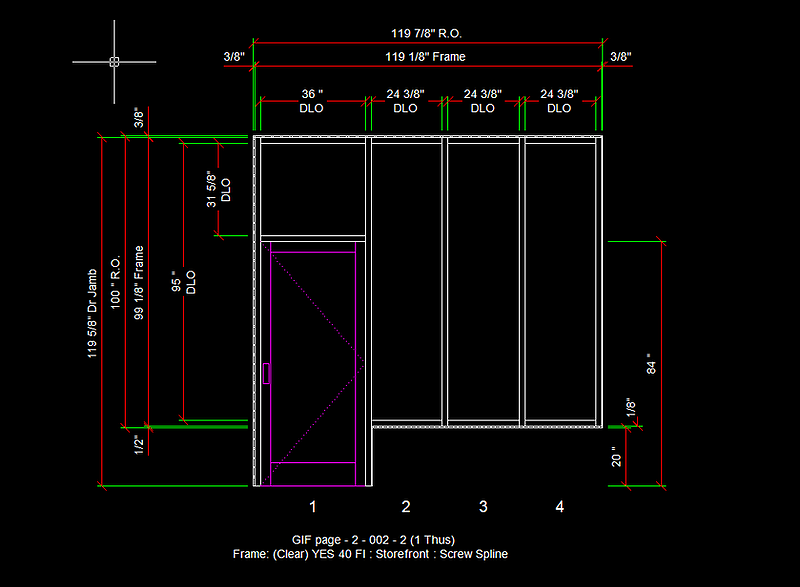
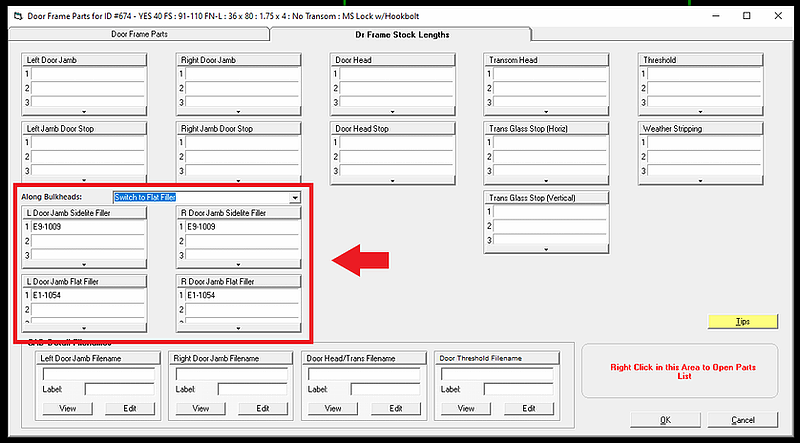
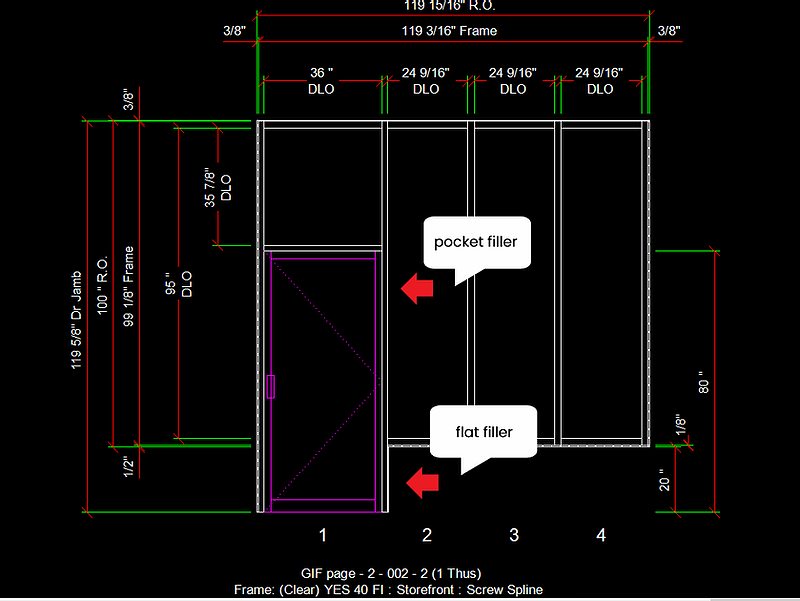
WinBidPro v15.10 allows you to decide whether to have a door jamb sidelite/pocket filler extend along a bulkhead, or to switch to a flat filler along the bulkhead. Below is an example elevation we will use to configure these settings.
You can configure these settings in the Door Frame Parts window.
Applying Door Frame Settings to the Current Job vs All Future Jobs & Elevations
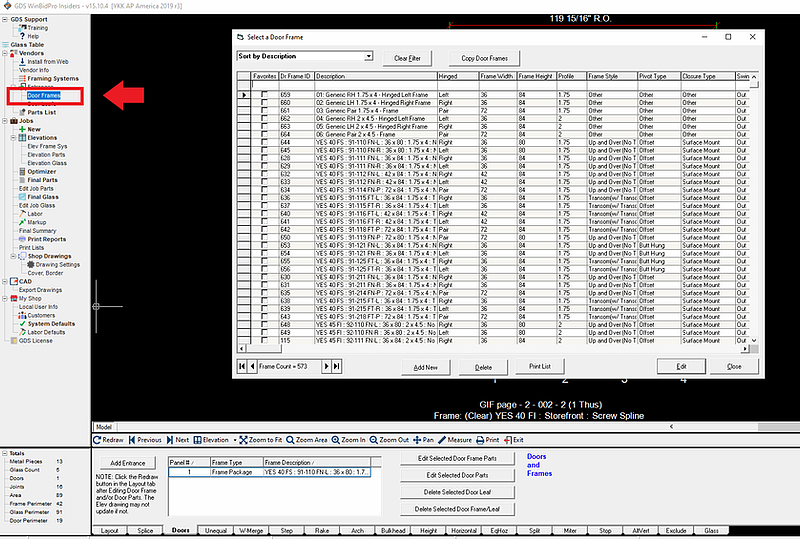
Opening Door Frames from the menu on the left will apply all changes made to future jobs and elevations but not the current elevation.
Opening Edit Selected Door Frame Parts from the Doors tab at the bottom will apply all changes made to the current elevation only, and not future jobs and elevations.
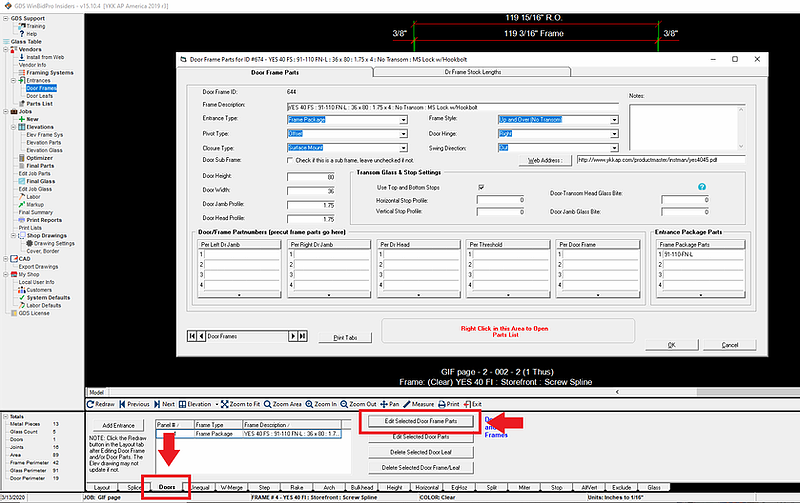
Flat & Pocket Filler Settings
The settings for flat & sidelite fillers can be entered in this section here. Be sure to enter the part numbers for the pocket & flat fillers if they aren't already there.
In the example elevation below, we will choose to have a flat filler along the bulkhead rather than the pocket filler continuing down.
To do this, choose Switch to Flat Filler and click OK.
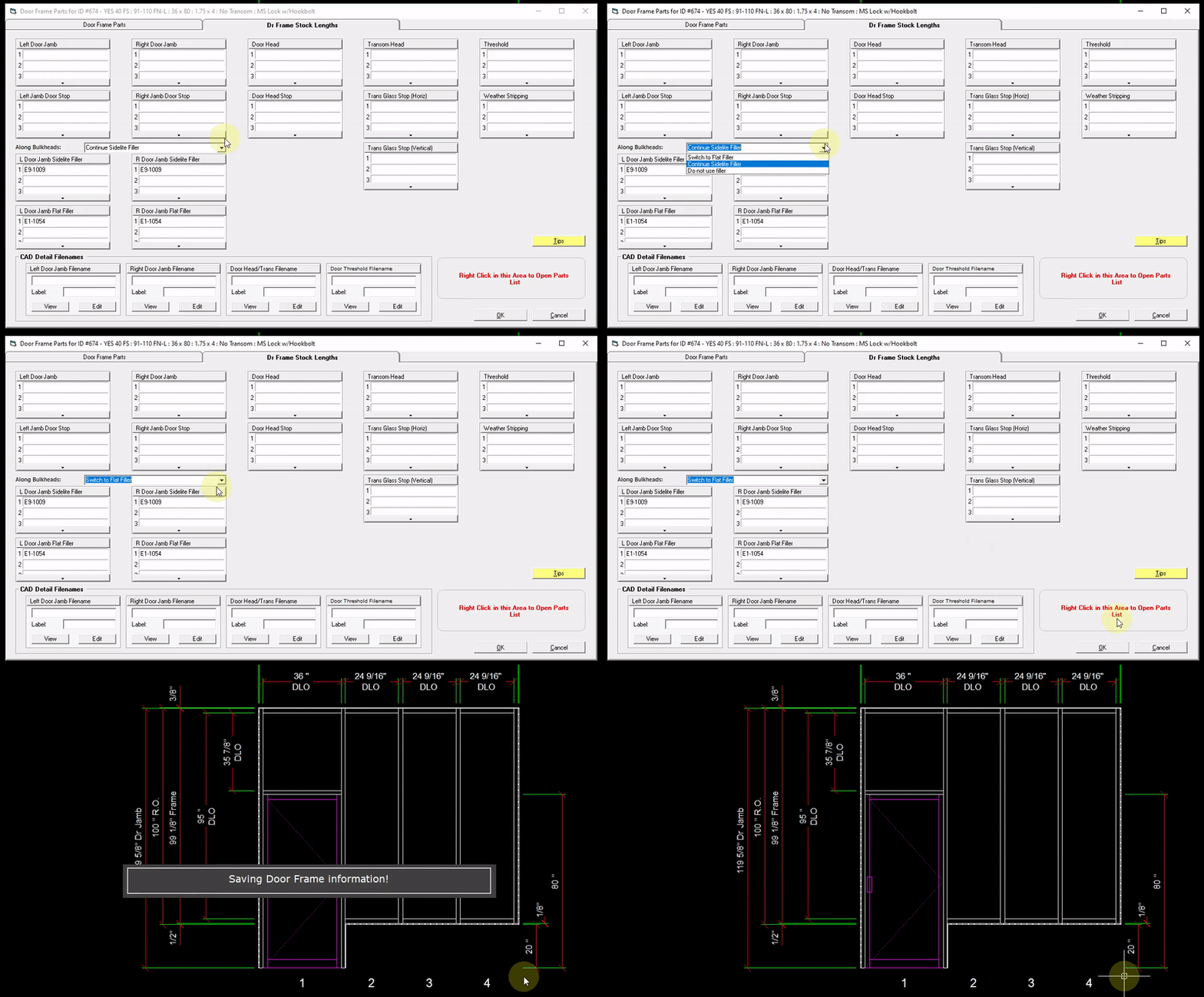
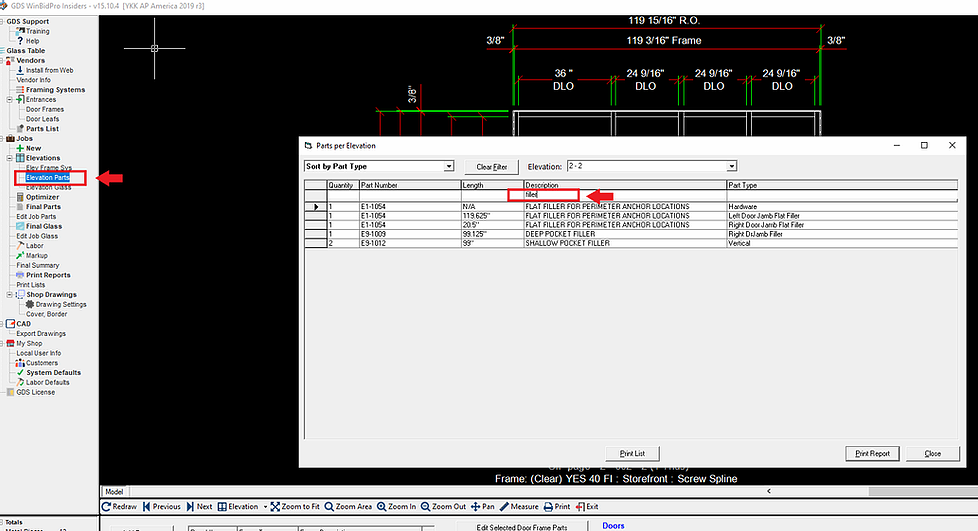
We can confirm the changes we made by checking the Elevation Parts window. Note that there is a pocket filler and a flat filler calculated for the right door jamb.
type "filler" under description to filter for parts with the word "filler" in their description)