Configuring Parts
Making changes to existing parts will effect your estimates based on how and where they're used in your jobs and referenced in framing systems.
Carefully consider any changes you make before saving them!
Parts Catalog
The part catalog will include all parts available under a specific vendor.
Using this list, you can quickly change specific part properties for existing parts by double-clicking it, then typing or selecting a new value.
The part list will include all parts of all types for a vendor, making it the longest list of any catalog.
If you're looking for something specific, be sure to use the search feature or organize the list using List Groups & Filters.
Options
-

Add Part -

Delete Part -

Edit Part- Open the configuration window for an existing part. -

Copy Part- Open the configuration window for a copy of the selected part -

Print- Quick access to the print-ready versions of this list. -

Export to CSV- An export option for use in spreadsheet apps like Excel.- See Exporting CSV / Spreadsheets for more details.
-
Change Multipliers...- Apply a price multiplier to all currently visible parts at once.-
If filters are applied, any hidden parts won't be updated by this option.
-
Multipliers can also be set individually by double-clicking the cell.
-
-
Sync Parts...- Updates your parts list to the latest version published by GDS.
Syncing parts with the GDS preconfigured catalogs will not remove your custom parts. If a custom part they shares a part number with a preconfigured part that's been added since the last sync, your new part may be overwritten.
Custom values you've set on existing parts will be overwritten, except for certain values like Catalog Code and Catalog Vendor.
Configuring a Part
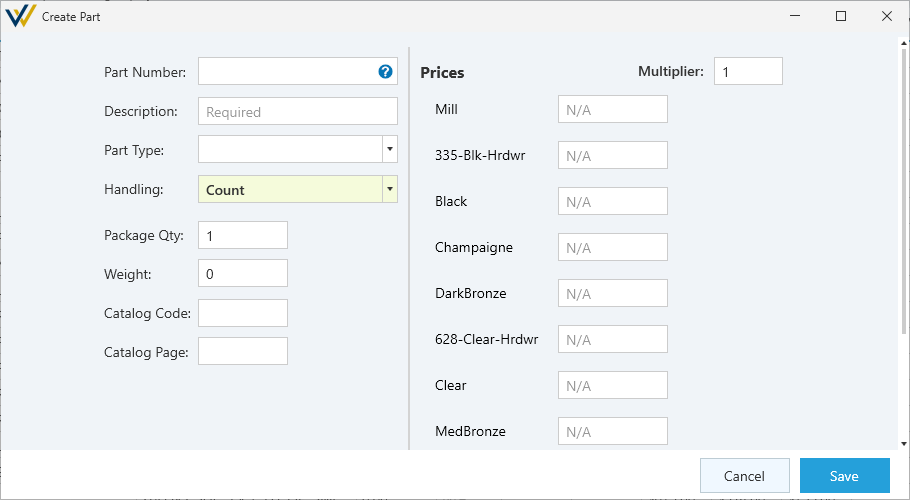
If you add a new part to the catalog, or edit an existing one, you'll open up the part configuration window. This is an expanded and focused view of the parts catalog and its columns.
-
Part Number- A unique part identifier. This should match the vendor's part number. -
Description- A descriptive name for the part. -
Part Type- A category for parts.- Some part types will only show up in specific windows. Ex: The
Door Frametype will only show up in windows related to entrances and theFinal Partslist.
- Some part types will only show up in specific windows. Ex: The
-
Handling- How pricing is generated for this part. Options include:-
Count- Used for parts with pricing based on quantity. -
Measure- Used for parts with pricing based on lengths. Measured parts can be Optimized or Not Optimized.-
Measure (Not Optimized)- Covers most measured parts.Length- Stock length of a part.
-
Measure (Optimized)- Measured parts optimized via the cut list and stock list. Usually reserved for frame extrusions.-
Length- Stock length of a part. -
☑
Allow breaks w/o full splice- Toggle whether breaks in cut lengths need a splice condition. -
☑
Do not apply finish clean up cuts- Toggle whether clean up cuts are included in cut optimization.
-
-
-
-
Package Quantity- Tracks the amount of parts included in a standard pack. -
Weight- Measured in pounds. Tracks the weight of a part for labor cost estimates.- See Labor Settings for more details.
-
Catalog Code/Catalog Page- Reference codes / page numbers from the vendor's price books / part catalogs.
Catalog Code and Catalog Page are used only for reference to vendor catalogs. If you want to set your own internal reference numbers, it won't effect your counts or estimates.
Pricing
-
Multiplier- A multiplier applied to the part counts. -
Mill- Option to add additional cost for milled parts. -
Per Finish Pricing - Parts have the option to set pricing for each option under the vendor's
Finishcatalog.- If a part doesn't have different finish options, use the
No Finishbox for pricing instead.
- If a part doesn't have different finish options, use the