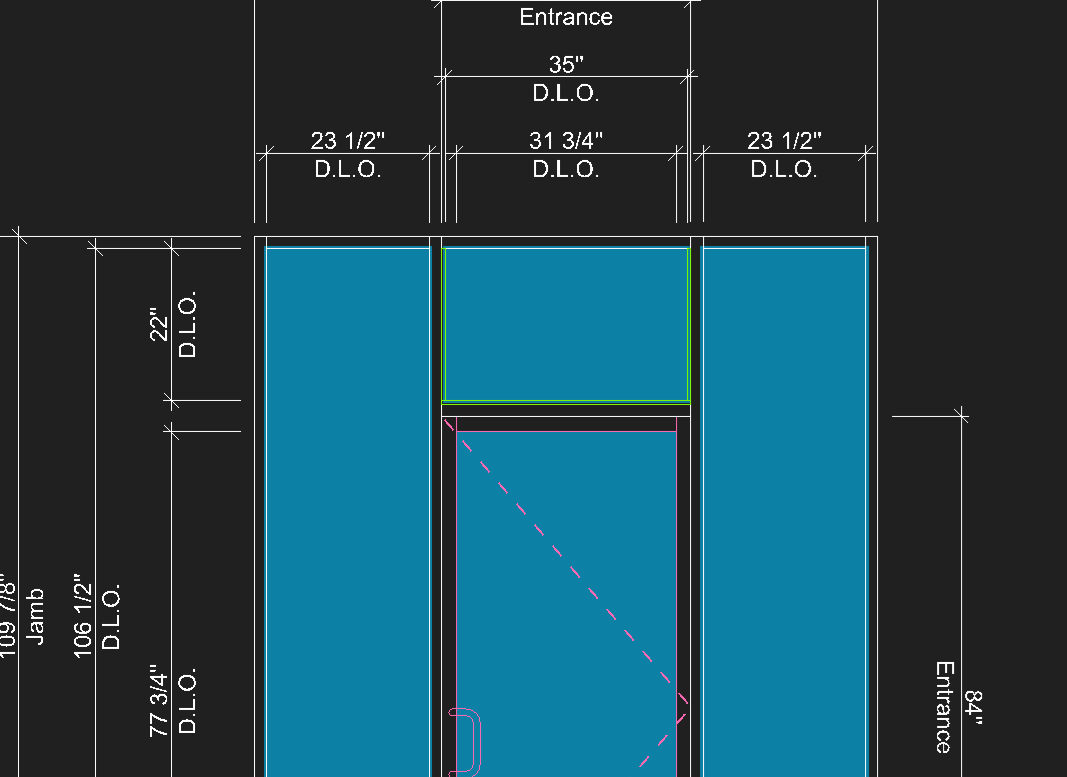
Tips - Glass Bites
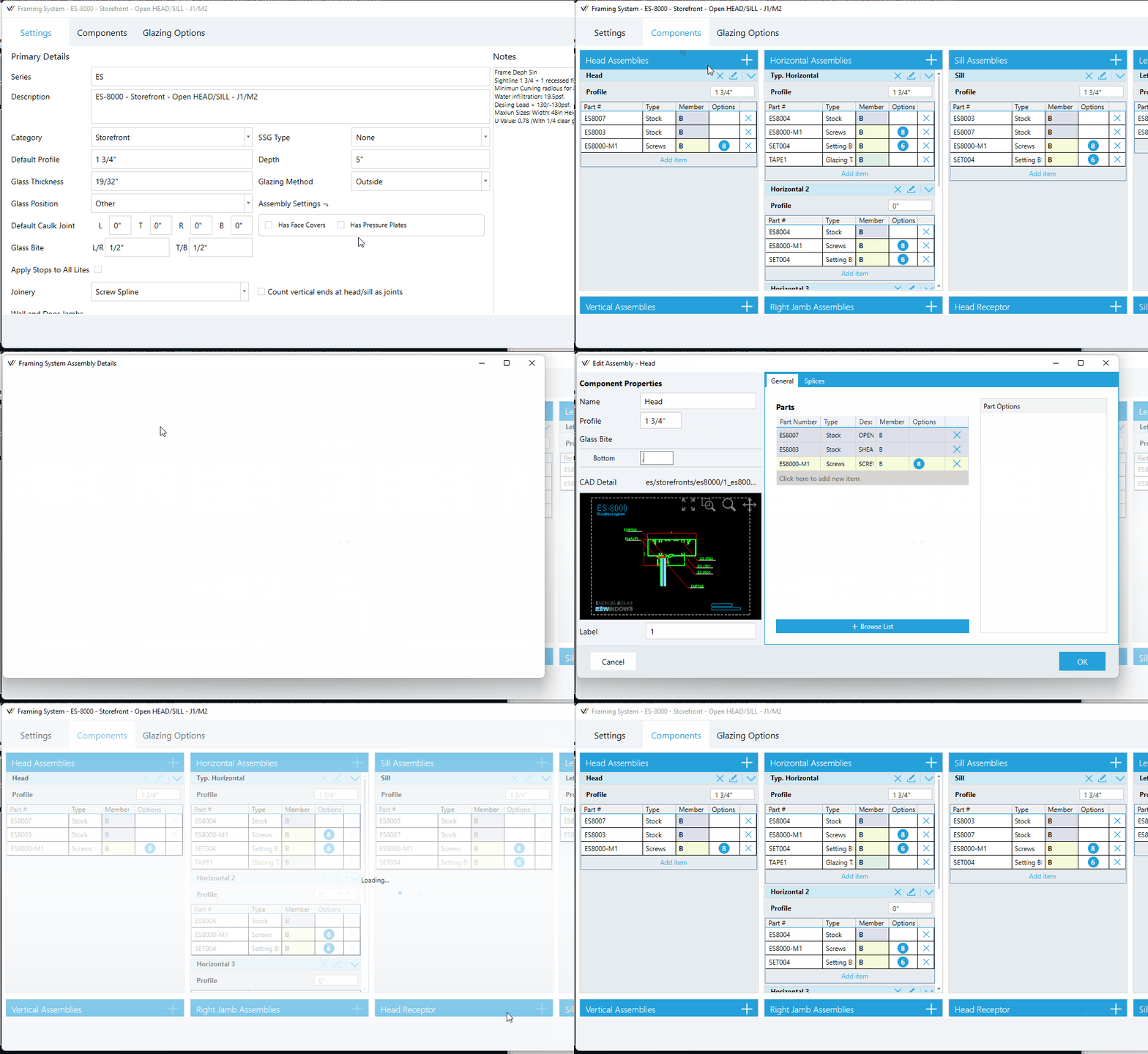
You can apply a default glass bite to your framing system in the settings tab, and then apply specific bites to individual assemblies in the component assemblies.
Default Bites
Glass Bites option in the Settings tab of your framing system are the default glass bites. Unless these are overwritten by specific assemblies, these will apply across your entire system.
- L/R are the left and right bites in inches.
- T/B are the top and bottom bites in inches.
Component Assemblies
You can find glass bites under Component Properties when editing a component assembly where glass bites are present.
See here for an example:
At Transoms
Entrances which require transom stops/sash can have these settings configured in the Door Frame editor.
You can access this view from the Entrances tool tab, by following these steps:
- In the example below, the entrance needs sash applied to the door jambs and door header of the transom opening.
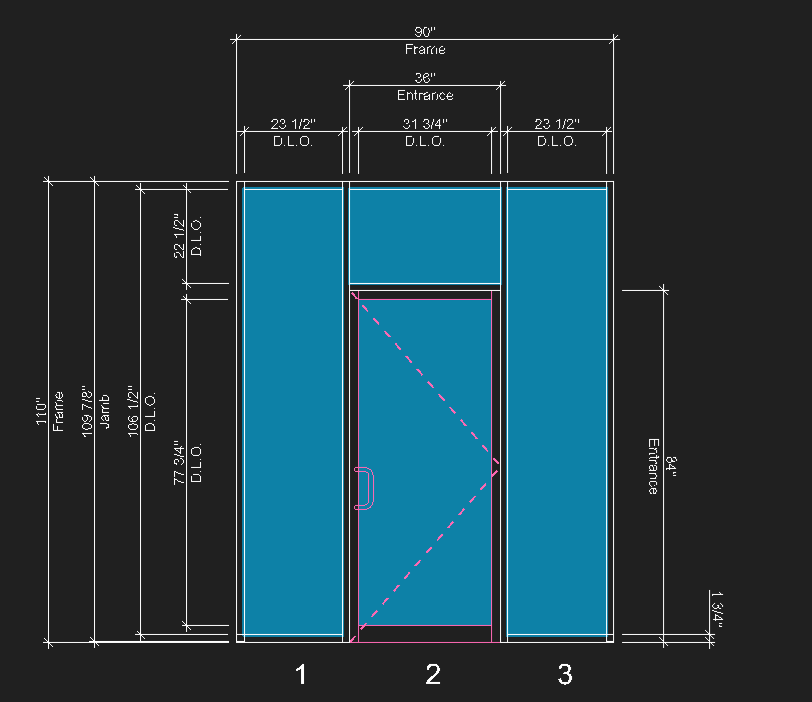
- Switch to the
Entrancestool tab and open theDoor Frameeditor view.
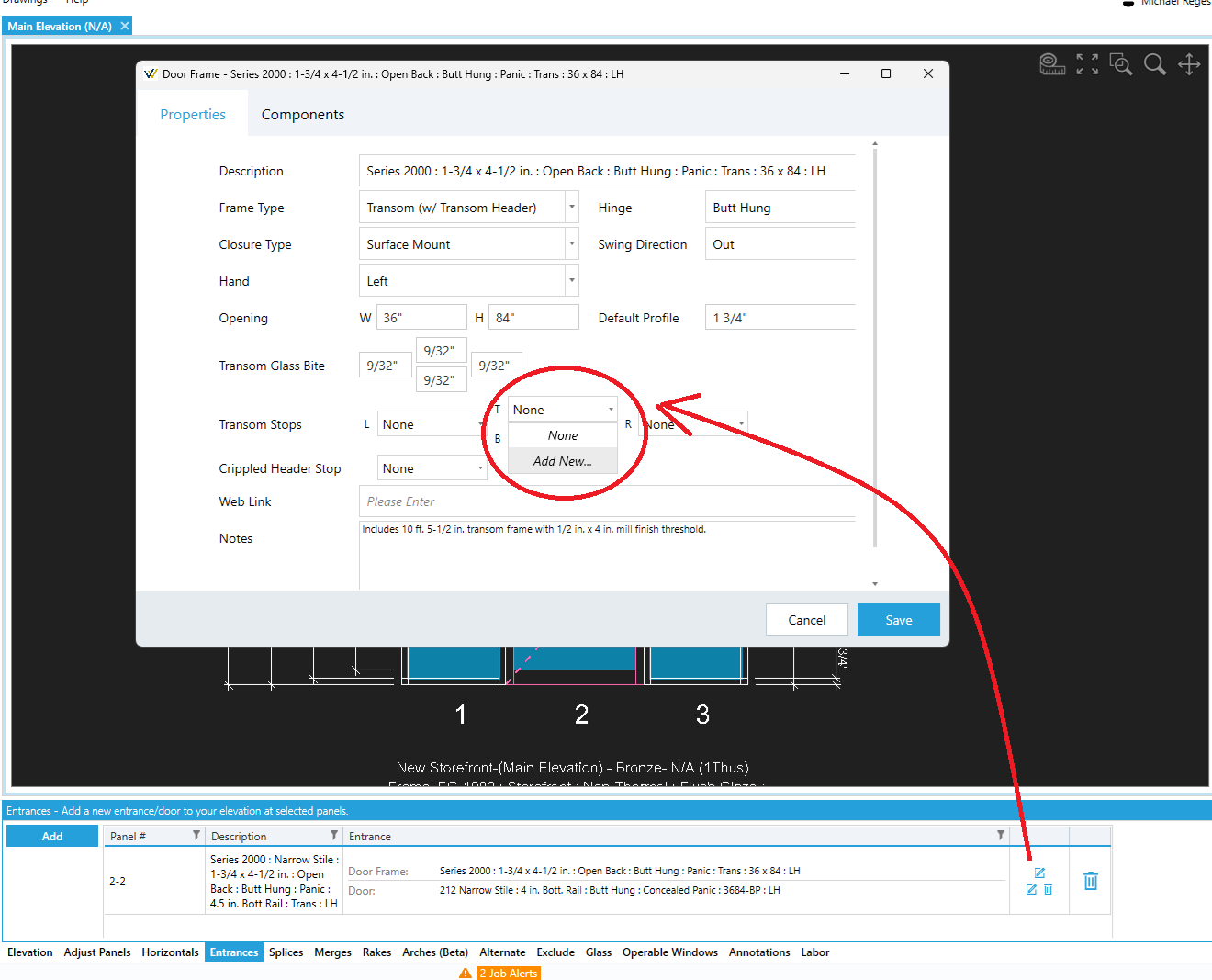
- Next to
Transom Stops, you can open any of the drop down menus and clickAdd Newto create a new transom stop configuration. Once this is configured, you can use this same setting for the other edges as well.
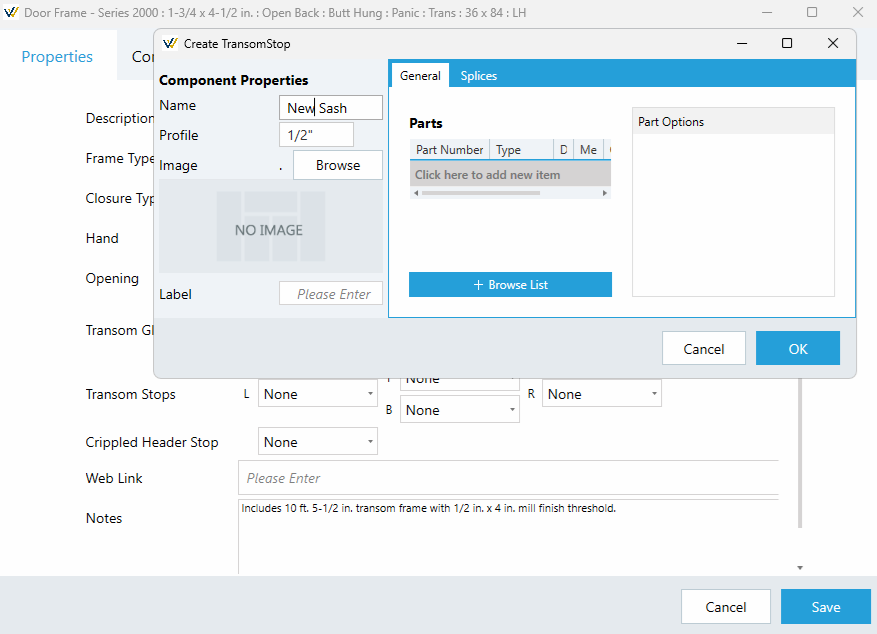
- Once you've created and applied the transom stop configurations for your entrance, click
Saveto apply them to the elevation drawing. By default, these stops will show up using green lines where applied.