Joints Tab
The Joints tab is meant for systems where joint conditions vary. In these cases, it's best to use this tab for all joints in a system, and exclude hardware from your Components.
For systems where hardware is consistent when joints meet, it may be simpler to include hardware in the assemblies.
Using the Joints tab, you can add parts at specific intersections of assemblies.
You won't use this tab for every system, but it may be needed with more complicated ones to get accurate counts without manually adding alternate assemblies.
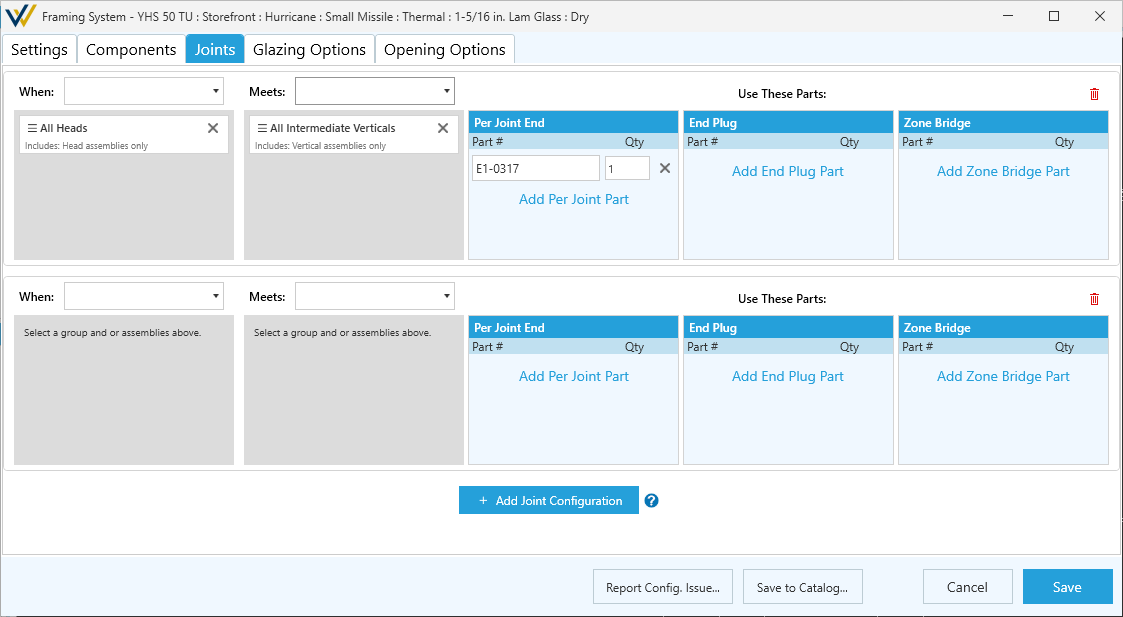
Options
-

Delete Joint Configuration -
+ Add Joint Configuration
Joint Configuration
Joint configuration follows a "When X Meets Y, add Z" structure. For example -- when any head assembly meets any vertical, add a shear block.
-
When/Meets- Set a rule for the intersection of two assemblies. This defines where and when the specified parts will be added.- Options here cover a wide range of assembly types and conditions, even a specific assemblies to help with alternates.
-
Use These Parts:- Add parts based at a specific joint condition. The options are as follows:-
Per Joint End- These parts are added once for each joint where the specified assemblies meet. -
End Plug- These parts are added when a joint meets a captured mullion, typically used to seal or finish the end of structural members. -
Zone Bridge- These parts are added when captured joints bridge an SSG mullion, used to span across structural gaps.
-
If you have an active elevation open, it can be helpful to use the Joints tool tab to review your options.