Annotations Tab
Add text and leaders to elevations.
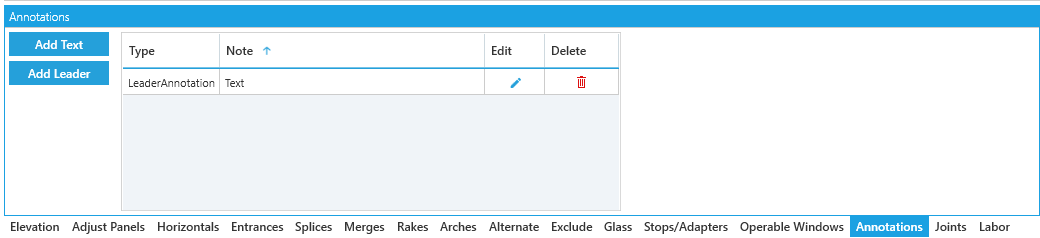
This tab lists all annotations in this elevation with buttons to edit or delete them. If annotations haven't been added, the list will show No Notes instead.
Adding Annotations
Click the Add Text or Add Leader button to create a new annotation.
Your tab will switch to a new view where you can add each of these to the current elevation.
Types
-
Add Text- Text placed on the elevation. Click on the elevation to set the text position. -
Add Leader- Text with a leader placed on the elevation. Click once to set the target of the note, then click again to set the position of the text.
You can undo your text or last position by pressing the Esc key.
You can also reposition text by left-clicking in a new spot.
Options
-
Note- The text you want to add to the elevation. -
Scale- A slider used to change the font size. -
Color- Option to color the text.
Confirm / Return
Click Save to confirm your settings and return to the annotation list.
Click Back to cancel and return to the list of annotations applied to the elevation.