Entrances Tab
Add a new entrance/door to your elevation at selected panels.
This tab lists all applied entrances in this elevation with buttons to delete them or edit their frames and leaves. If entrances haven't been added, the list will show No Entrances instead.
A preview of your added entrances will appear in your elevation.
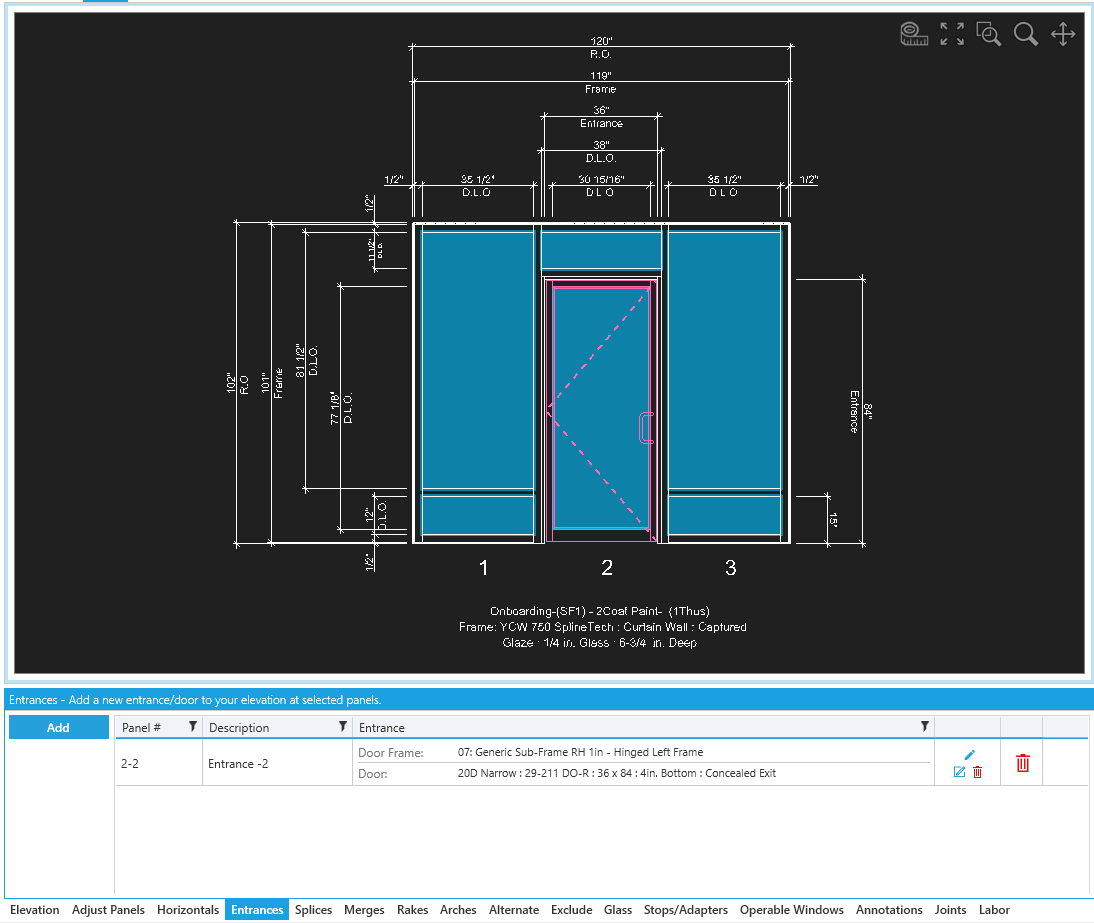
Adding Entrances
Click the Add button to create a new entrance.
Your tab will switch to a new view where you can add entrances by selecting panels and setting your entrance options.
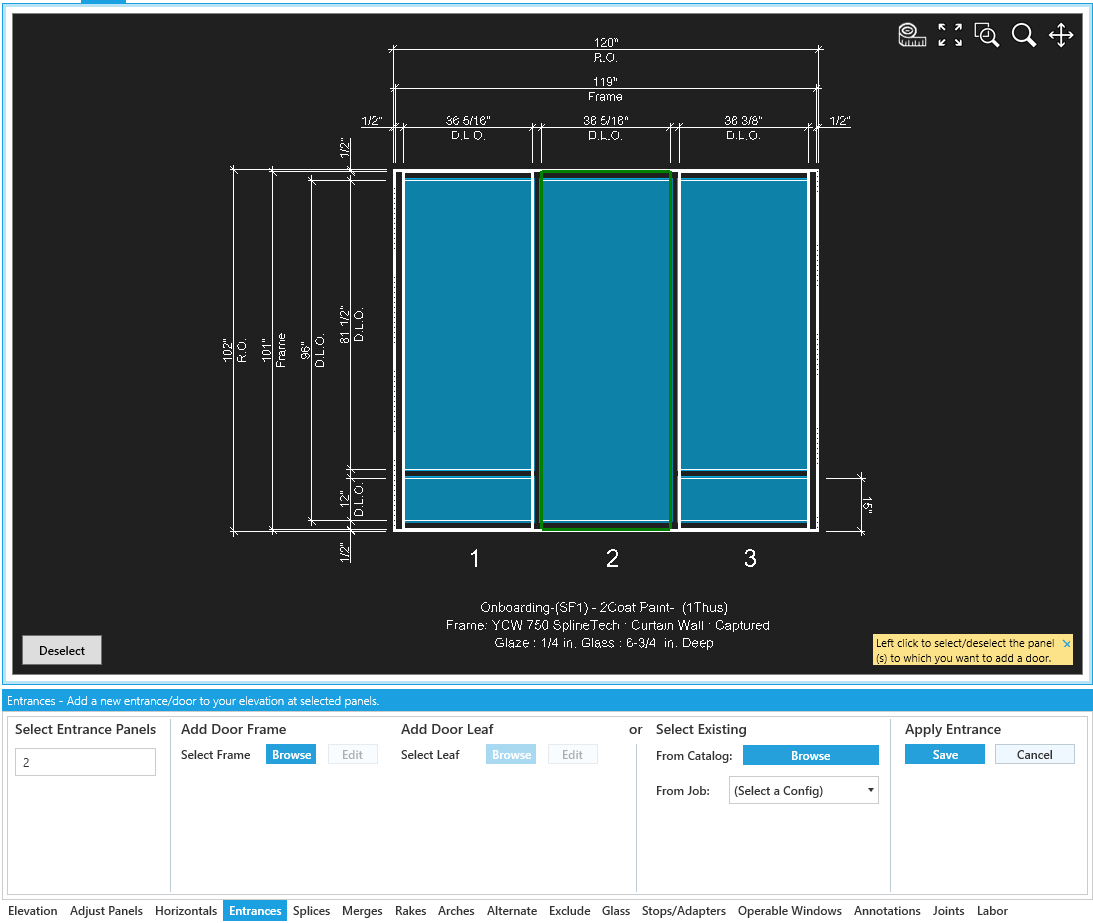
Options
-
Add Door Frame-Browseyour current vendor catalog for a pre-configured door frame, orEdita previous choice.- Once you have one selected the option to edit the door frame becomes available.
-
Add Door Leaf-Browseyour current vendor catalog for a pre-configured door leaf, orEdita previous choice. -
Select Existing-Browseyour current vendor catalog for a pre-configured frame & leaf assembly, or select one currently in useFrom Job.
Confirm / Return
Click Save to confirm your settings, apply the entrance to the elevation, and return to the list view.
Click Cancel to cancel, and return to the list view.