Horizontals Tab
Add horizontal mullions across selected panels.
This tab lists all applied horizontals in this elevation with buttons to edit or delete them. If horizontals haven't been added, the list will show No Horizontals instead.
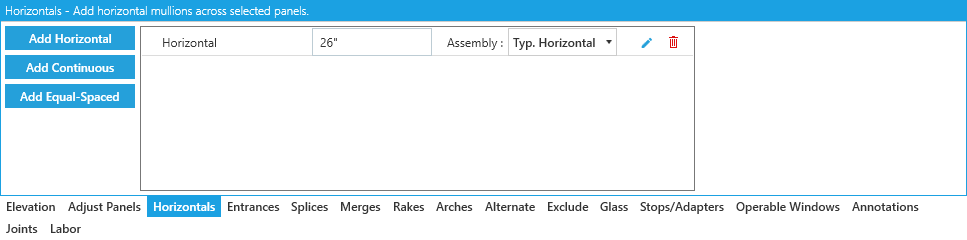
Adding Horizontals
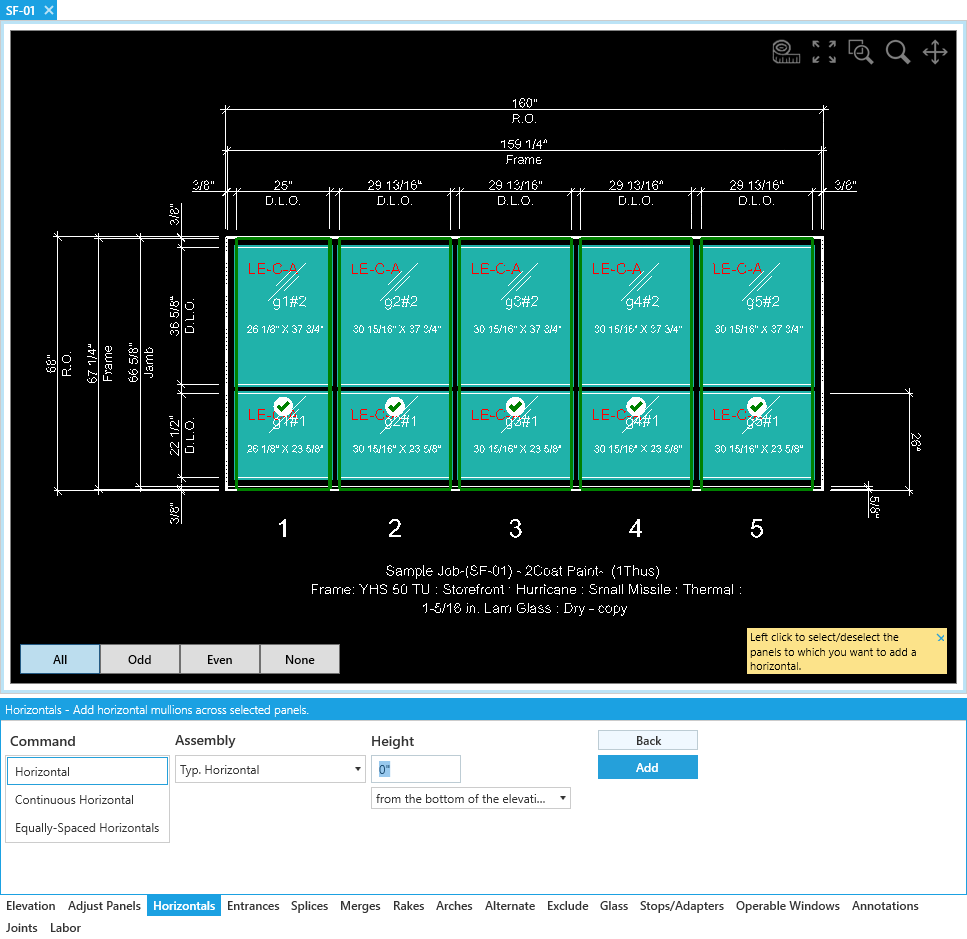
To add a horizontal, you’ll need at least one horizontal assembly configured in the Framing System applied to the elevation.
See Custom Framing System Components for more details.
Types and Options
-
Add Horizontal- Horizontal a mullion, placed at a specified height.-
Assembly- Select the assembly from the Framing System to use. Defaults to the typical horizontal. -
Height- Distance in inches to the horizontals' vertical position. -
Measure From- Select where to measure theHeightfrom, options include:from the bottom of the elevationfrom the top of the elevationabove the highest horizontal
-
-
Add Continuous Horizontal- Horizontal mullion that can interrupt verticals at intersections, placed at a specified height.- All options from
Horizontalapply toContinuous Horizontalas well. - ☑
Interrupt Left Jamb/Vertical- Toggle interrupting the vertical frame to the left of the horizontal. - ☑
Interrupt Right Jamb/Vertical- Toggle interrupting the vertical frame to the right of the horizontal.
- All options from
-
Add Equally-Spaced Horizontal- Add one or more horizontals at once, equally spaced across the selected panels.# of Horizontals- Adds this amount of horizontals to each panel, equally spaced.
Confirm / Return
Click Add to confirm your settings and apply them to the elevation.
Click Back to return to the list of applied horizontals.