Operable Windows Tab
Pricing is not calculated for Operable Windows. These are used to report sizes and counts, and for shop drawings.
Apply operable windows to selected panels.
The Operable Windows tool lists window templates loaded into the current job. Once applied, they'll appear as window sashes with swing lines.
The list shows Start by adding a template to the job if no templates are loaded. For window counts to be reported, templates need to be applied to panels.
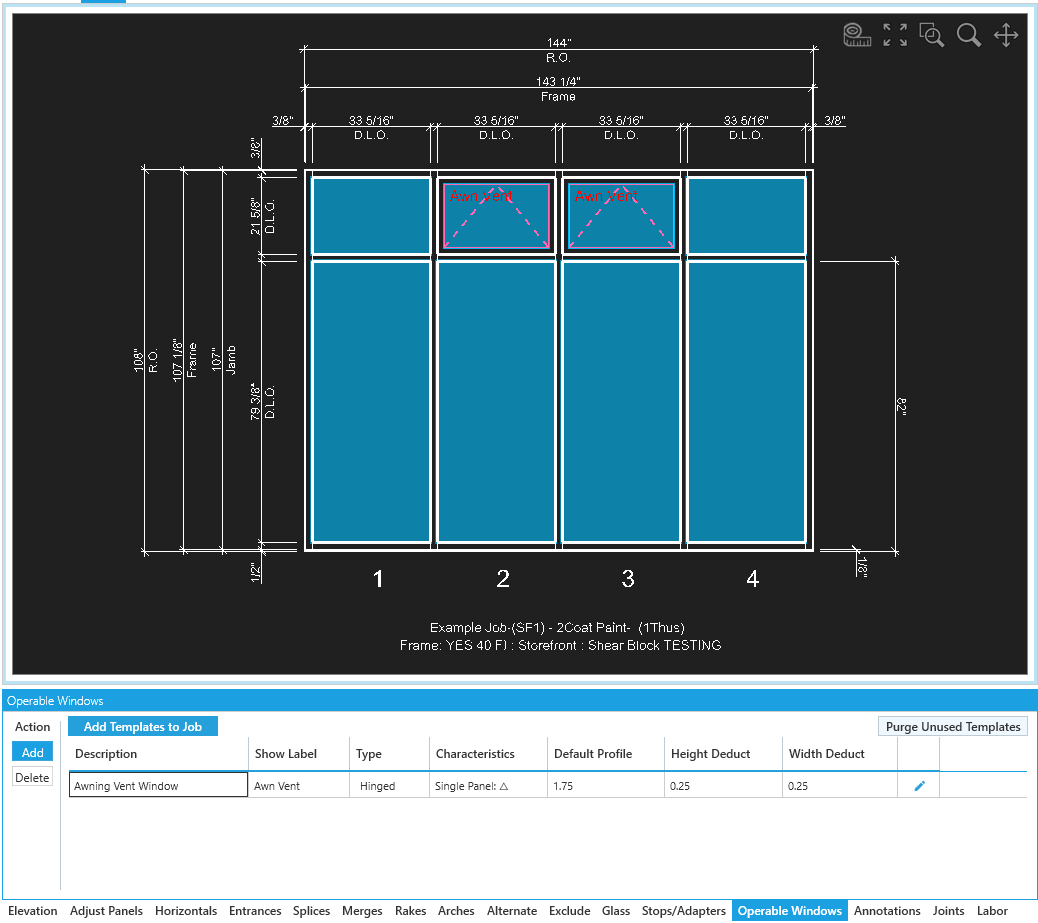
Setting the Template List
The Operable Windows tool tab uses window templates to represent windows on an elevation.
WinBidPro has templates that cover most operable window types. You can add new a template or copy existing ones and modify them as needed. See Configuring Operable Window Templates for more details.
-
Add Template to Job- Load a window template to a job. -
Purge Unused Templates- Unload any templates that aren't in use.
Adding Windows
To add windows, make sure a template is loaded. Select the template, click Add, and click the panels to apply it.
Operable Windows are applied to the entire panel. Use the Horizontals, Entrances and Merges tool tabs to get the panel sizes right before applying your windows.
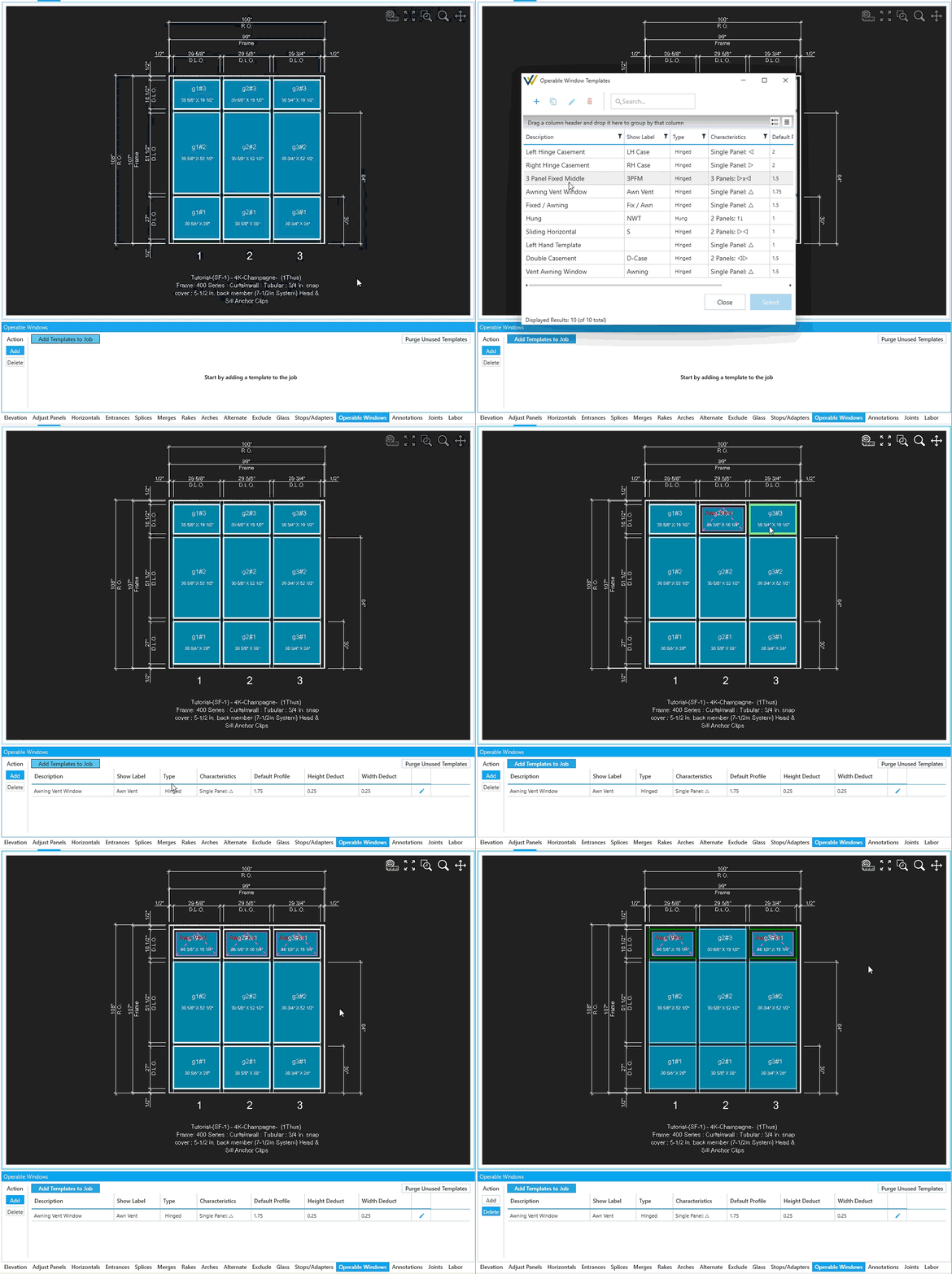
Options
-
Add- ClickAddwith a template selected, then click panels to apply it. -
Delete- ClickDeletethen click the windows to remove.