Splices Tab
Add splices to vertical/horizontal elements of your elevation.
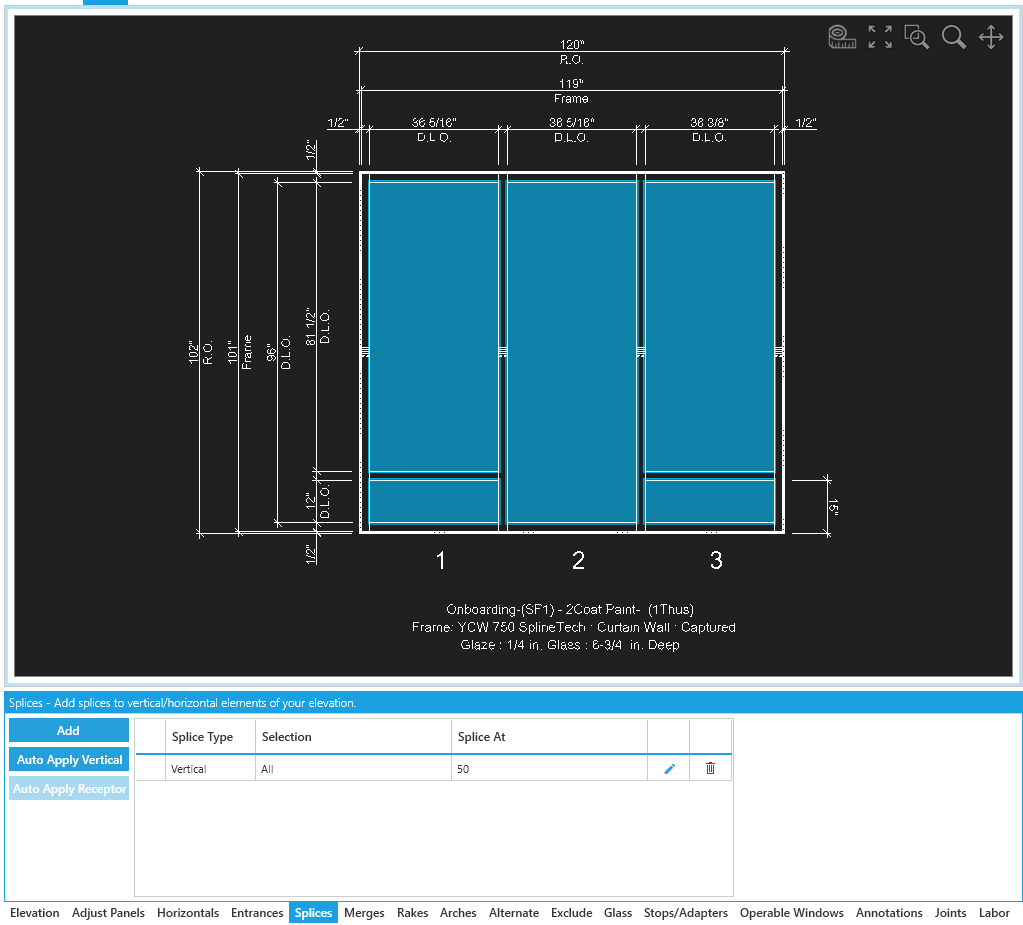
This tab lists all applied splices in this elevation with buttons to edit or delete them. If splices haven't been added, the list will show No Splices instead.
You'll also see a preview of your splice cuts in the elevation using white lines by default.
Splice Options
Add- Manually add a new splice at a specific point on a vertical or horizontal element. See below for more details.Auto Apply Vertical- Automatically add splices at full stock lengths on applicable verticals.Auto Apply Receptor- Automatically add splices at full stock lengths on applicable head and sill receptors.
Any automatically applied splices will be added to the splice list where you can edit or delete them as needed.
Adding & Editing Splices
For the Add option, you'll be brought to a new menu.
The Splice tool for manually adding a splice uses point-snapping to automatically place your mouse at end points and mid points of frame segments as you get close to them.
You can temporarily disable this by holding Ctrl while you're placing points.
Types & Options
-
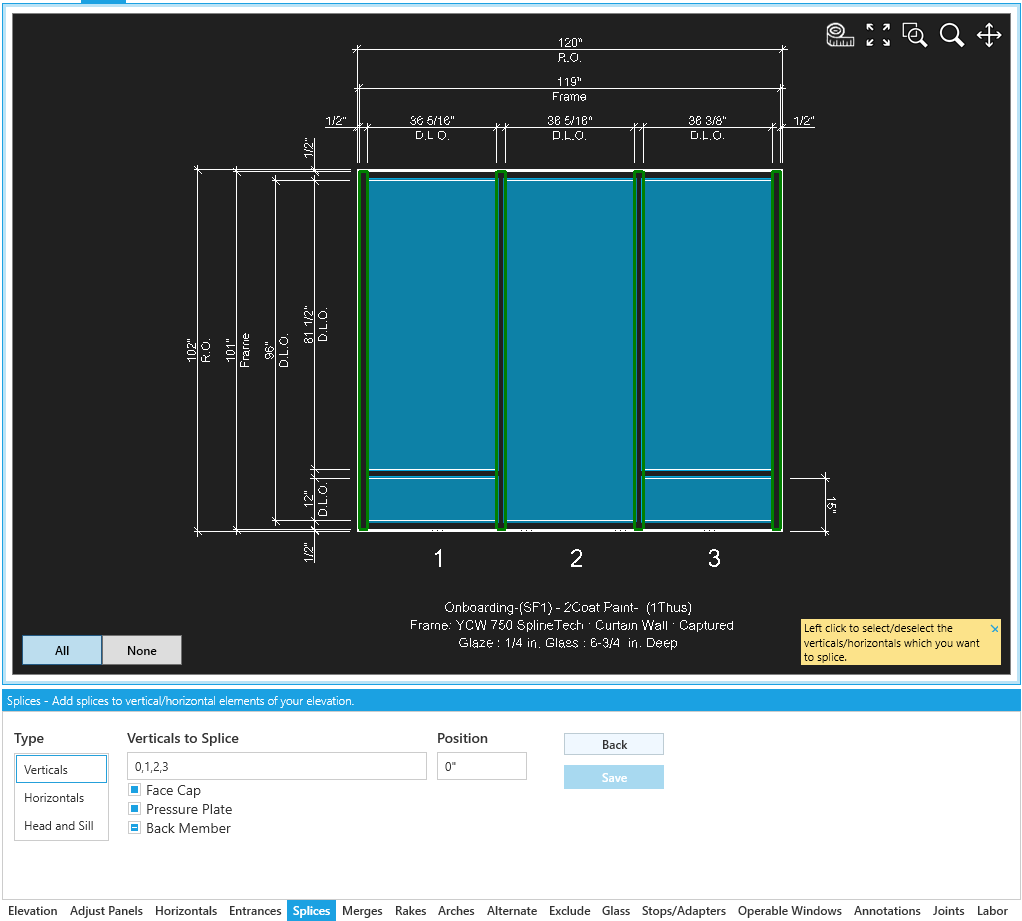
VerticalsVerticals to Splice- Either select the verticals in the viewer or type in their label.- Based on your framing system, you'll have toggles to apply the splice to specific part types, including:
- ☑
Face Cap - ☑
Pressure Plate - ☑
Back Member
- ☑
- Based on your framing system, you'll have toggles to apply the splice to specific part types, including:
Position- Where the splice is applied, measured in inches from the bottom of the elevation
-
Receptors / Sub Sill- Horizontal splice for Head and Sill Receptors / Sub SillsWhat to Splice- Toggles for ☑Head Receptorand ☑Sill Receptor / SubsillWhere to Splice- Select a snap point to place a splice or toggle ☑Measured Spliceto set a splice point measured in inches from the leftmost point on the elevation
-
Head and Sill- Horizontal splice for Heads and SillsWhat to Splice- Toggles for ☑Head, ☑Silland ☑Back MemberWhere to Splice- Select a snap point to place a splice or toggle ☑Measured Spliceto set a splice point measured in inches from the leftmost point on the elevation
Confirm / Return
Click Save to confirm your settings and apply the splice.
Click Back to return to the list view.