Labor
Setting labor is completely optional, but you can make it required for each elevation in your Team Settings.
This will add a Job Alert when an elevation has no labor applied.
WinBidPro will only calculate labor when you apply Labor Rules to your elevations. A single labor rule describes a type of task and how the time is added up for that task.
Multiple labor rules can be grouped into a reusable list called a Labor Ruleset. Once a labor ruleset is defined, you can easily apply that ruleset to any elevation to have WinBidPro calculate the labor for it.
Configuring Labor
Labor can be configured at the job-level, or across all your new jobs at the organizational level.
-
To configure labor for your current job, go to
Job>Labor Rules & Settingsin the main menu. This opens theJob Laborwindow. -
To configure labor for your organization, go to
Settings>Labor Settingsin the main menu.
Once your labor rulesets are configured, you'll apply it to your elevations. You can either do this as you create the elevation by using the Labor Ruleset dropdown, or you can set it in the Job Labor window by clicking one or more elevations and selecting a ruleset from the dropdown menu.
WinBidPro provides a number of example rulesets by default, but these should not be used for estimates until they are reviewed and modified.
Labor Rules
With an elevation selected in the Job Labor window, you can add individual rules to that elevation by clicking +Add Line Item. Rules added like this won't change the ruleset applied and will use bold text to mark it as a manually added rule.
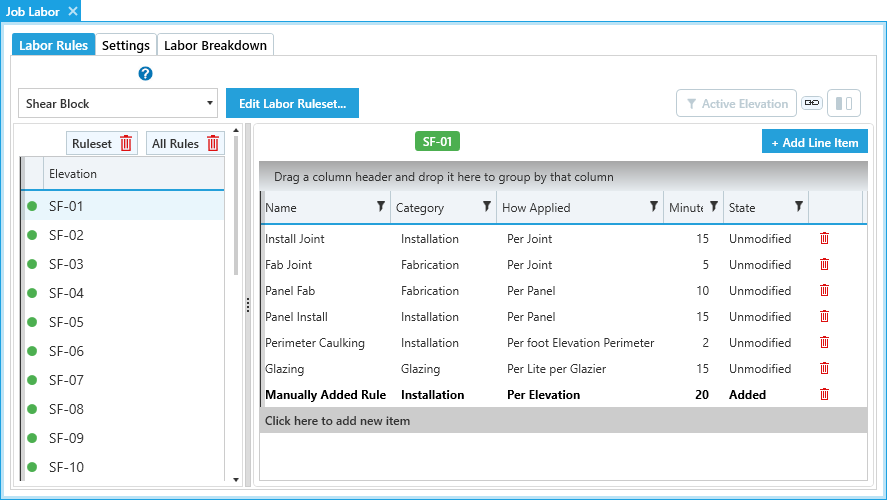
Configuring Labor Rules
-
Name- A unique name for this rule. -
Category- The category of labor determining the base rate of the task.- You can set the rates for each of these in the
Rates & Settingstab, see below.
- You can set the rates for each of these in the
-
How Applied- Defines how a task is calculated from the conditions found in your elevations.- Options include things like
Per JointorPer foot of Elevation Perimeter.
- Options include things like
-
Minutes- Estimated time it would take to complete the task.
The Per Lite per Glazier setting in How Applied takes into account both the number of lites and how many glaziers are required based on the weight of the glass lite.
Weight thresholds used for this option are set in the Rates & Settings tab and are based on the make up of the Glass Products applied to your elevations.
Configuring Rulesets
Rulesets can be added or edited at the organization (global) level through the Settings > Labor Settings window, or on the job level by clicking Edit Labor Ruleset... in the Job Labor window.
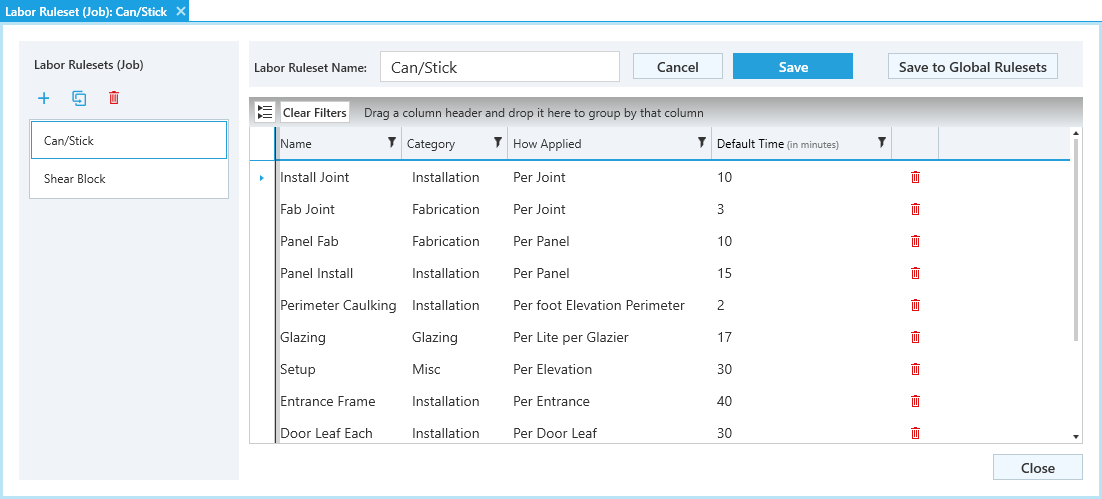
Start by naming the ruleset, then add individual rules to it. Click Save to confirm, or Cancel to cancel.
If you edit a global ruleset in the Job Labor window, it will make a copy of that ruleset that you can edit without effecting the global version. You can save your job ruleset to your global rulesets by clicking Save to Global Rulesets.
Rates & Settings
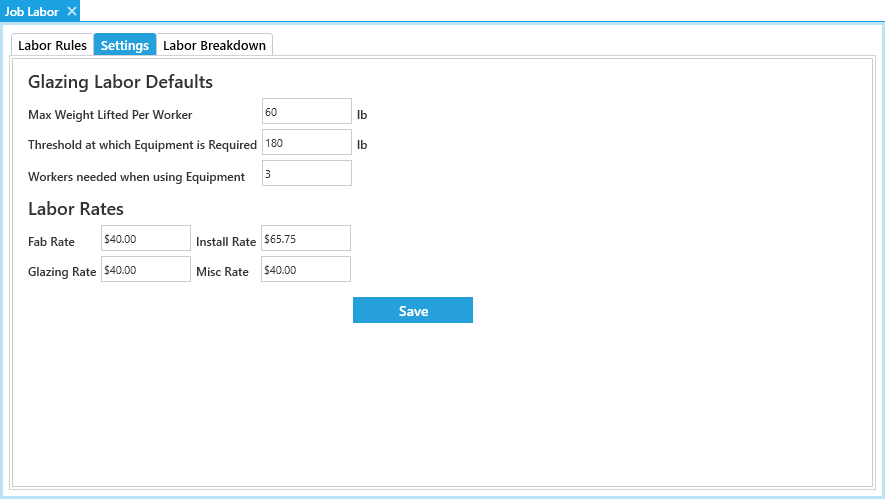
Glazing Labor Defaults
-
Max Weight Lifted Per Worker- Threshold for weight in pounds for the amount of workers needed for a task by. -
Threshold at which Equipment is Required- Threshold for weight in pounds for when special equipment is needed to complete a task. -
Workers needed when using Equipment- Amount of workers needed once equipment threshold is met.
Labor Rates - Rates for different labor categories. Costs are assigned here and are applied by category as part of the Labor Rules. Categories include:
-
Fab Rate -
Install Rate -
Glazing Rate -
Misc Rate
Rules & Rates Example
Example
The Panel Fab rule has has these values:
Category: Fabrication- Fabrication Rate is $40.00/hr (found in the
Rates & Settingstab)
- Fabrication Rate is $40.00/hr (found in the
How Applied: Per PanelMinutes: 10
So if your elevation has 12 panels in it, applying this rule to your elevation will add 120 minutes to the job and $80.00 to your cost estimate.
Labor Breakdown
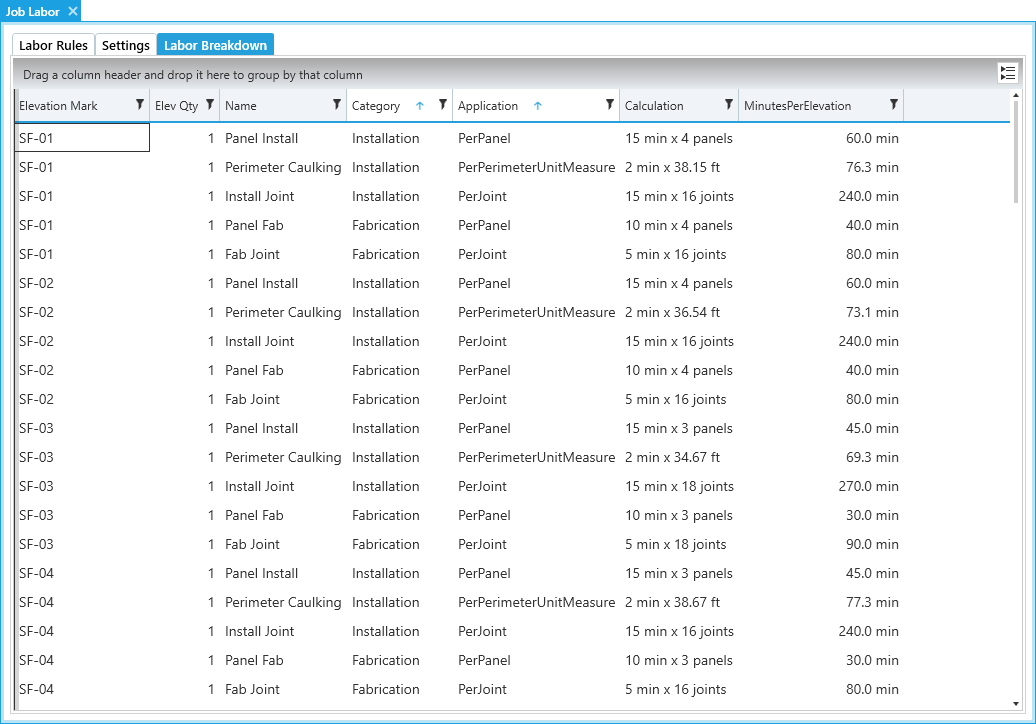
The Labor Breakdown tab of the Job Labor window gives you an overview of all labor applied in your current job.
This tab shows a line for each rule as it applies to each elevation, how many times they're applied based on the elevation quantities, and a summary of all the rule options, their calculations, and the total time for each task.