Sharing Jobs
You can link to other teams and companies using WinBidPro 16 to share jobs with them. When you link, you'll be able to send and received jobs from the jobs list view. Once linked, you do not have to perform these steps again unless someone removes it.
Linking to a Team
Go to Settings > Team Links...
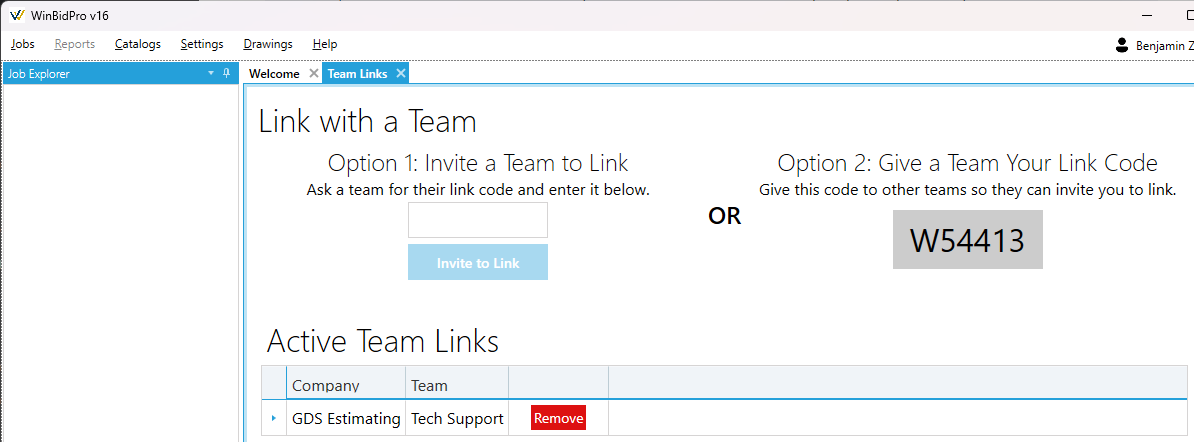
A tab like below will open. You have two options:
Option 1 - Enter a Link Code
-
Get the team code from someone on the other team and enter it into the field. Then click the
Invite to Linkbutton. You may need to call and ask for the code from an estimator on the team who has access to WinBidPro. -
Once sent, someone on that team will need to accept it from this window on their end. It should appear instantly on their screen when you send the invite.
-
When they accept, you can now send/received jobs, see below.
Option 2 - Share Your Link Code
-
Your link code is displayed in the gray box (
W54413in the example below). Share this with the other team(s) and have them follow the steps in Option 1. -
When they enter your code and send the invite, it should immediately appear on this tab as an invitation to link. Press the
Acceptbutton to confirm the link. -
You will now be able to send/recieve jobs, see below.
Sending and Receiving Jobs
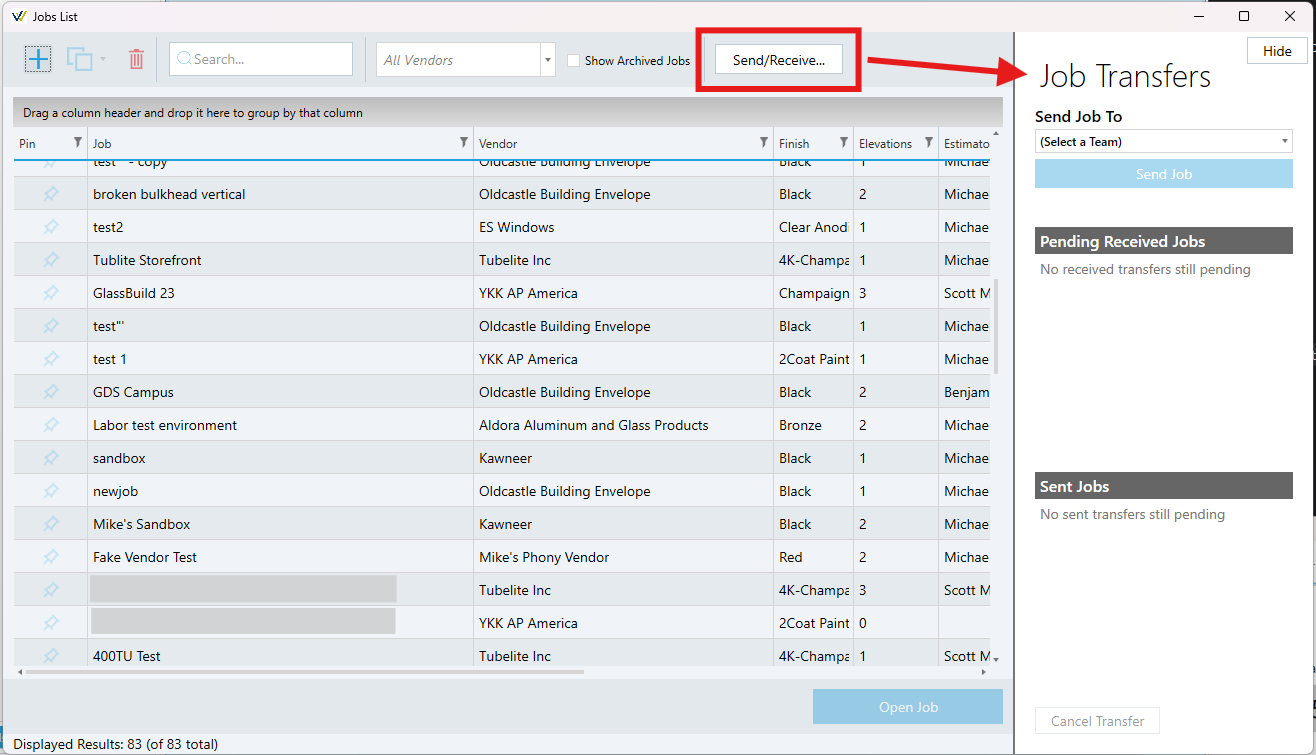
Sending and receiving jobs can be done from the Jobs list view.
Sending a job
-
Go to
Jobs > Open Job... -
Select (but don't open) a job from the job list by clicking it once.
-
Click
Send/Receive...at the top of the view to open the Job Transfers sidebar. -
Click the
Send Job Todropdown and select the team you wish to share a job with. -
Click
Send Jobto confirm and send a copy to the team. It'll show up in the Sent Jobs list until it's accepted by a member of that team.