Finalizing Your Estimate
This section covers how to review your job totals, modify your parts lists, and change settings to prep for the print-ready deliverables.
Job summaries, generated parts lists, and proposal settings are found in the top half of the Reports menu. Use these reports to review and dial in your proposal before exporting.
These summaries and settings use black icons to help them stand out from the print-ready versions (green icons). For details on printed reports, see Exports & Print Outs.
Spreadsheet Tools
Most of these windows have a shared set of spreadsheet tools detailed here:
-
Grouping - Break your lists up into sections.
-
See List Groups & Filters for more details.
-

Group Options- Quick options for all active groups, including:Expand All GroupsCollapse All GroupsDelete All Groups
-
-
Filtering - Hide list entries by one or more conditions.
-
See List Groups & Filters for more details.
-

Column Chooser- A list of all columns in this window with an option to ☑ toggle them on or off.
-
-

Export to CSV- An export option for use in third-party spreadsheet apps.- See Exporting CSV / Spreadsheets for more details.
-

Print- Quick access to the print-ready versions of this list.- See Printed Reports for more details.
Reports
Final Parts
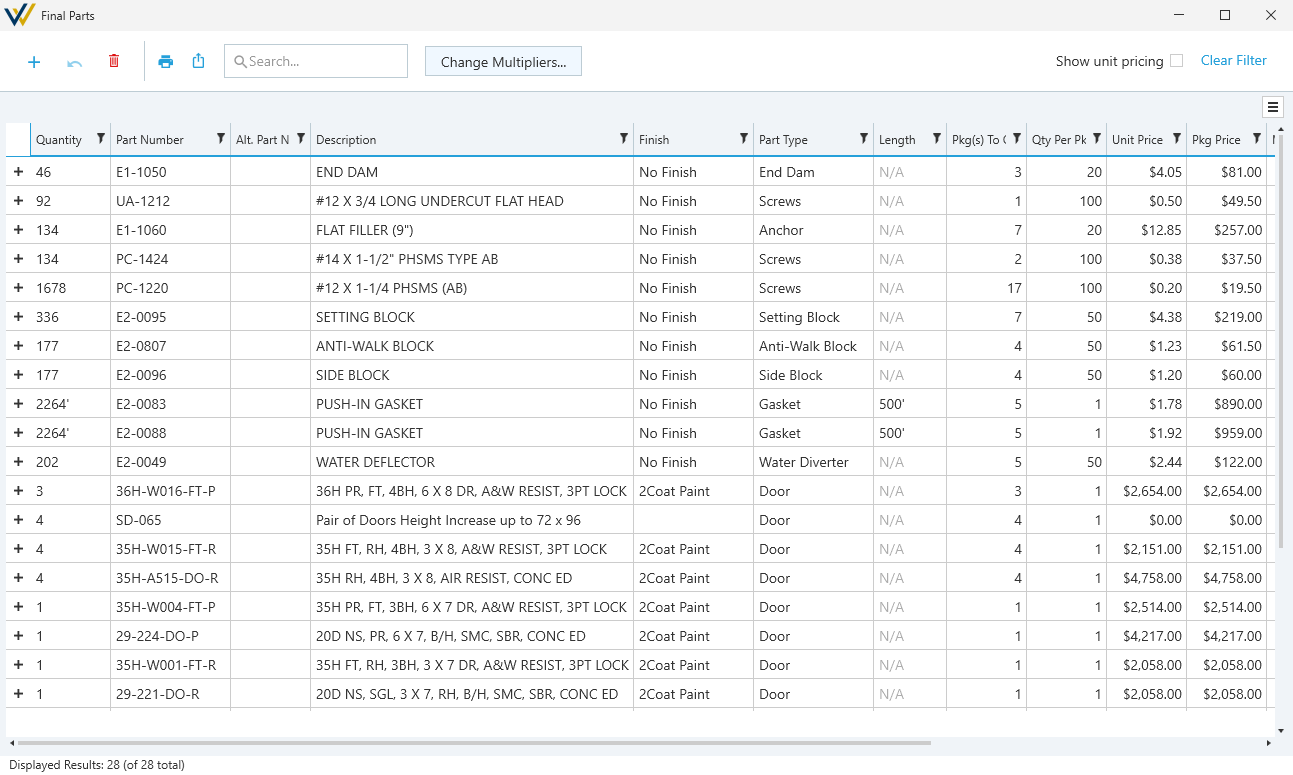
List of all parts and their counts, pricing, and other attributes.
This list is generated from your elevations based on the parts in the framing system applied to them.
Options
-
Manual Edits - You can use the

Add Part,
Delete Part, and
Undobuttons to make manual changes to the Final Parts list.- See Manually Adding Parts to Reports for more details.
-
☑
Show Unit Pricing- Toggle between per-unit and per-package pricing and totals. -
Change Multipliers...- apply a count multiplier to all your part totals at once.
Change Multipliers... is applied only to currently visible parts. To apply this to a select group of parts, filter your list before using this feature.
The change this for individual parts, you can manually type it in under the Multiplier column.
Glass
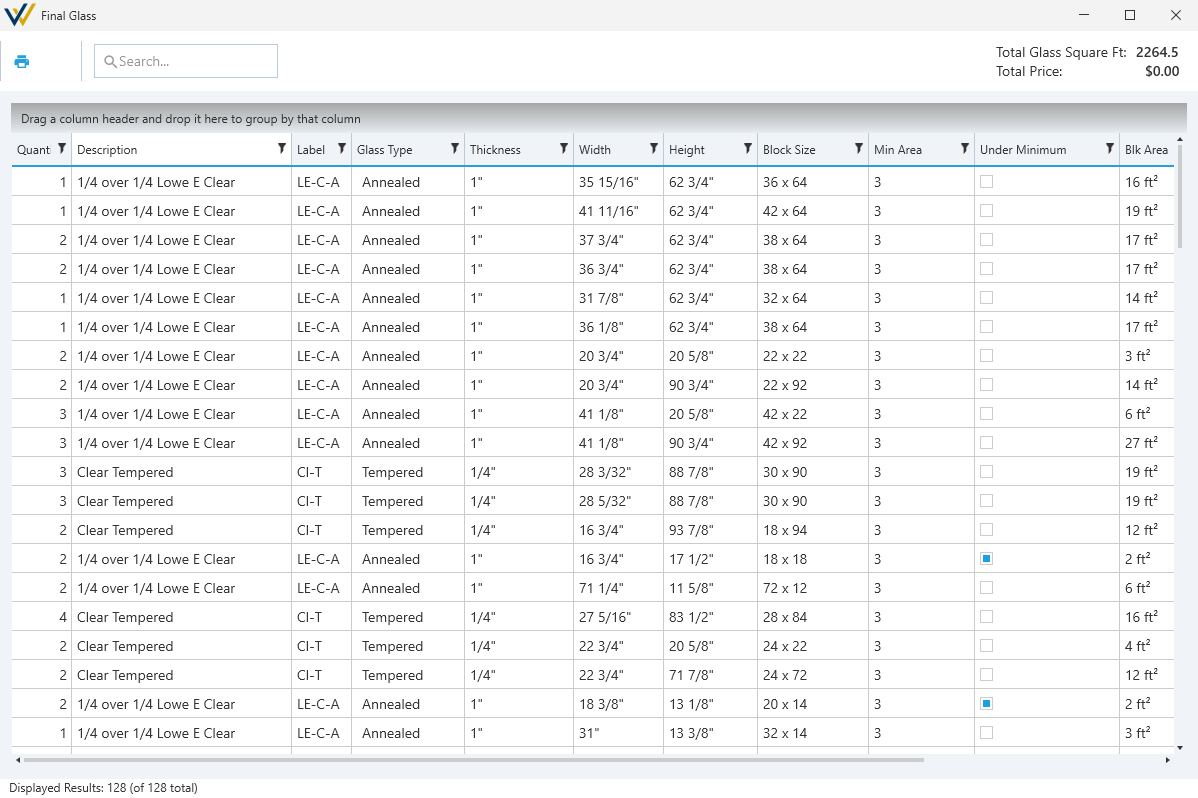
List of all panels with Glass Products applied. In the top right corner, you'll see a summary of your Total Glass Square Ft and the Total Price.
This is a review-only list. To make changes to it, edit your glass products and where they're applied to your elevations.
Cut List
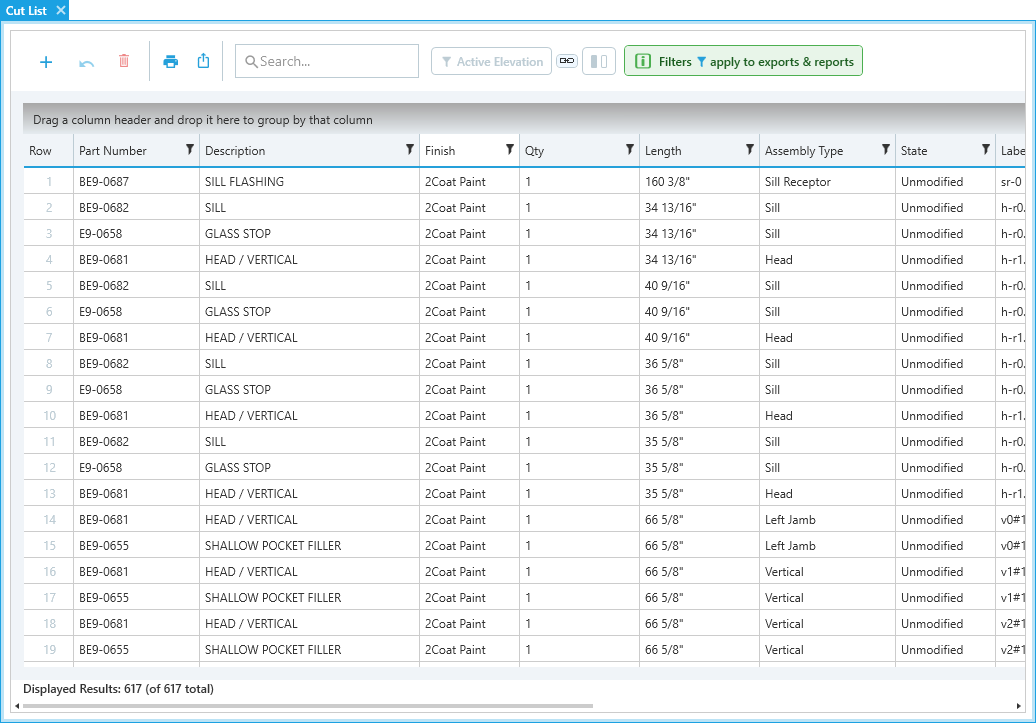
Pre-optimized list of all extrusion cuts in the current job.
This list is generated from your elevations based on the parts in the framing system applied to them.
Options
-
Manual Edits - You can use the
Add Part, Delete Part, and Undobuttons to make manual changes to the Cut List.- See Manually Adding Parts to Reports for more details.
-
☑
Active Elevation- A toggle to quickly filter out any cuts not in the active elevation. -

Split Screen- Splits the main window between the cut list and the CAD view of the active elevation.
Split Screen Link- Toggle on to syncActive ElevationandSplit Screenso both are turned on / off together.
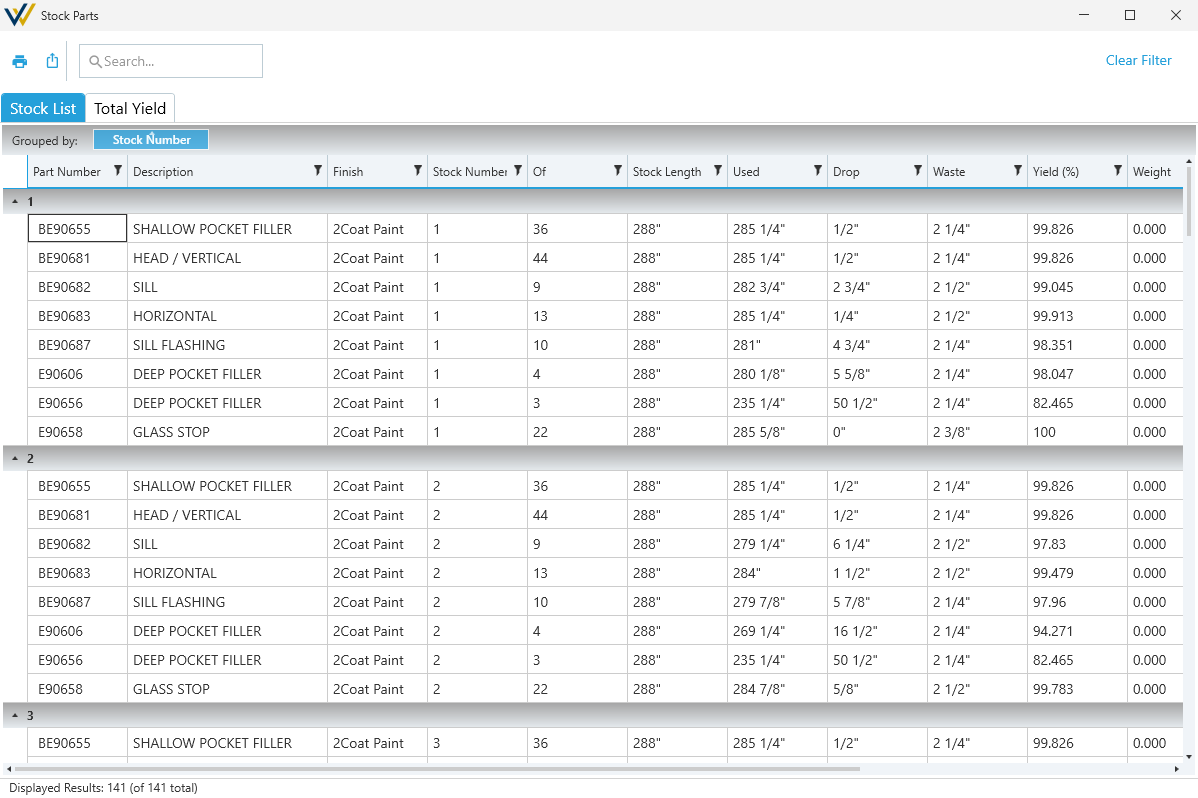
Stock List
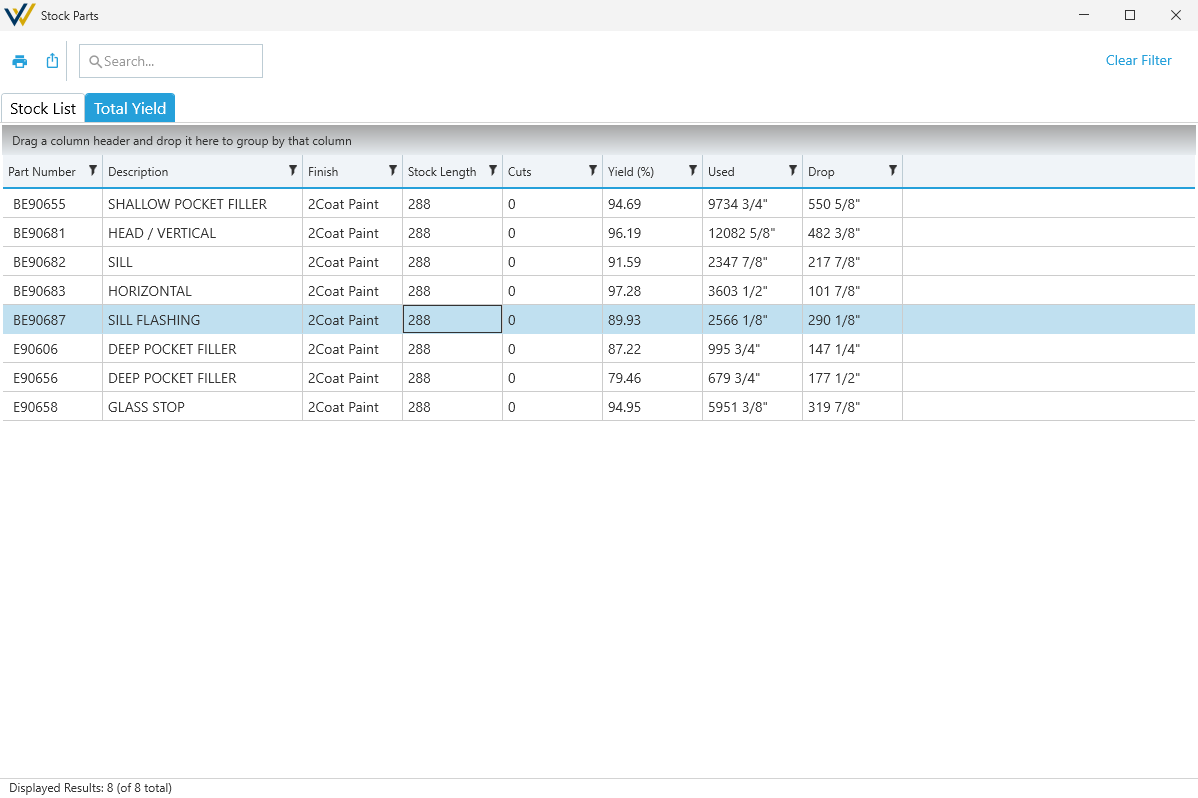
Pre-optimized list of extrusion packages needed to meet the cut list, including data on use, waste and yields.
This is a review-only list. To make changes to it, edit your cut list and elevations, or modify your framing systems.
Stock list
Total Yield
Markup
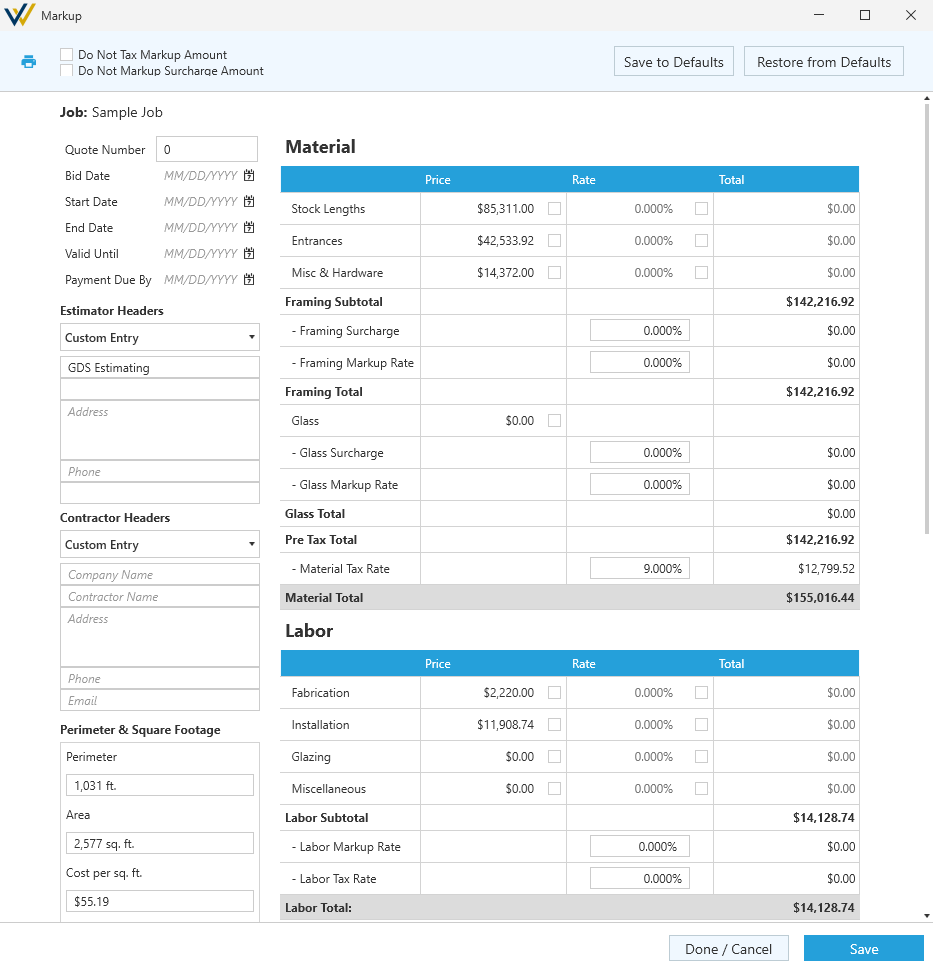
Job settings used to dial in your estimate and add markups to your Final Summary.
See the Markup page for more details.
Operable Windows
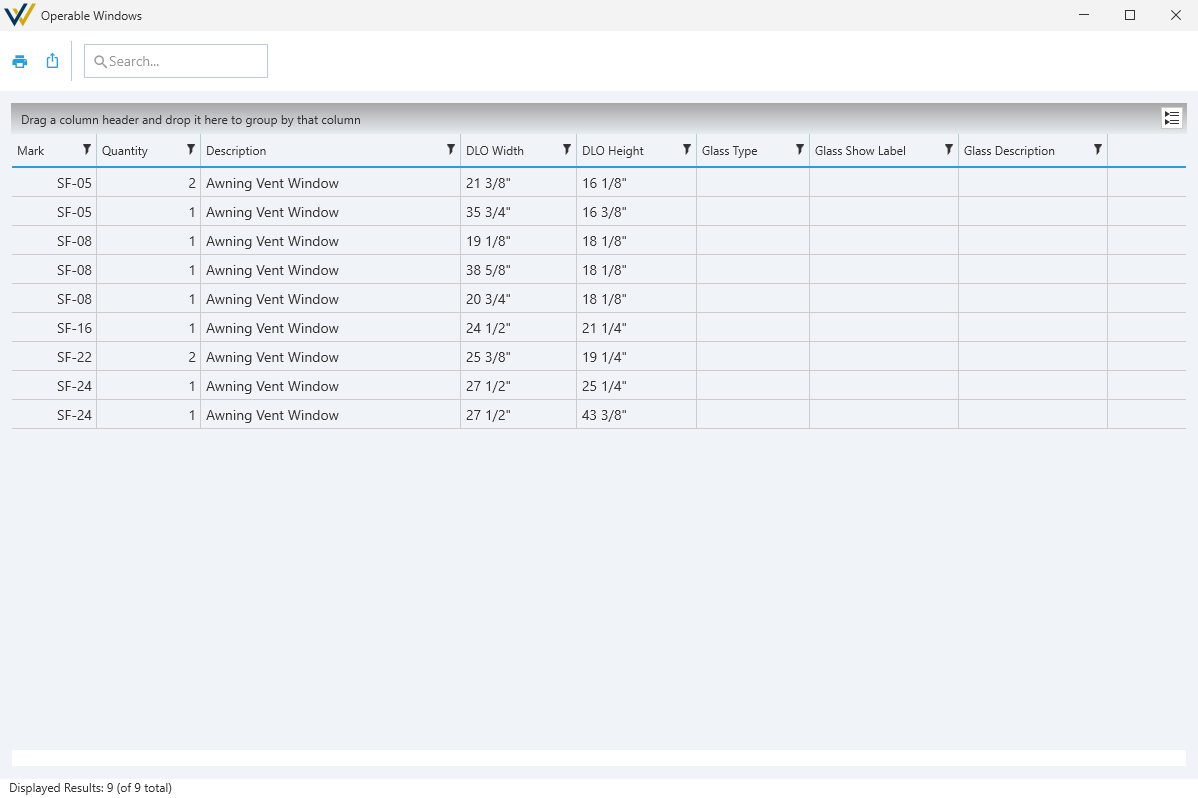
A summary of all Operable Window Templates applied to your elevations.
This is a review-only list. To make changes to it, edit your operable window templates and where they're applied to your elevations.
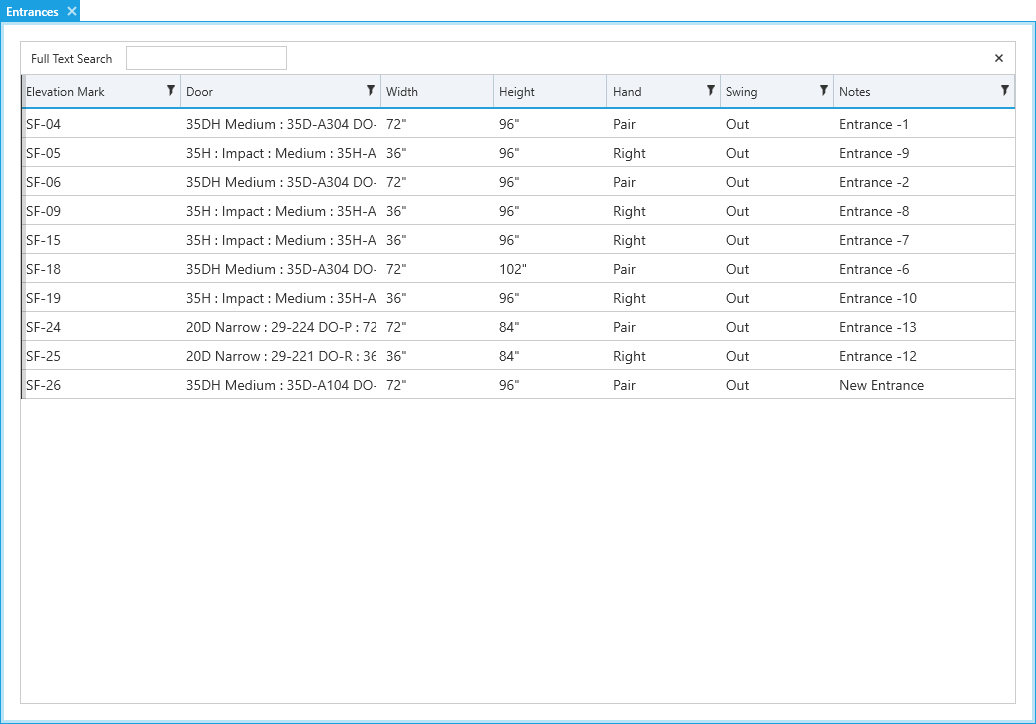
Doors
A summary of all configured entrances applied to your elevations.
This is a review-only list. To make changes to it, edit your configured entrances and where they're applied to your elevations.
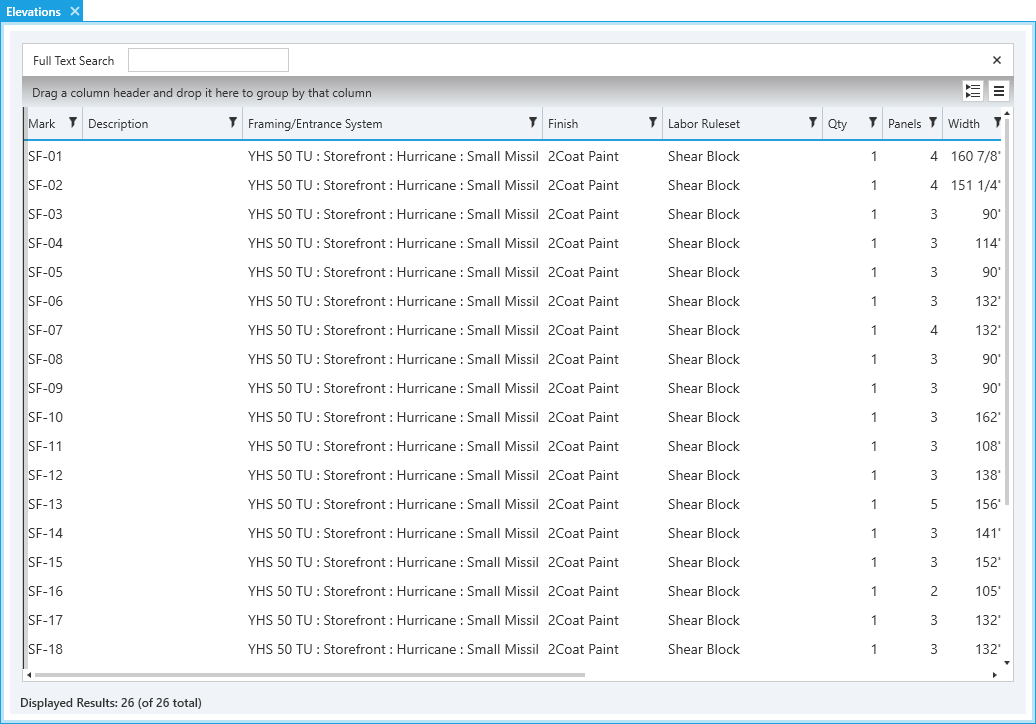
Elevations Overview
An detailed summary of all elevations.
This is a review-only list. To make changes to it, edit your elevations.
Labor Breakdown
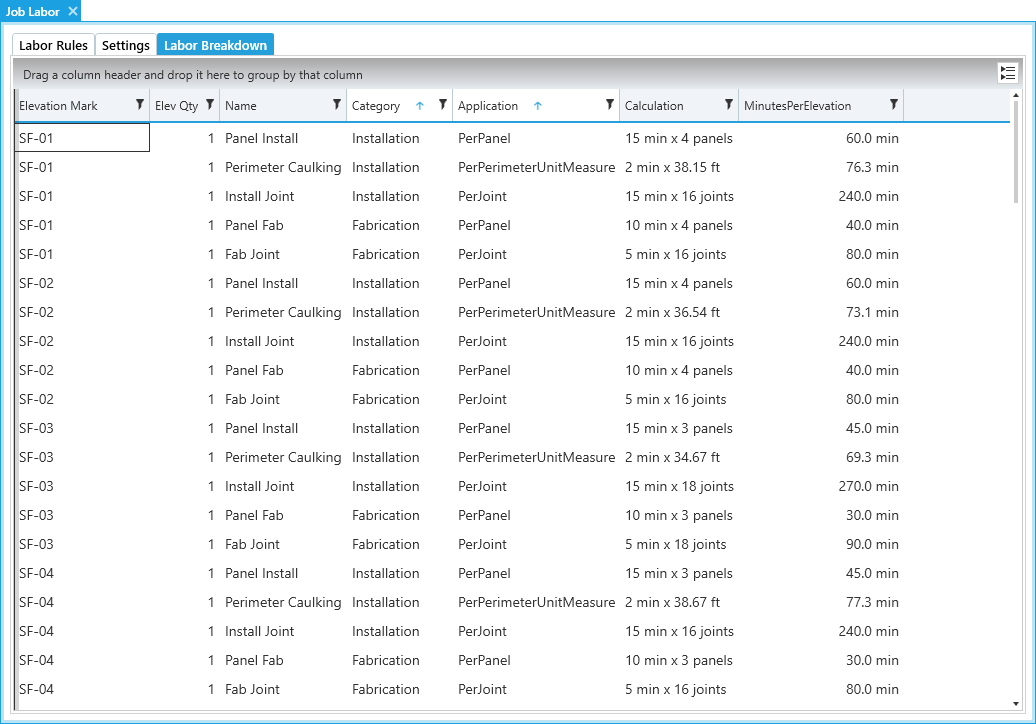
A breakdown of all labor applied to each elevation in the current job, and the calculated totals.
This is a review-only list. To make changes to it, edit your labor ruleset / settings, and where they're applied to your elevations.
- See the Labor page for more details.