Markup Settings
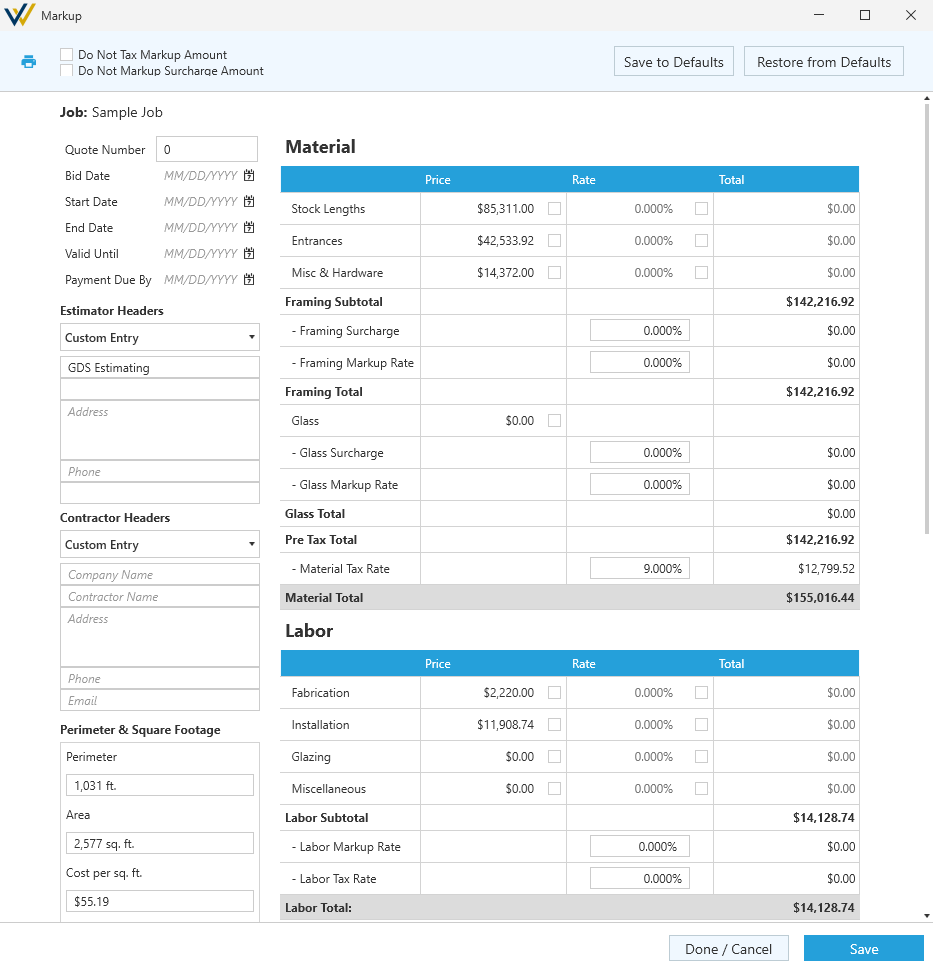
While the other reports are generating your base costs, the Markup window is where you can dial in your rates and estimate.
You can also find a summary of most of your job details, like dates and stakeholder information, and change them all in one spot.
Tool Bar
-

Print- Quick access to the print-ready versions of this list with the following options:-
Print Contractor Report - Includes all details on this page.
-
Print Customer Report - Rolls markup amounts into the estimate without showing details.
-
-
☑
Do Not Tax Markup Amount/ ☑Do Not Markup Surcharge Amount- Toggle including Markup or Surcharge amount in your tax calculation. -
Save to Defaults- Save the Markup options and rates set here as a default for all jobs. -
Restore from Defaults- Restore all options and rates to the default setting for your jobs.
Details
The details section on the left adds some job information to your print outs.
Quote Details
-
Job- Name of the job. You can change this value fromJob>Job Detailsin the main menu. -
Quote Number- The unique number your company will use for this quote. -
Dates- Commonly listed dates you can add to your report.
Estimator Headers
Manually fill in estimator details, or select one from Catalog > Contact List.
Contractor Headers
Manually fill in contractor details, or select one from Catalog > Contact List.
Perimeter & Square Footage
These values are automatically updated based on changes made here and in the elevations.
- ☑
Include in contractor report- Toggle including this breakdown in the contractor report.
Markup and Surcharge Totals
These values are automatically updated based on changes made to your markups and surcharges.
- ☑
Include in contractor report- Toggle including this breakdown in the contractor report.
Pricing
Pricing is split up into Material, Labor and Miscellaneous Charges with each of these has Price, Rate and Total columns.
When ☑ toggles are shown, you can click these to overwrite the value with a manual entry.
-
Price- A base price generated from the parts pricing and counts or overwritten here. -
Rate- A percentage you can add to the base prices.- Tax is a rate added near the end of each section and always visible in reports.
-
Total- A generated amount based on thePriceandRate.
Notes
You can use the Sections Bid, Exclusions, and Notes boxes to include extra details or comments to your report.