Part 3 - Local and Global Edits
The Core Concepts articles use some terms that have a specific meaning in WinBidPro. That definition may not perfectly match how they're used out in the field.
If something is typed like this, we're talking about the WinBidPro definition, specifically.
If you're new to WinBidPro, we highly recommend you read this after reading the other core concept pages.
In WinBidPro, you have access to a set of catalogs and settings that are shared between your company's team members. These are your organization's Global / Team settings and catalogs. A new job uses these as a starting point for the Local / Job versions.
Settings and catalog items on a job are separate from their global versions. This way, your older estimates don't change when you need to reference them, and makes it so one-off adjustments on a tricky job won't effect your other jobs.
Understanding how this works and where to make Global edits versus Local edits is key to using WinBidPro.
Configuration Levels
Global Level - Also known as Team level or Organization level. Systems, parts, and settings for your organization, shared by your team.
-
Global Catalogs can be viewed and edited from
Catalogsin the main menu. -
Global Settings can be viewed and edited from
Settingsin the main menu.
Local Level - Also known as Job level. Systems, parts, and settings in a specific job that can't be used outside of that job.
-
Local versions can be found under
Jobsin the main menu or in the Data Tables section of theJob Explorer. -
There are also buttons throughout the different reports and tool tabs to edit these entries when a job is active.
- For example
Edit Framing Systemin theElevationtool tab.
- For example
Data Tables and Local Copies
When a catalog item is used in a new job, it makes a copy of the global version. When that global version references other catalog items -- like a framing system does with parts -- the job makes a local copy of both the item and anything it references.
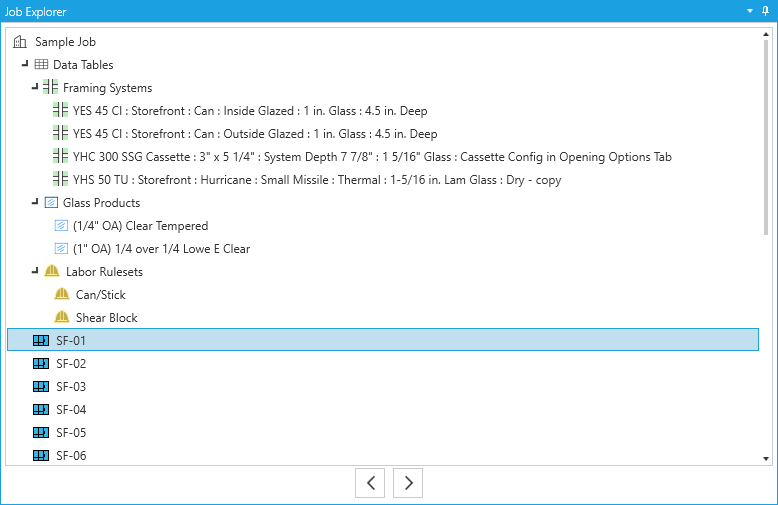
You can find a list of all your local items in a couple of places:
-
For framing systems, glass products, and labor rulesets, you can expand the
Data Tablesline in theJob Explorer- You can also use these tables to tidy up what's in your job by right-clicking a section header and
Purge Unused.
- You can also use these tables to tidy up what's in your job by right-clicking a section header and
-
To review local parts and finishes, you can go to
Job>PartsandJob>Finishesin the main menu.
Saving / Syncing Local to Global
Ideally, you'll want to make edits directly to the Global version if your team needs it on other jobs. But, that's not always easy to predict.
For these situations, there's a button to add these systems to the global catalogs after editing them in a job. These buttons are labelled either Save or Sync
-
Save- Buttons labelledSave to Global Catalog, or something similar, will add a new entry to the catalog.- To avoid adding entries of the same name to your global catalog, make sure to update the descriptions / names before you save to global.
-
Sync- Buttons labelled with the word sync, likeSync Parts, will overwrite the original entry if the names match.- Sync is usually an option for things like parts, where multiple versions of the same parts would cause too many issues. Pay special attention when clicking sync buttons, these have a lot more room to unintentionally effect your Global versions.
Example
The Edit Framing System option of the Elevation tool tab makes changes at the local level, and will not be reflected in the Global catalog unless you save it. Changes that don't get saved will only exist in the job they were created.
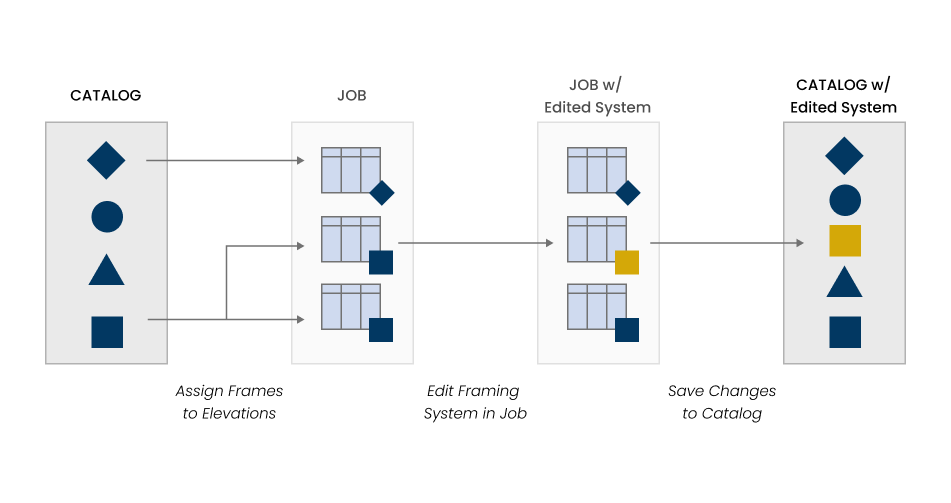
Local Copies of Local Systems
Using the Edit Framing System feature in the Elevation tool tab will also create a separate copy of the local system if the original is used on other elevations.
When you save the edits, you'll get a pop-up to apply the edited system to just this elevation, or to all elevations using the system you started with.
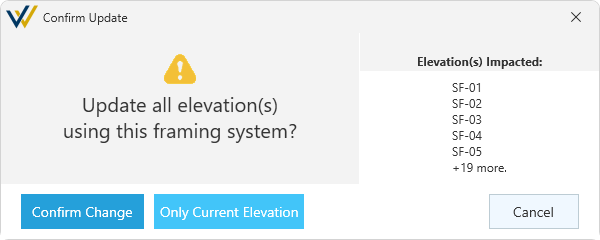
If you miss this pop-up, you can always apply the system in the Job Explorer, by right-clicking an elevation and clicking Change Framing System.
Global Edits
Global edits effect your entire team and every job moving forward. Be careful when making these edits. It may not be obvious to others when something has changed.
Preconfigured Systems
Your global framing system catalogs have a By GDS column for preconfigured systems. If a system has this checkbox active, this system cannot be edited by users.
To make edits to these systems, first make a Copy of the system and give it a descriptive name. The copy will be an editable version of the original.
This feature is only active on systems due to their complexity. Parts or other catalog entries are not protected in this way.
This allows for more control over your individual part but it's important to carefully consider where these changes will apply. When in doubt, create a copy and name it something obvious.
Important Considerations
-
When you make changes to global catalogs, they won't effect any jobs made before the change, only new jobs moving forward. This is by design to avoid invalidating old estimates.
- If you need these changes to apply to an active job, make sure you circle back to add the edited version to that job, and apply it to the relevant elevations.
Best Practices
Before making changes to a configuration, consider how you plan to use the new systems or parts.
-
Think of the global versions like a template. If you plan to use them on more than just one job, it's best to create new entries in the catalog.
-
Think of Local versions as one-off solutions. If you're making changes to adjust for some unique requirement, it's less important that these make it back to the catalog.