Part 1 - Jobs and Elevations
The Core Concepts articles use some terms that have a specific meaning in WinBidPro. That definition may not perfectly match how they're used out in the field.
If something is typed like this, we're talking about the WinBidPro definition, specifically.
Jobs
Jobs are stored in the cloud and shared between users in your organization. They contain:
Elevations- Copies of
Catalogitems like parts and framing systems - Any settings shared by your organization, which are used as defaults for
jobsuntil you change them.
A job will use these to calculate your parts lists, cut list, costs, etc. These calcs are kept up to date as you change things in the job, and get summarized / optimized in the Reports section of in the main menu. The bottom half of the Reports menu (in green), is devoted to print-ready versions of these summaries for ordering and estimates.
A job can also generate shop drawings of the elevations you draw alongside detail drawings for each framing system, if those details are provided. You can find shop drawing options and outputs in the Drawings section of the main menu.
Important Considerations
-
A
jobin WinBidPro is limited to a single vendor to avoid configuration issues like mixing and matching parts between vendors, or similar / shared part names.- If you need separate vendors for different scopes in single project, create a new
jobfor each scope.
- If you need separate vendors for different scopes in single project, create a new
-
Jobscreate local copies of the parts and systems you see inCatalogsas you apply them to elevations.- We go into depth on the difference between
jobcopies, and global versions found in catalogs, in Part 3 - Local and Global Edits.
- We go into depth on the difference between
Elevations
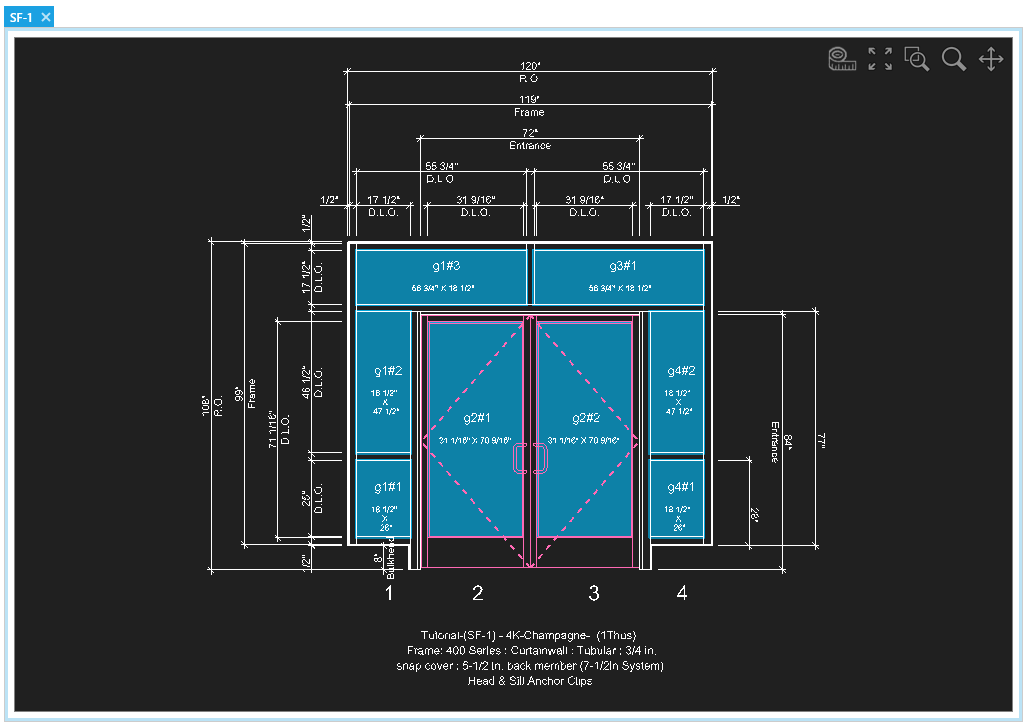
Elevations get added to jobs for each framed opening in your scope.
You are required to assign a framing system to Elevations. Once the elevation has enough basic details to calculate parts, it will automatically add those parts to the reports. The reports will update as you refine the the elevation.
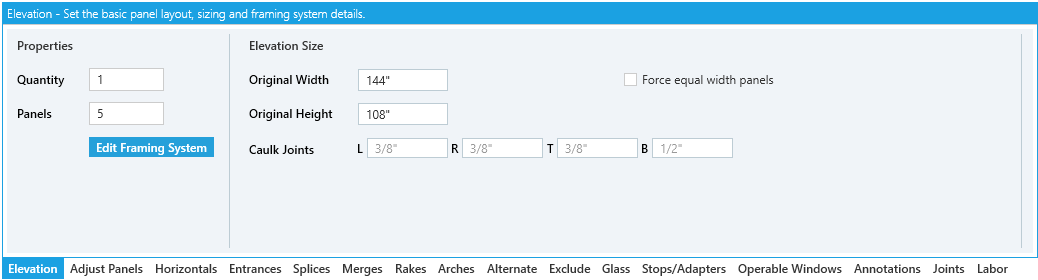
Drawing elevations is how we refer to laying them out. You do this by using the tool tabs at the bottom of WinBidPro to add more rules, settings and conditions until each elevation looks right.
- The Drawing Elevations section goes in depth on
Elevationsand how to draw them in WinBidPro.
Elevations can also have Labor applied to them to calculate labor costs - see Labor for more details.
Important Considerations
-
Elevationsare intended to be a single framed opening. Attempting to do multiple framed openings in a singleElevationwill result in incorrect estimates and should only be done for visual reference.- If a single typical elevation in a drawing set has a structural gap / brake metal between two framed openings, make them two separate
elevationsin WinBidPro.
- If a single typical elevation in a drawing set has a structural gap / brake metal between two framed openings, make them two separate