Main Menu

Job Menu 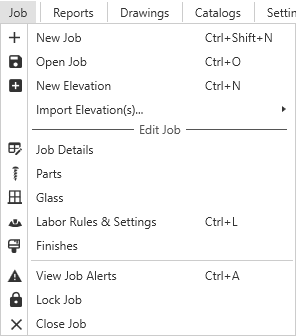
Manage and review your current job, or start / open another one.
New Job- Start a new job.Open Job- Open existing jobs from your team's account.New Elevation- Create a new Elevation in the current job.Import Elevations- Import elevations from other exports and third-party resources.
Edit Job
For more details on how these lists differ from your catalog entries, see Local and Global Edits.
Job Details- Edit job details like Status, Bid Date, Contacts, and job-specific settings.Parts- Manage the list of parts loaded into the current job.Glass- Manage the list of glass products loaded into the current job.Labor Rules & Settings- Manage Labor Rules and Settings for the current job.Finishes- Manage the list of finishes available for the current job.
Manage Job
View Job Alerts- Open the Job Alerts window.Lock Job- Prevent any changes from being made to the current job.Close Job- Close the current job
Reports Menu 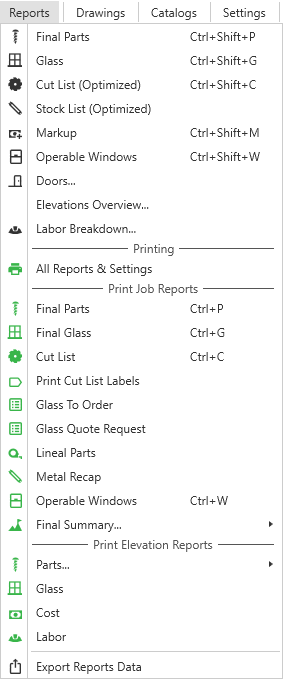
Open summaries, settings, and print-ready deliverables for the current job.
These are split into the following sections:
- Black Icons --
Job Summaries and Settings - Green Icons --
Printed Reports
Export Reports Data allows you to export all information contained in this job.
- See What's In Our Exports for more details.
Drawings Menu 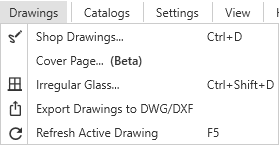
Manage and export drawings on the current job and your team's Cover Page.
Shop Drawings- Configure and generate Shop Drawings for the current job.Cover Page- Configure a Cover Page for shop drawing sets.Irregular Glass- Generate drawings for irregular shaped glass in the current job.Export Drawings to DWG/DXF- Generate and export CAD files of drawings in the current job.Refresh Active Drawing- Force a refresh of all generated drawings.
Catalogs Menu 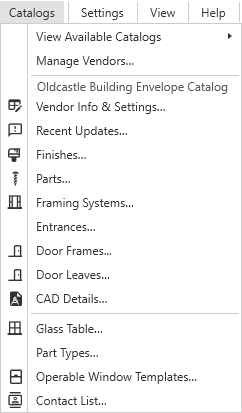
Set up and manage your team's catalogs.
View Available Catalogs- View vendor catalogs tracked by your team.Manage Vendors- Manage vendors from your team's list of catalogs.
Active Catalog
Manage the Parts, Systems, CAD Details, etc. for the catalog selected for your current job.
- See the Catalogs section for more details.
Products & Templates
Products and Templates are independent of vendor catalogs and useable across all jobs.
Glass Table- Manage Glass Products available to your team.Part Types- Manage part types available to your team. These are general categories for parts that WinBidPro looks for to pre-filter lists.Operable Window Templates- Manage Operable Window Templates available to your team.Contact List- Manage your team's contact list. Used for clients, contractors, owners, etc in job details and printed reports.
Settings Menu 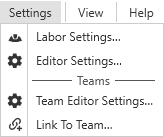
Set up and manage your settings for all jobs.
Labor Settings- Set global and default settings for labor pricing.Editor Settings- Change your default app settings and appearance.
Team Settings
Team Editor Settings- Set team-wide operational settings like blade thickness for cuts.Link To Team- Link between different teams using GDS.
View Menu 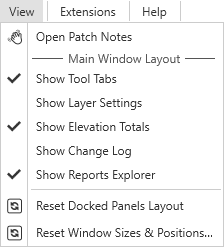
Toggle sidebars and reset your layout to default.
Open Patch Notes- See the latest sets of changes to the app.
Main Window Layout
- ☑
Show Tool Tabs- Toggle the tools tabs interface at the bottom of your screen. - ☑
Show Layer Settings- Toggle the layer settings sidebar. - ☑
Show Elevation Totals- Toggle the Elevation Totals sidebar. - ☑
Show Reports Explorer- Toggle the Reports Explorer sidebar.
Layout Resets
See Setting Up Your Workspace for more details.
Reset Docked Panels Layout- Resets all docked locations to the default layout.Reset Window Sizes & Positions- Resets all window sizes and positions to the default settings.
Help Menu 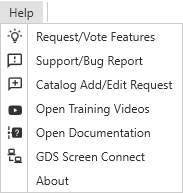
Find documentation, submit issues and requests, and get help from GDS.
Request / Vote Features- Click to open our feature request dashboard.Support / Bug Report- Submit a support request or report an issue.Catalog Add / Edit Request- Submit a request to edit or add systems and parts to our preconfigured vendor catalogs.Open Training Videos- Click to open our training videos.Open Documentation- Click to open our documentation.GDS Screen Connect- A support feature to help us connect to your WinBidPro session when you're having issues.About- Details on which WinBidPro version you're using and links our Privacy Policy and Terms of Service.
Switch Theme
 - Click to switch the theme of the application between light mode and dark mode.
Manage Account
 - Click for quick access to user account options, and to sign out.