Navigation
Lists
-
Scroll- While your mouse is over a list, you can use your mouse wheel to scroll up and down through it. -
Right-click- In some cases like theJob Explorersidebar, you can right-click in the empty space of the window for quick options.
CAD Views
Zoom- Use your scroll wheel to zoom in and out in a CAD view.Pan- Hold right-click and drag to pan around in a CAD view.
View Tools

CAD views have these options in their corners. From left to right, these include:
-
Measure- See Measurement section below for more details. -
Zoom to Fit- Zoom to fit the entire CAD drawing in the view. -
Zoom Window- Click-and-drag a selection box to zoom to a specific area. -
Zoom- Toggles click-and-drag zoom. Left-click your mouse and drag it away from you to zoom in, and towards you to zoom out. -
Pan- Toggles click-and-drag panning for left-click.
Measurement
Most CAD views in WinBidPro give you access to a measurement tool (see View Tools above). If you click on the measurement tool icon, you'll switch to measuring mode. You can hit Esc at any point to leave this mode.
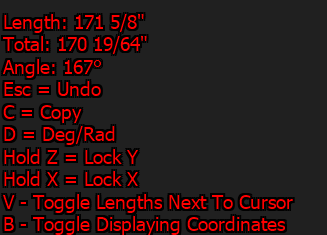
Once your first point is placed, you'll see a + at that point and some live details and options in the bottom left of the CAD window. When you click at least two points, the tool will draw a line between them and the length of that line will be labelled
While the measuring tool is active, point-snapping is also active (see Point-Snap below).
Live Information
Gives you live details of your measurement as the points are placed, or as you move your mouse across the CAD view.
Length- Displays the length between the last point and the current location of your cursor.Total- Displays the total of all measures so far, not including the distance from the last placed point to your cursor.Angle- Displays the angle between the last point and the current location of your cursor.
Options
Esc- Undo the last placed point.C- Copy theTotalto your clipboard so you can paste it elsewhere.D- Change the angle units from degrees to radians.Hold Z- Lock your mouse to horizontal movement only.Hold X- Lock your mouse to vertical movement only.V- ToggleLengthandTotallabels near your cursor.B- Toggle point coordinate labels.
Point Coordinates are measured in inches relative to the origin. The origin will read as X = 0", Y = 0" is the bottom left corner of your elevation.
- The
Xvalue is the horizontal distance from the origin, in inches. - The
Yvalue is the vertical distance from the origin, in inches.
Where bulkheads are applied, the origin is where the left-most part of your frame and the bottom-most part of your frame would intersect.
Point-Snap
Some tools in WinBidPro, like rakes or the measurement tool, will snap to specific points on the elevation by default. These are the ▢ endpoints and △ midpoints of parts in your assemblies.
-
Snap points will show up as green squares and triangles while the tool is active.
-
When you get close to a point, it will switch to yellow.
- If you left-click while they're yellow, the tool with automatically set the first point to that point.
-
You can temporarily disable point-snapping by holding the
CTRLkey while.
Selecting Elements & Panels
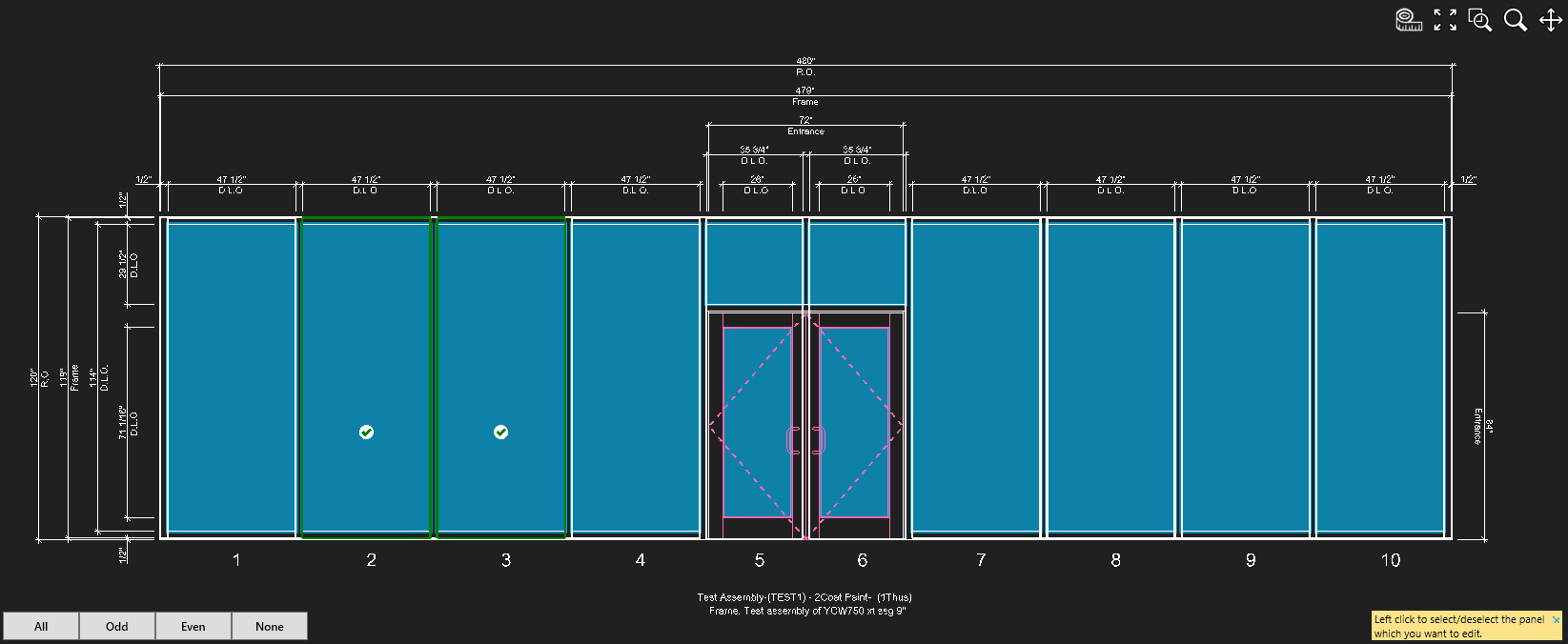
Some options will ask you to select one or more panels or elements. When you click those elements or panels, you’ll see them highlighted in green. For panels, you'll also see green check icon.
In many cases, a set of quick selection tools in the bottom left corner of the previewer.
- In this example, these buttons will select
Allpanels,OddorEvennumbered panels, or deselect all panels withNone.