Sidebars
Job Explorer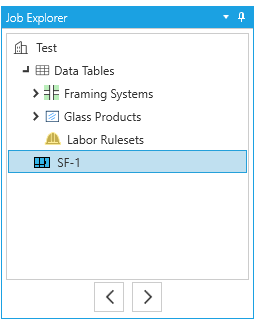
A summary of your current job.
-
Job Explorerincludes:-
All elevations in the job.
-
Data Tables- List of local copies of systems, glass and labor loaded into your job.- See Local and Global Edits to learn how these differ from the catalog versions.
-
-
You can right-click each line in the job explorer for more options.
Reports Explorer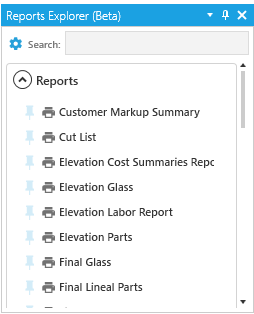
A configurable menu for quick-access to Reports.
-

Settings- OpensAll Reports and Settingswindow. -
Search- Find specific reports in the list. -

Pin- Pin / unpin this report to the top of the list.
Elevation Totals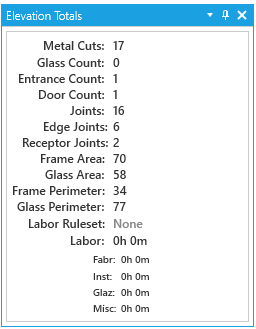
A list of estimate totals for the current elevation that updates as you make changes.
This shows running totals of:
- Counts & Cuts
- Measurements
- Joints
- Labor
Layer Settings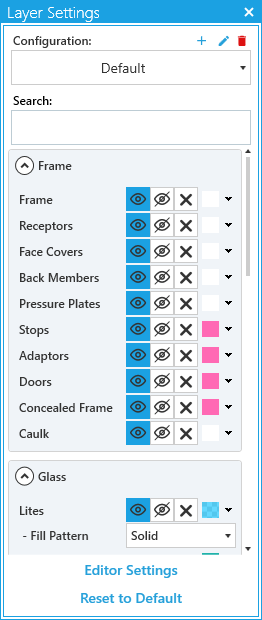
Configure graphic settings for your elevations, broken out into sections like Frame or Glass.
-
Configuration- Use this section to save custom presets and switch between them. -
Search- Find a specific layer setting. -
For most linework you can:
-
Switch between
Visible,Hidden, orExcluded from Export. -
Switch the default layer color by clicking the color swatch next to the toggle options.
-
You can also change the fill pattern for panel elements, like
GlassandOperable Windows.
-
-
Dimensions- Configure visibility and color for all dimensions, and toggle on / off specific types of dimensions.- This is also where you set your dimension styles, scale, format, and orientation.
-
Displayed Text- Change the format of non-dimension annotations and dimension subtext for things like rough openings. -
Selections- Change how things look when selected or hovered over. -
Misc- Change the background color of the elevation view. -
Editor Settings- Open the editor settings menu. Also can be found underSettingsin the main menu. -
Reset to Default- Reset all settings back to WinBidPro defaults.