Cover Page
The Cover Page feature in WinBidPro allows you to add a professional, customizable cover sheet to your shop drawing sets. Cover pages can include project details, logos, and other key information, making your submittal look polished and consistent.
Navigate to the Cover Page Editor by clicking Drawings > Cover Page... in the main menu.
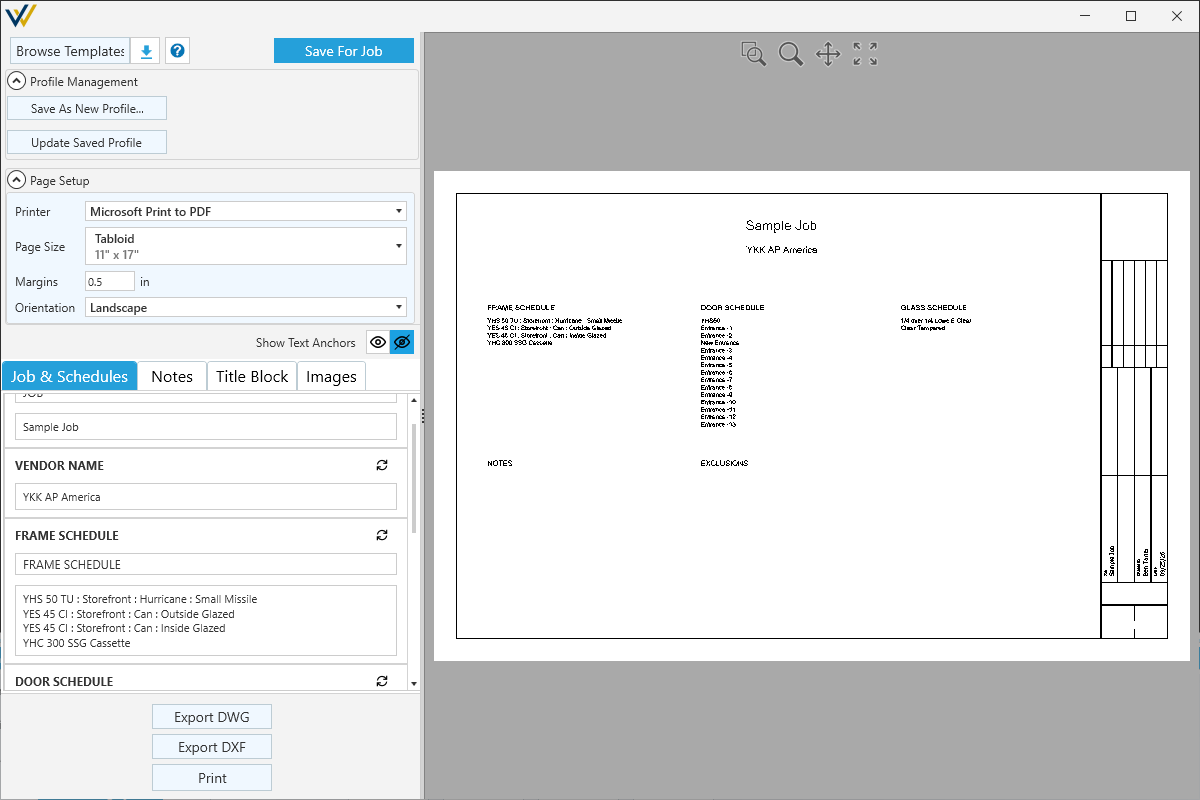
Cover Page Settings
Browse Templates...- Opens a file explorer to select a CAD file to use as a template.
Download Templates- Click to add any missing templates from our server from your local documents.
Open Cover Page DocumentationSave For Job- Saves the current profile state to the job.
Profile Management
Profiles let you save and reuse cover page settings across jobs. Currently they are a part of the users settings as not accessible by other users.
Save As New Profile...- Save the current state minus the job specific data to a new profile.Update Saved Profile- Prompts to confirm that you want to update the profile in question.
Job and Schedules tab information is not saved to cover page profiles. Only Notes, Title Block, and Images are preserved.
Page Setup
Contains printer specific settings saved to the cover page profile.
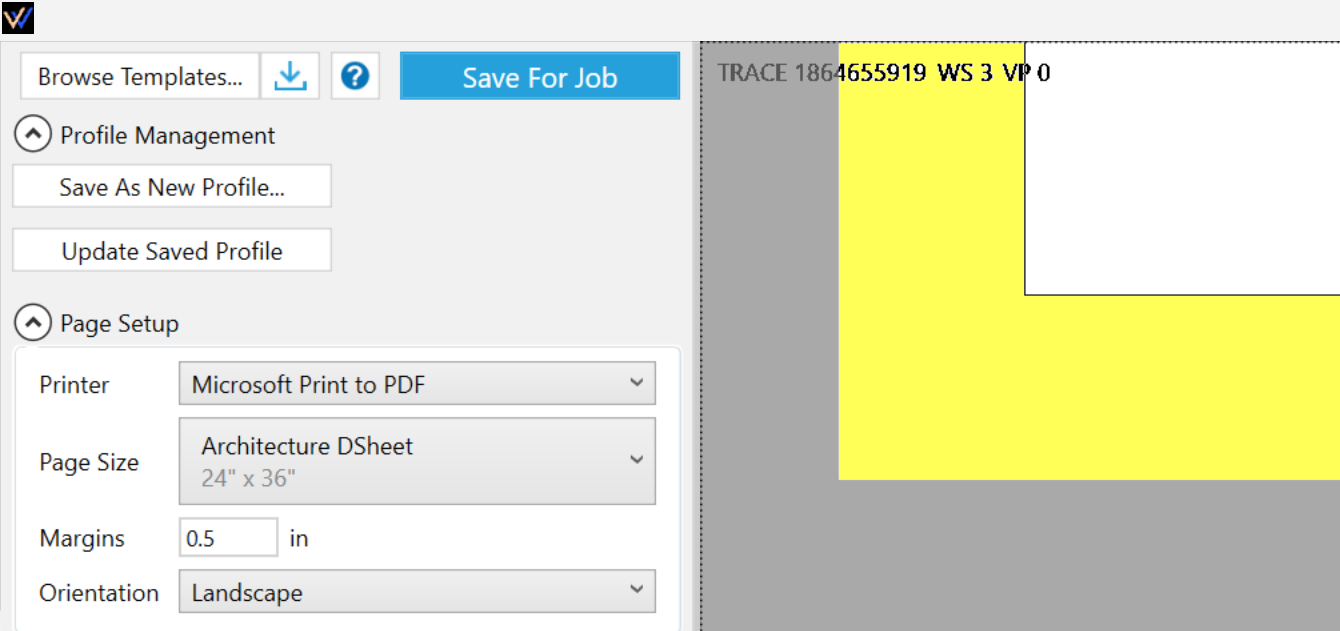
Margins- Push the template entities up and to the right. In this screenshot the margin is highlighted in yellow and the black is the template border. The v16 templates are designed to have a 0.5in margin.
Show Text Anchors- Toggle to view template anchors in pink. These help you preview where Job and Schedules data will go on the block based on where the attributes are placed on the CAD template.

Job & Schedules Tab
These attributes are predefined by your job details, settings and data tables. These are job-specific attributes and do not get saved to your profile.
- You can overwrite any of these by typing in new values.
- You can reset them to the predefined version by clicking the

Resetbutton in the top right.
Notes Tab
These attributes are saved with your profile. These are generic note sections to use how you like.
-
You can overwrite any of these by typing in new values.
-
You can reset them to the predefined version by clicking the
Resetbutton in the top right.
Title Block Tab
These attributes are saved with your profile. Some of these are pregenerated, like Date and Drawn by, others are generic to use how you like.
-
You can overwrite any of these by typing in new values.
-
You can reset them to the predefined version by clicking the
Resetbutton in the top right.
Images Tab
- Image dropdowns are populated from job contacts (Contractor, Developer, Architect) and the Images folder (
Documents/WinBidPro/16/Images/). - Add custom images via the Browse button.
- Supported formats: JPG, JPEG, PNG (max 400KB)
Images that don't match the ratio of IMAGE_PLACEHOLDER get stretched or shrunk to fit. Make sure you set the height to width ratio of your image before you add it to avoid this.
Export Options
Export DWG/Export DXF- Export the cover page in a CAD-friendly format.Print- Print using the page setup options above.
Customization
For details on using a fully custom Cover Page and Title Block in WinBidPro, see Building CAD Templates.