Building CAD Templates
This is an advanced topic for creating your own title block and cover page templates, and setting them up so they can be updated in WinBidPro using attributes.
We recommend trying the GDS provided versions first if you're not familiar with CAD programs. See Title Blocks and Cover Pages
Following this guide requires access to a third party CAD program. This guide uses AutoCAD LT but these options should be available in some form in most CAD applications. Check the documentation for your preferred program.
To create custom CAD templates, you need to know a little about using a CAD program. Thankfully, most templates can be built using simple lines, text, and Attribute Definitions (or just Attributes).
If you're not familiar with CAD but want a truly professional and unique Title Block, consider hiring a company or individual to build a professional CAD logo and/or Title Block for you to use in WinBidPro.
Alternatively, you can search for free Title Blocks online and adjust them using the details below.
If you have CAD drawings from previous jobs that were done by a third-party, you should check that there aren't legal restrictions preventing you from reusing the title block before adjusting it for use in WinBidPro.
We highly recommend using our templates as a baseline for any templates you build.
Most attributes within them have specific naming set ups that WinBidPro is looking for when it dynamically adds job details.
Template Types
-
Title Blocks - These are assigned from the
Drawings>Shop Drawingsmenu in WinBidPro. Title blocks give every page in your shop drawings a professional looking border with job details, dates, logos, etc.- Title blocks should contain anything you want to include on every drawing, like your company logo, the current date, and notes.
-
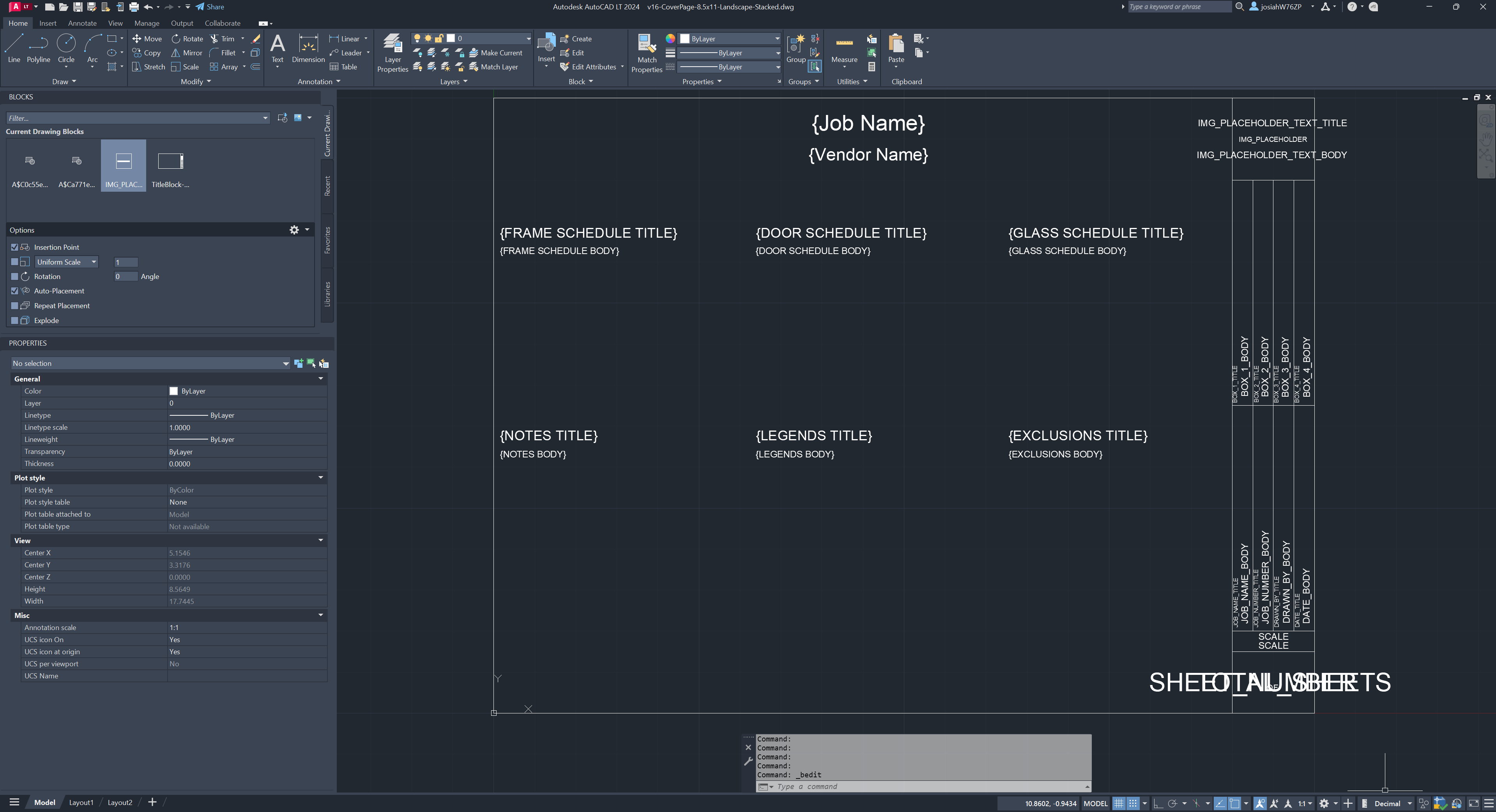
Cover Pages - This is the optional front page of your drawing set. You can assign and configure this from the
Drawings>Cover Pagemenu.- Cover pages will let you fill the main space of the page with information rather than drawings. This can be useful for lists, summaries, or other content that you should only show up once per set.
Considerations
-
These templates are built for specific page sizes and orientations (landscape / portrait). You'll need a different template for each page type you plan to use.
-
Templates are inserted at the bottom left corner of the page, just inside the margins. See Margins and Padding below.
-
You must Save your templates as DXF 2013, DWG 2013, or lower. Later versions of these file formats may not be supported.
-
Not all features in modern CAD programs are supported. In particular, WinBidPro does not support multiline attributes that allow dynamically inserted text to flow onto another line when it runs out of space.
The bottom left corner of your templates should start at the coordinate (0,0) in CAD to start just inside the margins on the bottom left of the page.
Margins & Padding
Margin and Padding values are in decimal inches. For example: 0.5 = 1/2".
-
Margins- Title blocks will be placed in the bottom left corner of the page, just inside the margin. -
Padding- Padding helps you adjust the placement of the your drawings within the title block.
See this image for reference on how each of these works. Padding is in blue, margins are in yellow.
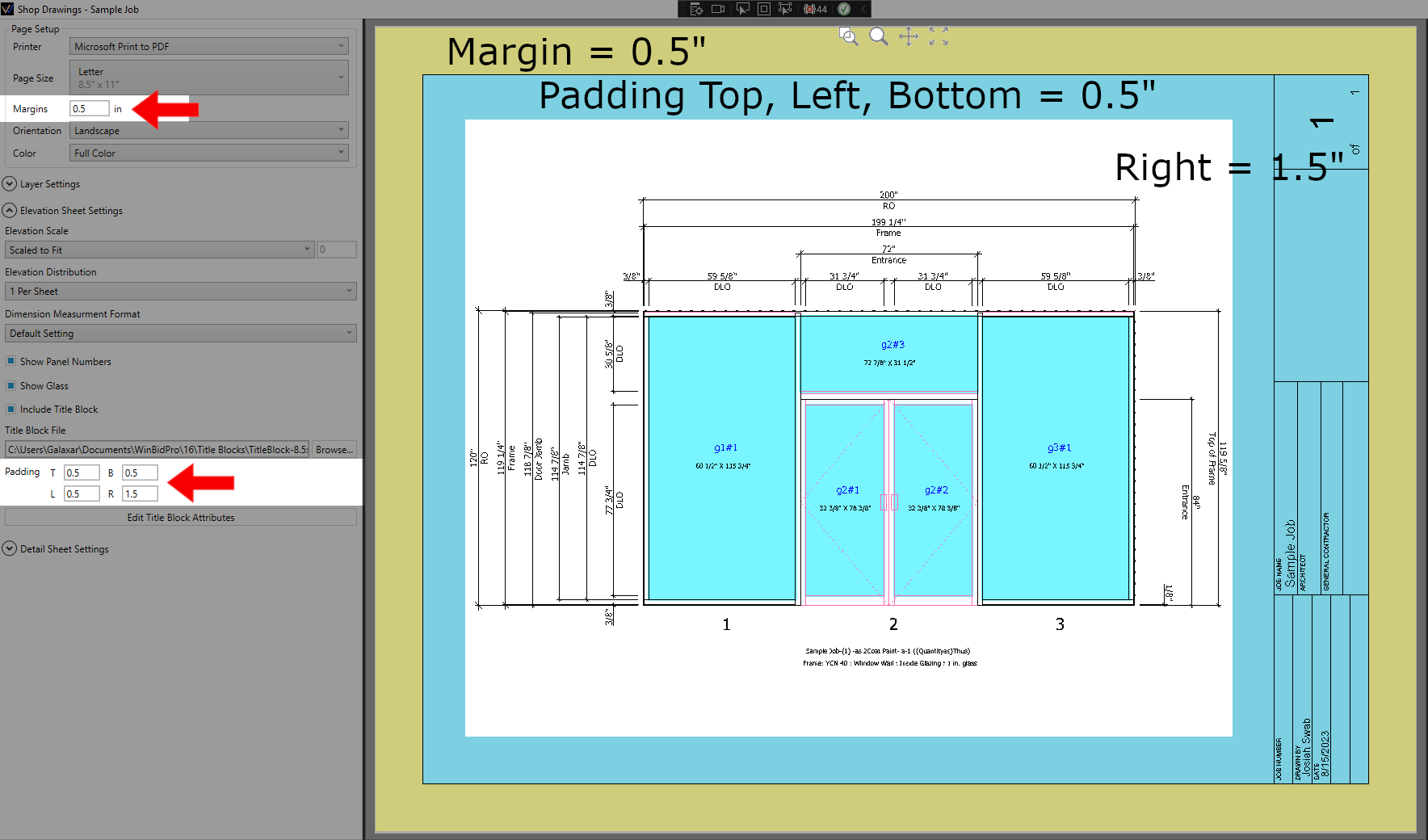
Make the template the size of the page minus the margins of the page. For an 8.5" x 11" page in landscape orientation with 1/2" margins, your title block should be 10 units wide and 7.5 units tall. This allows 1/2" margin on each side.
Entities
There are four entity types we use for dynamic content in our program.
These entities use anchors/tags when something is placeholder. Those then get turned into editable text when these are used in other CAD files.
| Type | AutoCAD Shortcut | |
|---|---|---|
| Text | TEXT | Used for Titles and static text. |
| Multiline Text | MTEXT | Used for Notes, Schedules and Titles. |
| Attribute | ATTDEF | Used in the Title Block. |
| Block Reference | 'create new block to reference' | Block reference names appear in the Images tab like IMG_PLACEHOLDER |
Setting References for WinBidPro
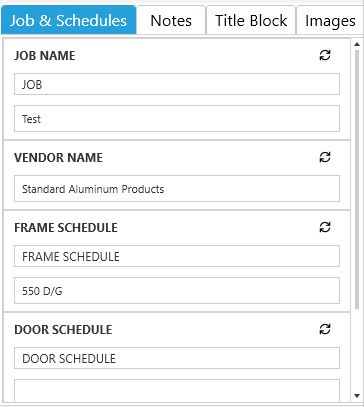
WinBidPro uses anchors/tags to dynamically replace their content with details from your job by using specific names. For example JOB NAME or VENDOR NAME in the image below.
You can find these names in the bottom-left corner of Drawings > Cover Page when a cover page template is loaded, or Drawings > Shop Drawings when a title block template is loaded.
-
Text and Multiline Text - Placing any text between curly braces
{ }will make it discoverable by WinBidPro as an anchor.- Anchors without a corresponding value in WinBidPro will appear in the
Notestab.
- Anchors without a corresponding value in WinBidPro will appear in the
-
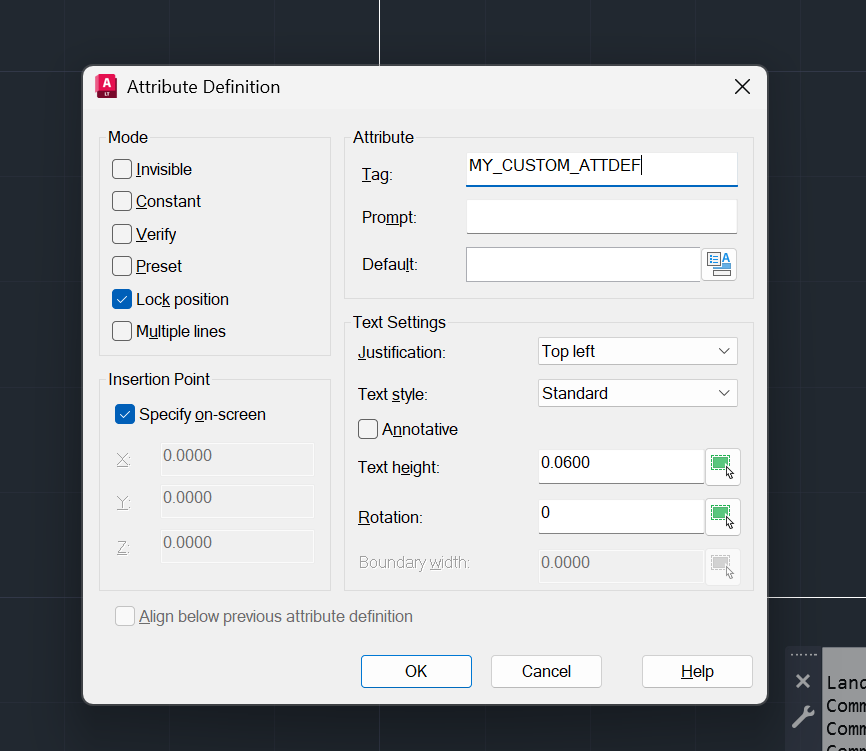
Attributes - Create a new attribute, then set the values below. Once you're done, click OK and you'll be asked to place the attribute in the drawing.
-
Tag- Works like a text anchor but attribute tags cannot have spaces. Where there's a space in WinBidPro's attribute, use underscores in the tag (e.gJOB_NAME_TITLEJOB_NAME_BODY). -
Justification- Must be set to Top Left, Middle or Bottom. Top Left is preferred. -
Set the other values how you like.
-
Title and Body Pairing
If two anchors share a name but end with TITLE and BODY, WinBidPro pairs them together like this:

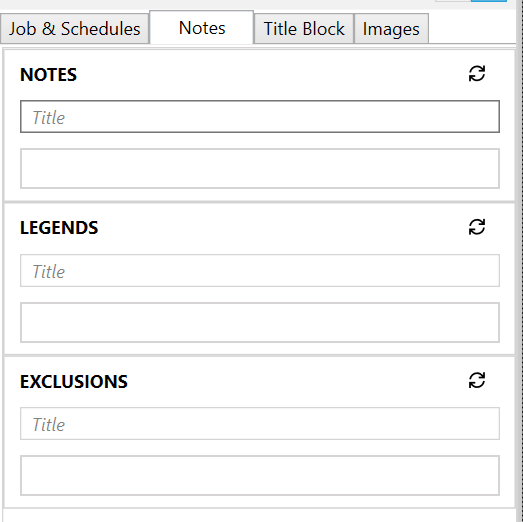
Custom Image Blocks
AutoCAD LT does not have the ability to embed images fully into the dwg file.
Instead you'll need to create a block reference. In WinBidPro, when an image is uploaded, the block is replaced by the image.
-
Create a block with a name like IMG_PLACEHOLDER_WHAT_YOU_WANT.
- The key here is that the program is looking for the IMG_PLACEHOLDER part of the block name, so don't exclude that.
-
Next create a rectangle to match the image height and ratio.
-
Add text with the block name at the center of the block.
- This is here for us to see where the Image Anchors exist when
Show Text Anchorsis toggled on.
- This is here for us to see where the Image Anchors exist when
-
Place the block reference in the drawing space. Do not rotate the block.
-
Save and close.
-
Load the file in WinBidProV16
VISUAL GUIDE: IMAGE_PLACEHOLDER
In Detail
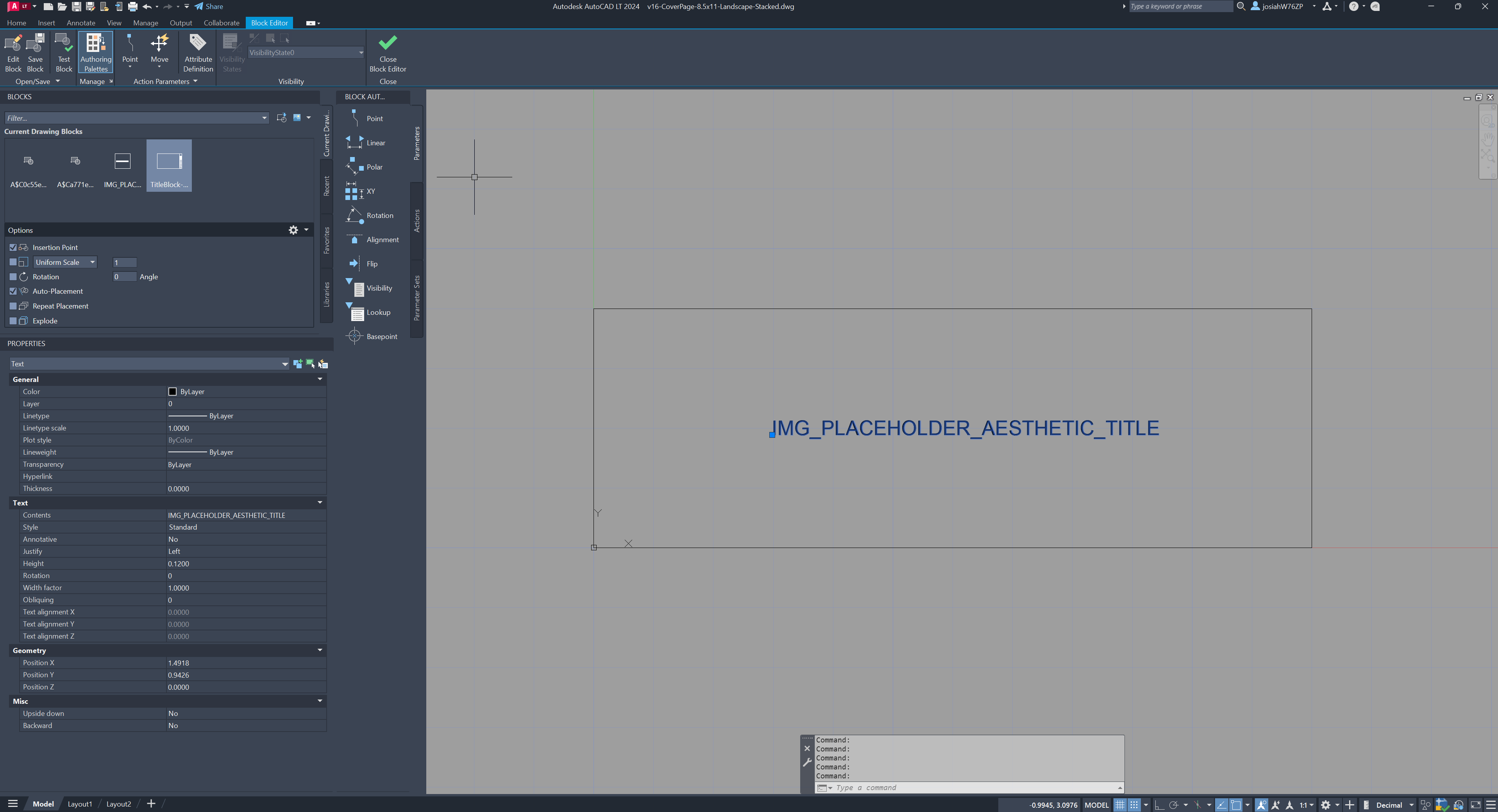
- Create a new block the name must start with IMG_PLACEHOLDER to be found by WinBidPro and must be uniquely named.
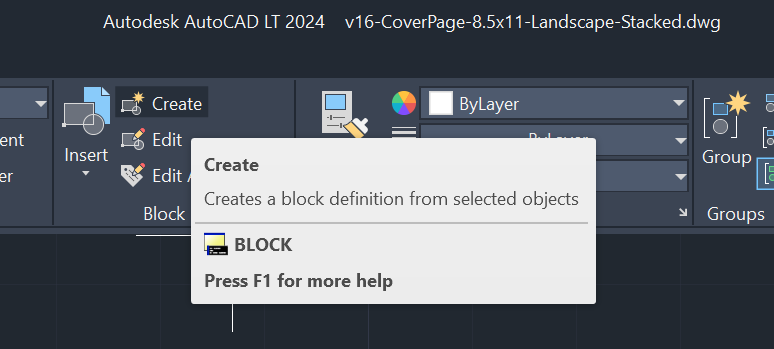
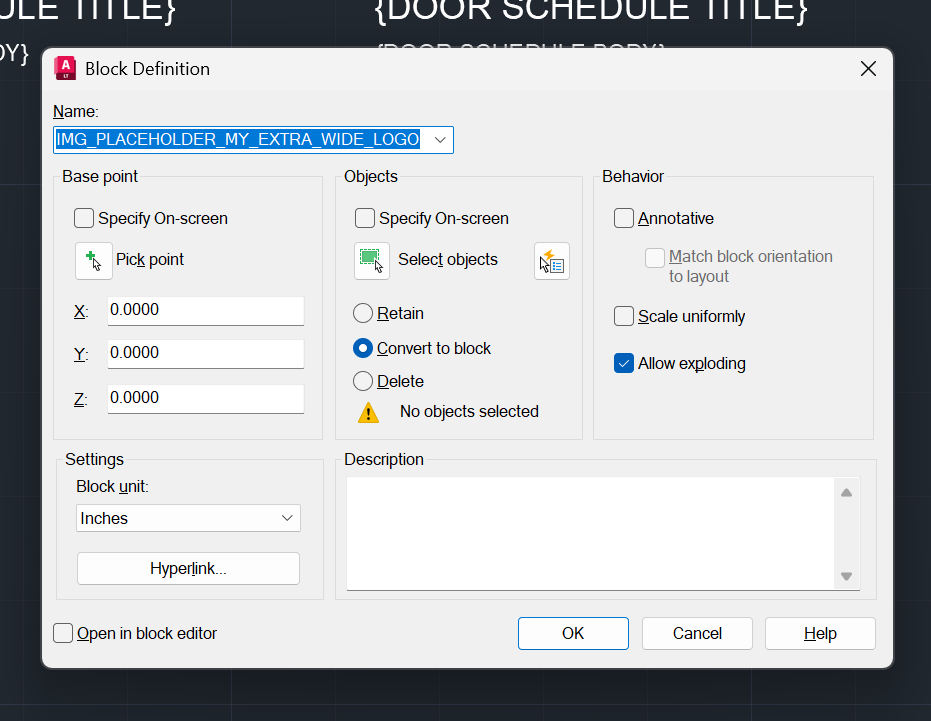
- I do not select any entities instead clicking
Continuethen edit the freshly created block.
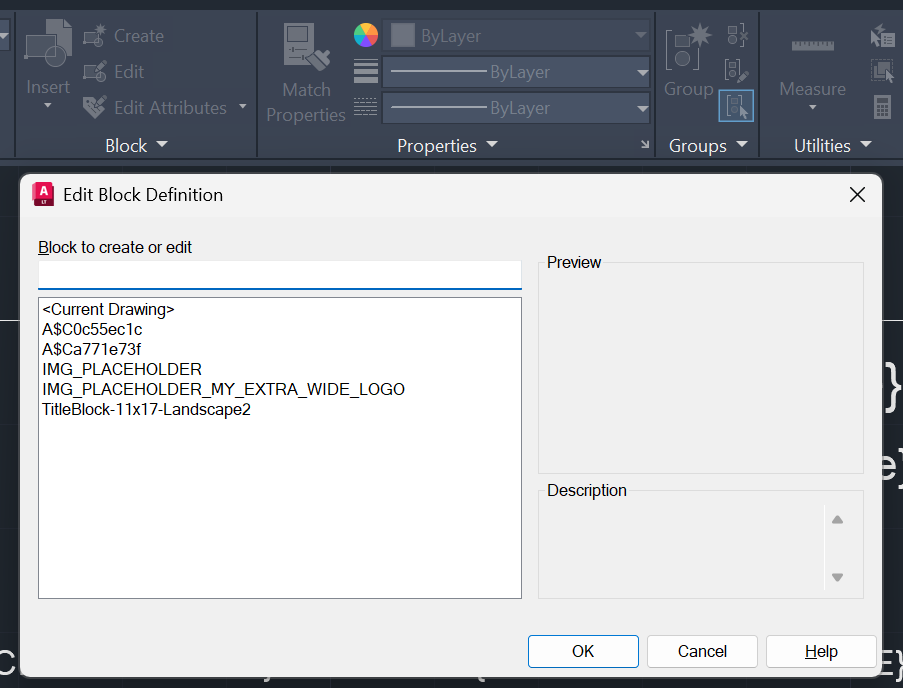
- Here I add a rectangle and some text to identify the block. The Image size will be the bounding box the block creates.
- If not there already you can now insert a block reference
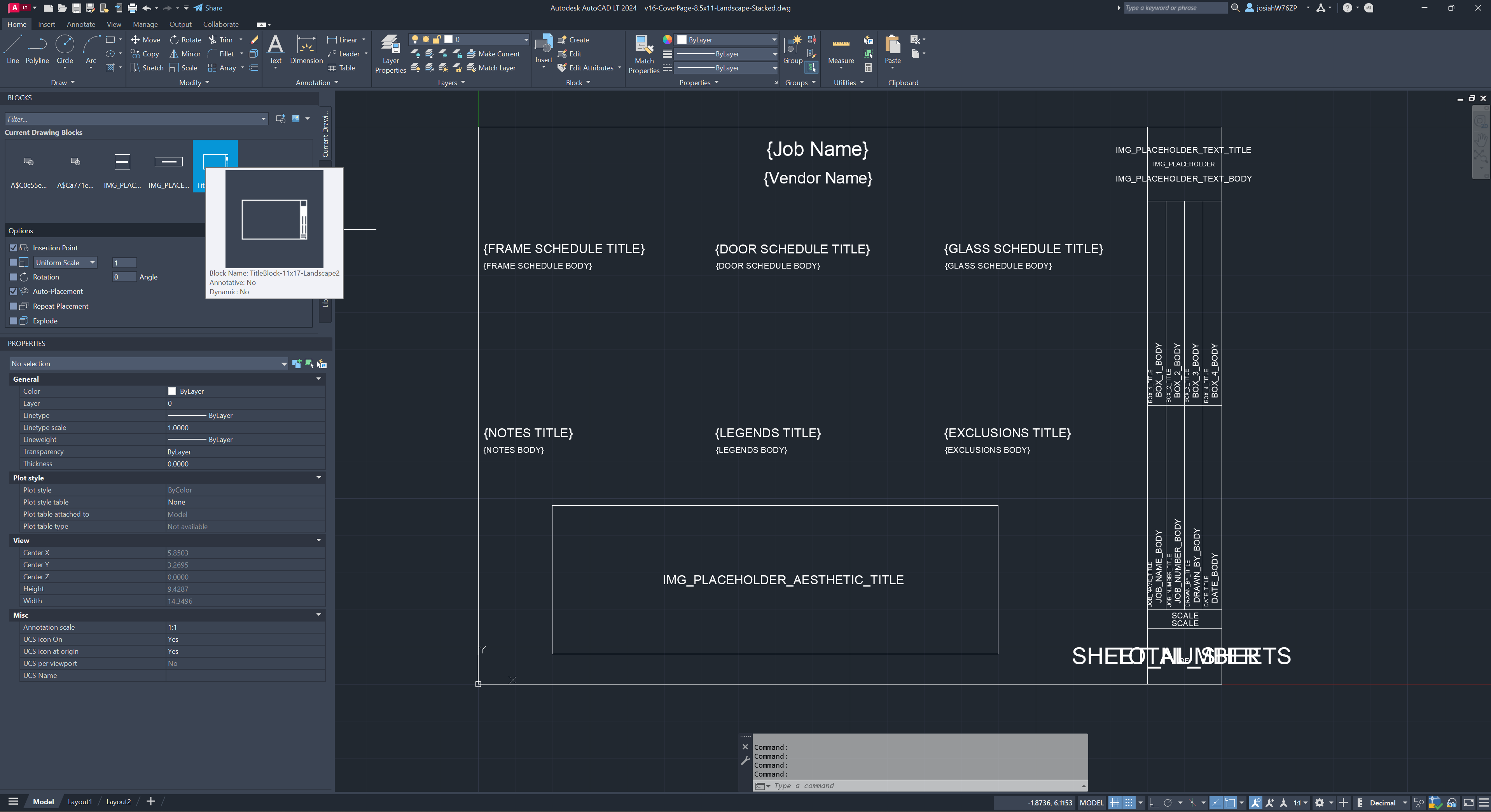
DO NOT USE ROTATE ON IMG BLOCKS IN THE MODEL
Rotating an image in CAD doesn't get translated cleanly within a block reference. If you want an image rotated, it's better to save a copy of the image and rotate it in MS Paint or another image editing program instead of relying on CAD's rotation.