Shop Drawings
The shop drawings output of WinBidPro takes your elevations and the details their framing systems, and generates a drawing set.
You can then print these, or export to CAD-friendly file types.
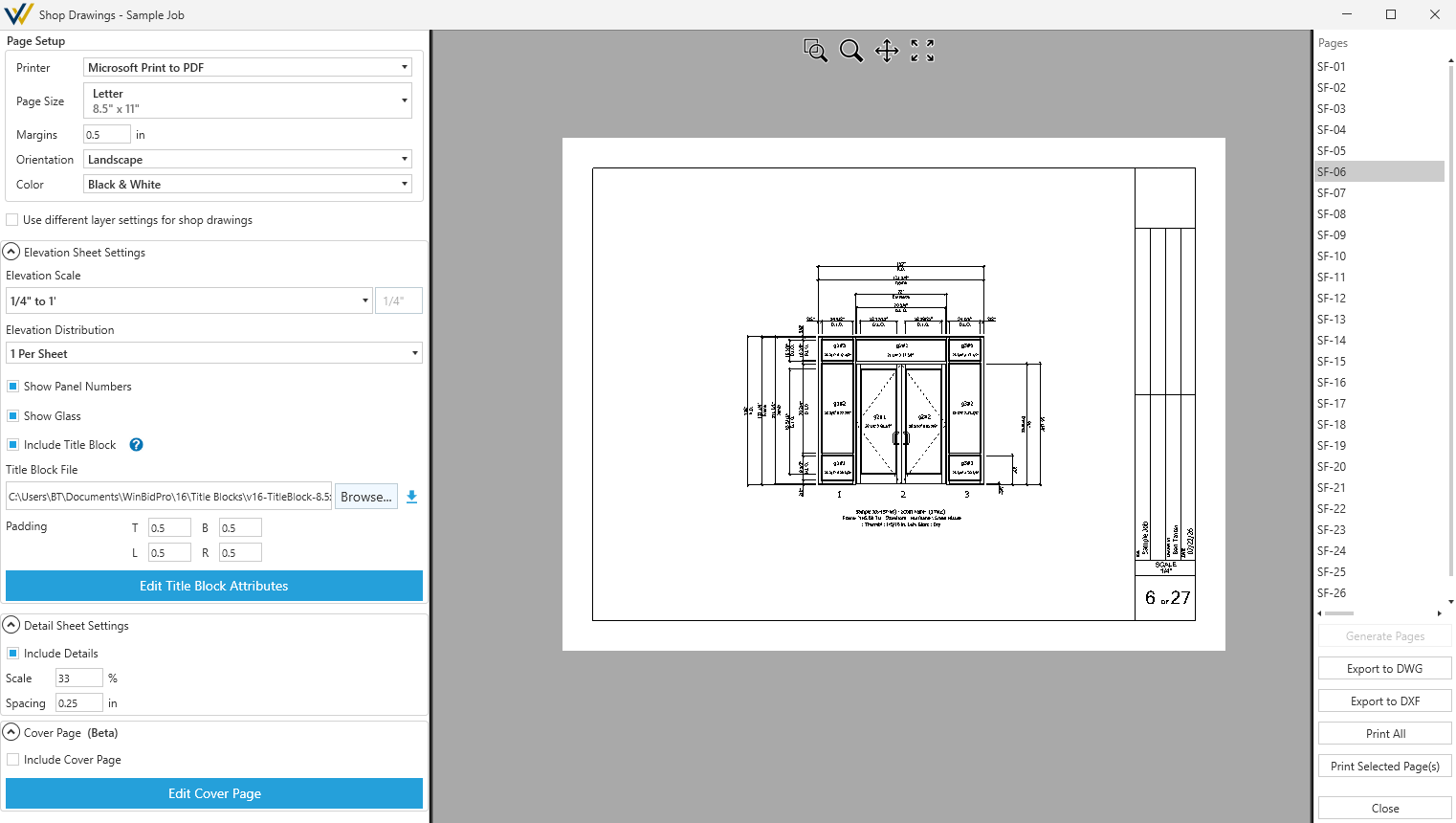
Page Setup
Use this section to set print options when using the Print All or Print Selected Page(s) options.
When using a title block, you'll want to make sure the it's meant for your Page Size and Orientation to avoid too much white space or cropped out information.
Title blocks provided by WinBidPro are named based on their size and orientation. For example:
- '16-TitleBlock-8.5x11-Landscape.dwg` is a v16 title block meant for a letter-sized print (8 1/2" x 11") in landscape orientation.
-
☑
Use different layer settings for shop drawings- Change which layer settings configuration to use for your shop drawings.- See the Layer Settings guide for more details.
Elevation Sheet Settings
-
Elevation Scale- Set the scale of your elevations. -
Elevation Distribution- Select how many elevations should show per sheet. Options include:-
1 Per Sheet- Forces only one elevation per sheet, regardless of size and spacing. -
Multiple Per Sheet- Will add multiple elevations onto the same sheet when there is enough space.Elevation Spacing- Amount of white space to put between your elevations, measured in inches.
-
-
☑
Show Panel Numbers- Toggles WinBidPro panel numbers. -
☑
Show Glass- Toggles hatch patterns for glass material. -
☑
Include Title Block- Toggles the title block on all sheets. -
Title Block File- Sets the title block to use with your shop drawings. -
Padding- The spacing around the elevations measured in inches. Use this to change where the elevations sit to adjust to different title blocks.-
T- Top - padding in inches above the elevation. -
B- Bottom - padding in inches below the elevation. -
L- Left - padding in inches left of the elevation. -
R- Right - padding in inches right of the elevation.
-
-
Edit Title Block Attributes- Opens the Title Block attributes window.- See the Title Blocks page for more details.
Detail Sheet Settings
-
☑
Include Details- Toggle adding detail drawings to your set. -
Scale- Set the scale of details. -
Spacing- Set the spacing between details on your sheets, measured in inches.
Cover Page
-
☑
Include Cover Page- Toggle generating a cover page for your set. -
Edit Cover Page- Opens the Cover Page configuration window.- See the Cover Page page for more details.
Output
Generate Pages- Click this button to generate a preview of the set.
Making changes to any will require clicking Generate Pages to update the set.
It's best to set all your options before you click this button to avoid having to regenerate.
-
Export to DWG / Export to DXF- After your pages are generated, click to export them to CAD-friendly files .DWG and .DXF. -
Print All/Print Selected Page(s)- After your pages are generated, click send them to your printer or print to .PDF based on your settings in thePage Setup(see above). -
Close- Click to exit this window.