Title Blocks
WinBidPro includes pre-made title blocks that can be used in your shop drawings. We also include a number of options to easily customize these title blocks within WinBidPro.
Downloading Templates
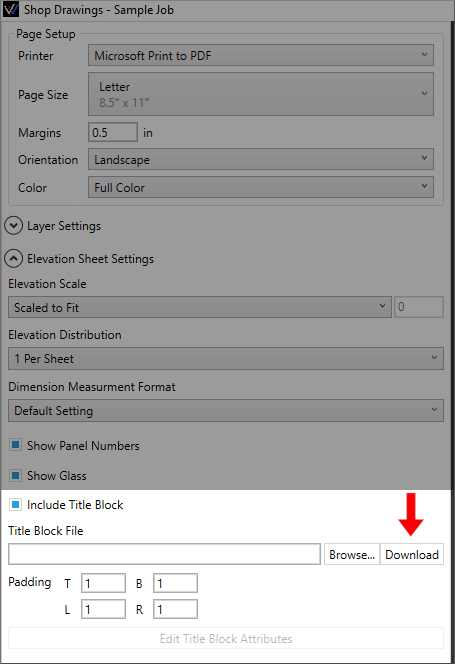
Clicking the download button will add default title blocks to: Documents\WinBidPro\16\Title Blocks on your computer.
Adding a Title Block
Click the Browse... button and select a Title Block DWG. Select a template that matches the page size and orientation for your Shop Drawings.
By default, this button will open the folder with the GDS pre-made templates mentioned above.
You can also load your own custom title block. However, if the CAD attributes aren't set correctly, you won't be able to update them from the WinBidPro interface. See Building CAD Templates for more details.
Margins & Padding
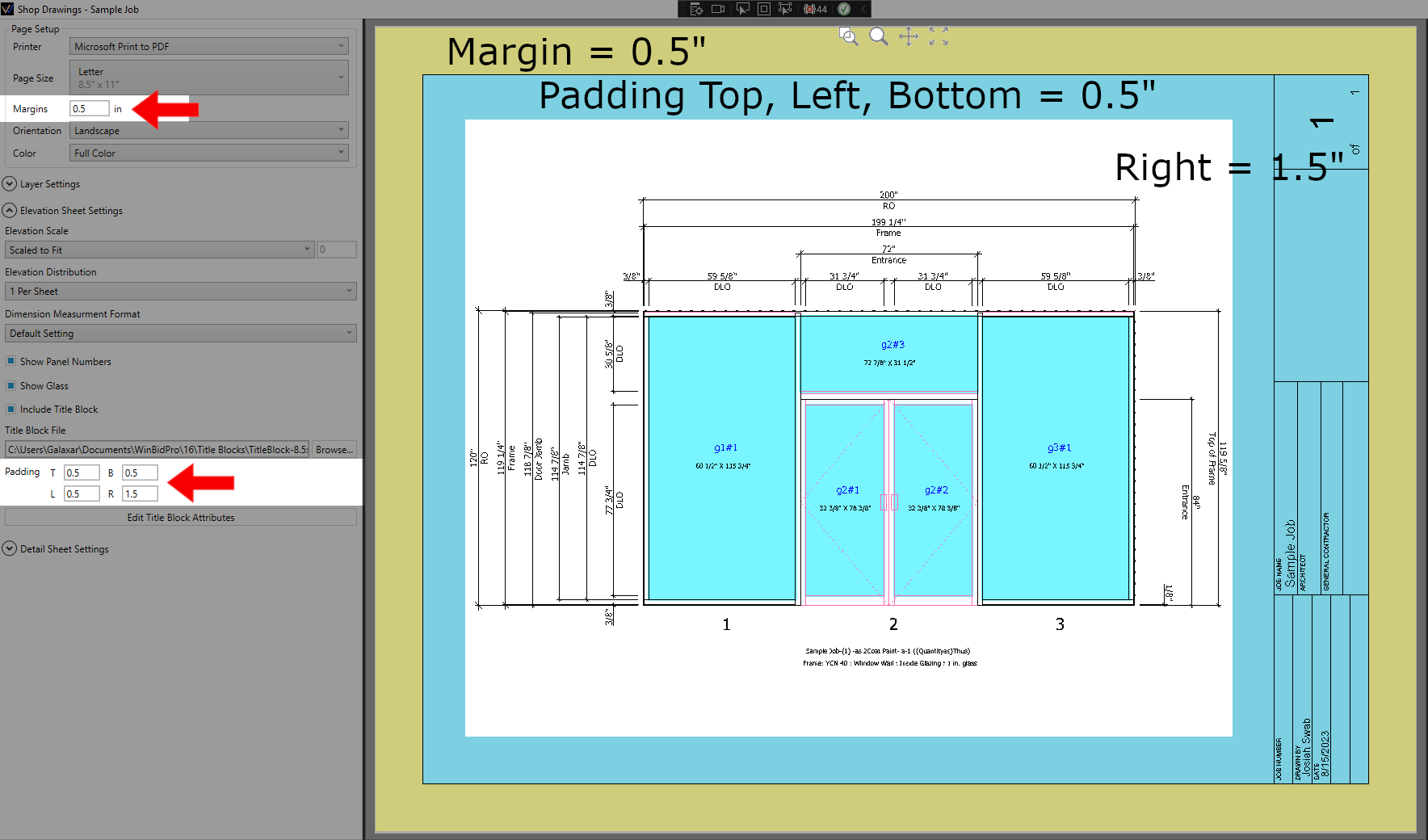
Margin and Padding values are in decimal inches. For example: 0.5 = 1/2".
-
Margins- Title blocks will be placed in the bottom left corner of the page, just inside the margin. -
Padding- Padding helps you adjust the placement of the your drawings within the title block.
See this image for reference on how each of these works. Padding is in blue, margins are in yellow.
Title Block Content
Attributes are text objects that get replaced whenever your title block is inserted into a drawing -- For instance, an attribute called ARCHITECT is where the name of the architect is placed when WinBidPro generates a shop drawing.
The WinBidPro templates provided by GDS have these attributes set so you can update the text within the app.
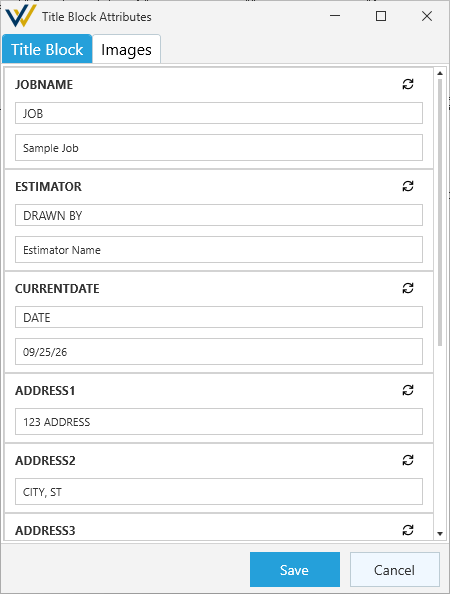
To do so, click Edit Title Block Attributes to edit attributes found on the Title Block DWG. The bold text on the Title Block tab is the attribute being changed and defines which text area is being updated. The two lines below it can be set however you like, but by default these lines are pre-filled based on job details set in WinBidPro.
The Images tab also lets you add your own logo or other images to the title block.
If you need to reset any changes made here, you can click the 
Reset button in the top right. This will revert any changes made since the last save.
Once you're ready, click Save to confirm. Afterwards, you'll need to regenerate to update your drawings.

Customization
For details on using a fully custom Cover Page and Title Block in WinBidPro, see Building CAD Templates.